See your usage and choose, change or cancel your plan when your business installed Merrows AI Support from the Shopify App Store. Shopify bills these plans, so the plan is chosen and paid in Shopify.
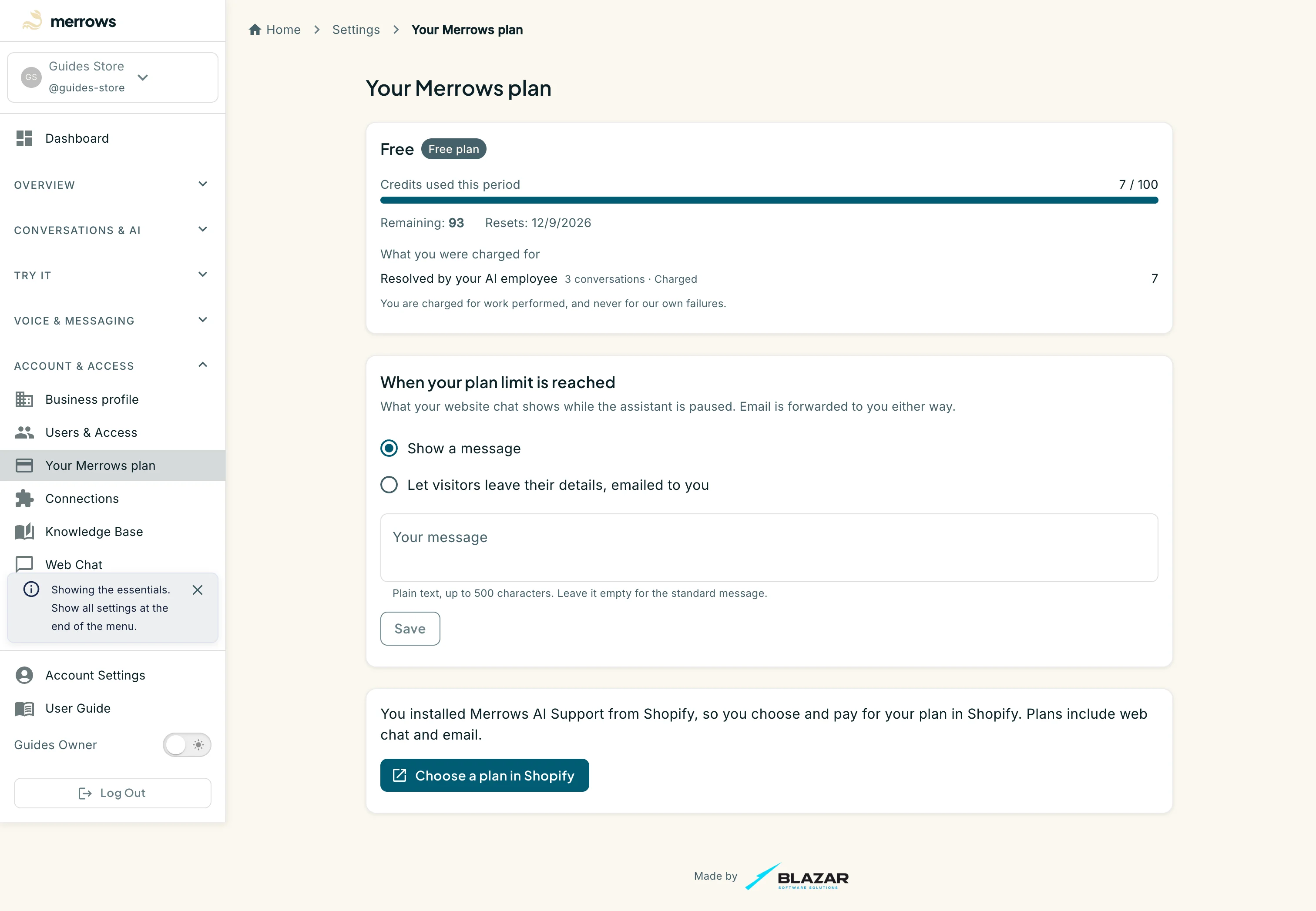
Action: Open Your Merrows plan under Account & Access, or go to https://portal.merrows.ai/settings/billing.
What you should see: The usage card shows your plan, the credits used and remaining, the date they reset and what you were charged for. “When your plan limit is reached” sets what your website chat shows while the assistant is paused: a message you write, or a short form whose details are emailed to you. Below it the page reads “You installed Merrows AI Support from Shopify, so you choose and pay for your plan in Shopify. Plans include web chat and email.” with a Choose a plan in Shopify button. The Choose a plan cards, the Promotion code field, the Monthly or Annual switch and the add-on boxes that other businesses see are absent here.
Screenshot not available (the button opens Shopify’s own plan page, and a documentation store never approves a charge)
Action: Click Choose a plan in Shopify.
What you should see: Shopify’s plan page for Merrows AI Support opens in your Shopify admin. Pick a plan and approve the charge there. Shopify adds it to your Shopify bill, so no card is entered in the portal.
Screenshot not available (the documentation store has no paid Shopify plan)
Action: Return to Your Merrows plan after choosing.
What you should see: A banner says “Your Shopify plan is active.” The page now reads “Your plan is billed through Shopify. Change or cancel it in Shopify.” and the button becomes Change plan in Shopify. During a trial a note explains that web chat and email pause when the plan’s credits are used up, and that extra credits are billed through Shopify once the trial ends.

