Choose or change the plan your business runs on, add the phone and text channels, buy extra credits, and reach the billing portal.
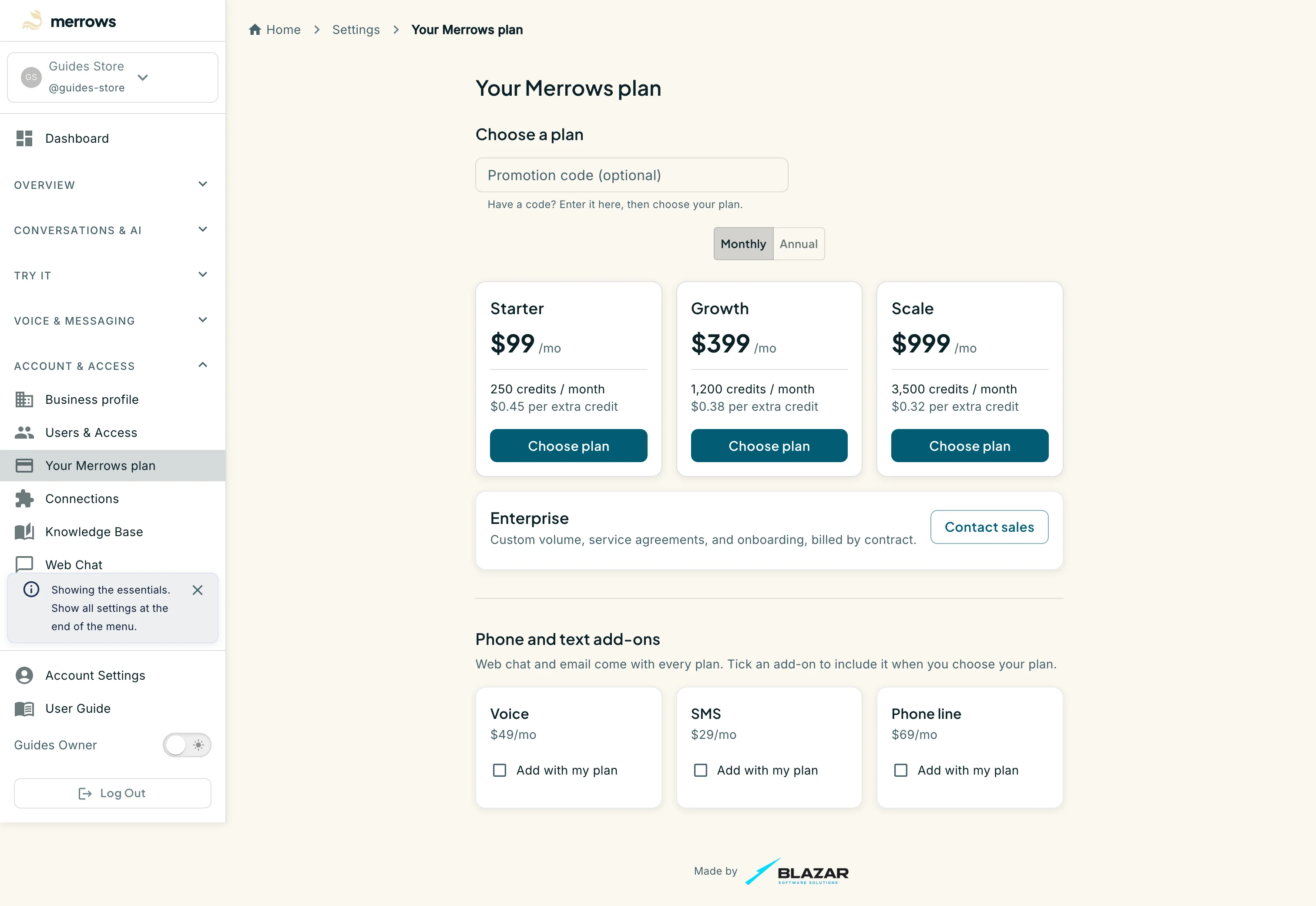
Action: Open Your Merrows plan under Account & Access, or go to https://portal.merrows.ai/settings/billing.
What you should see: A business without a plan sees “Choose a plan”: a Promotion code field, a Monthly or Annual switch, and the Free ($0, 100 credits, stops at the limit with a Use the free plan button), Starter ($99 a month, 250 credits), Growth ($399, 1,200 credits) and Scale ($999, 3,500 credits) cards, each paid one with its price per extra credit and a Choose plan button, plus Enterprise with Contact sales for custom volume billed by contract. Under the usage card, “When your plan limit is reached” sets what your website chat shows while the assistant is paused: a message you write, or a short form whose details are emailed to you. Email is forwarded to you either way. A cancelled plan pauses web chat and email until you choose a plan again, Free included. A business on a plan sees its status card instead: the plan, the trial or period end, credits used and remaining, and the add-ons it has.
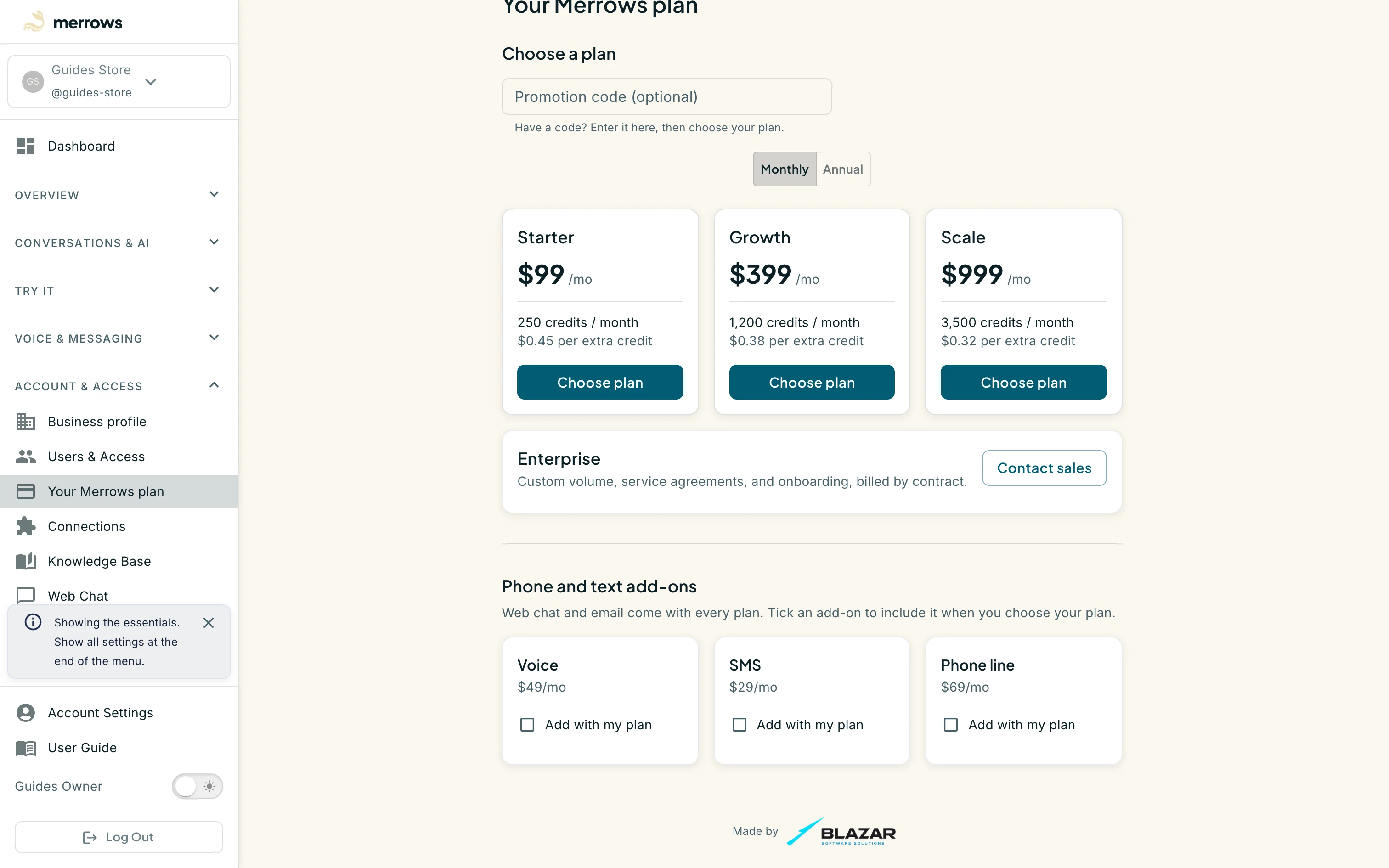
Action: Scroll to “Phone and text add-ons”.
What you should see: Web chat and email come with every plan. Voice ($49 a month), SMS ($29) and a Phone line ($69) each have an “Add with my plan” box; a ticked add-on is included in the checkout when you choose a plan, and a business already on a plan adds or removes them here.
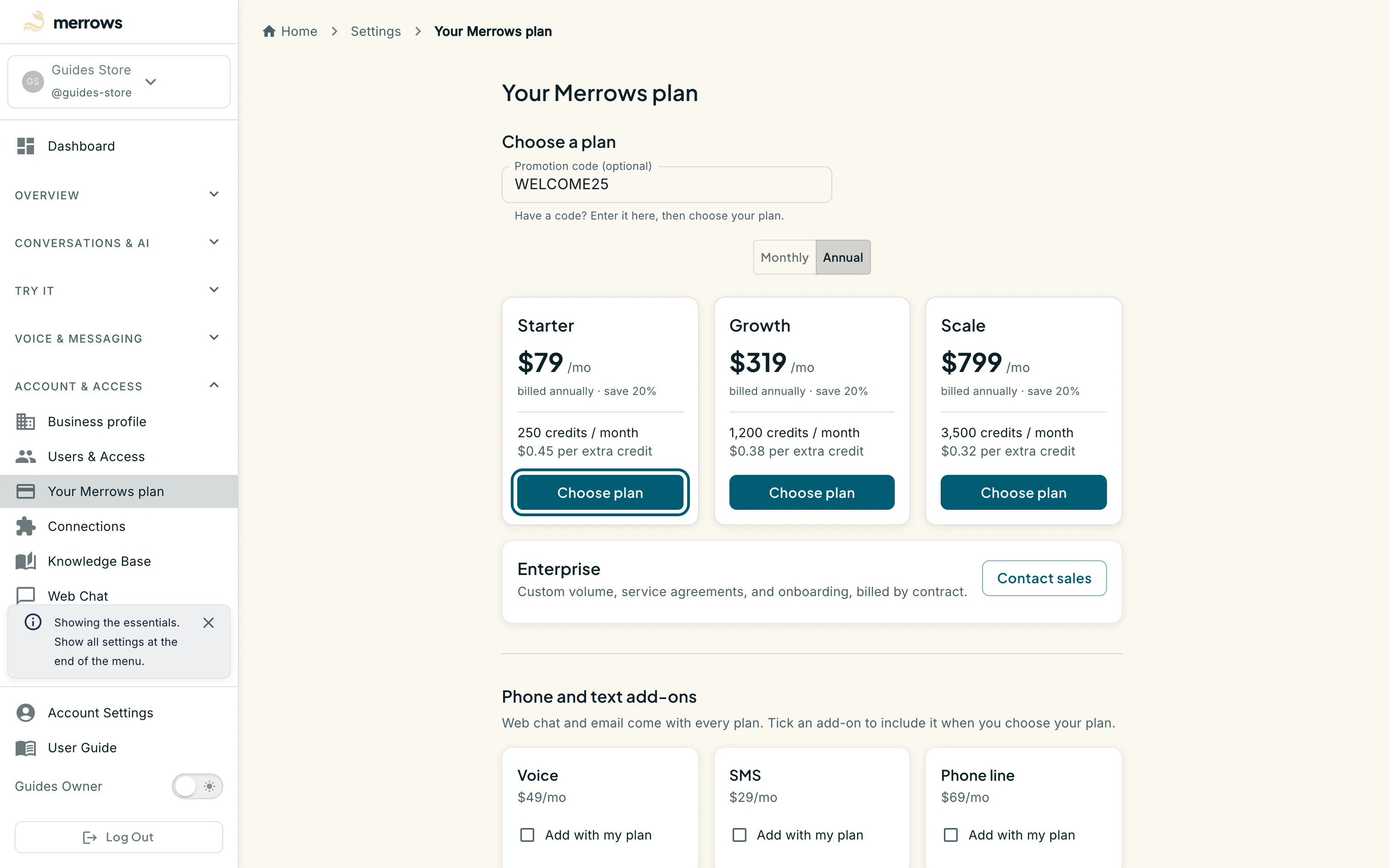
Action: Type a promotion code if you have one, pick Monthly or Annual, and click Choose plan.
What you should see: The portal opens the Stripe checkout for that plan and the ticked add-ons, with the code applied. Finish there; the portal picks the subscription up on your return and the status card replaces the plan cards. Leaving the checkout changes nothing.
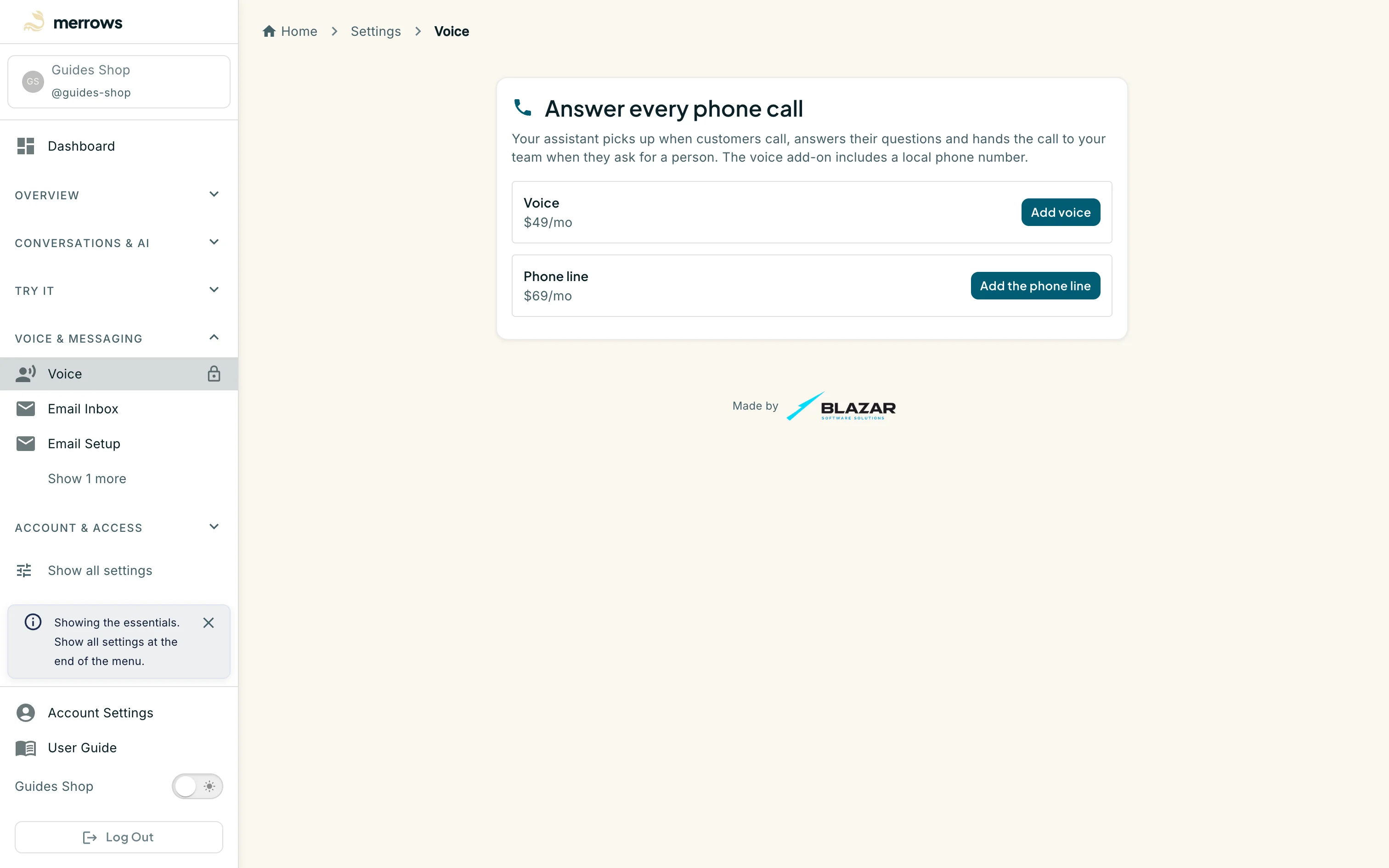
Action: Open the Voice page under Voice & Messaging on a business without the voice add-on.
What you should see: The sidebar entry carries a lock and the page explains the add-on with its price and a button that brings you back here to add it. Try it’s Voice Demo behaves the same way. Web chat and email pages never lock.
Screenshot not available (the business on this walk has no subscription, and a card is never entered on a documentation account)
Action: On a business with a plan, use the status card’s actions.
What you should see: Buy more credits opens a checkout for a reload pack when the monthly credits run low; Manage billing opens the Stripe portal to change the card, read invoices or cancel; Change plan moves to another plan in place. Credits count outcomes, such as an order taken or a question answered, and the status card shows how many are left in the period.

