Connect the point of sale, order, helpdesk, returns and booking systems your business runs, and see which of them is live.
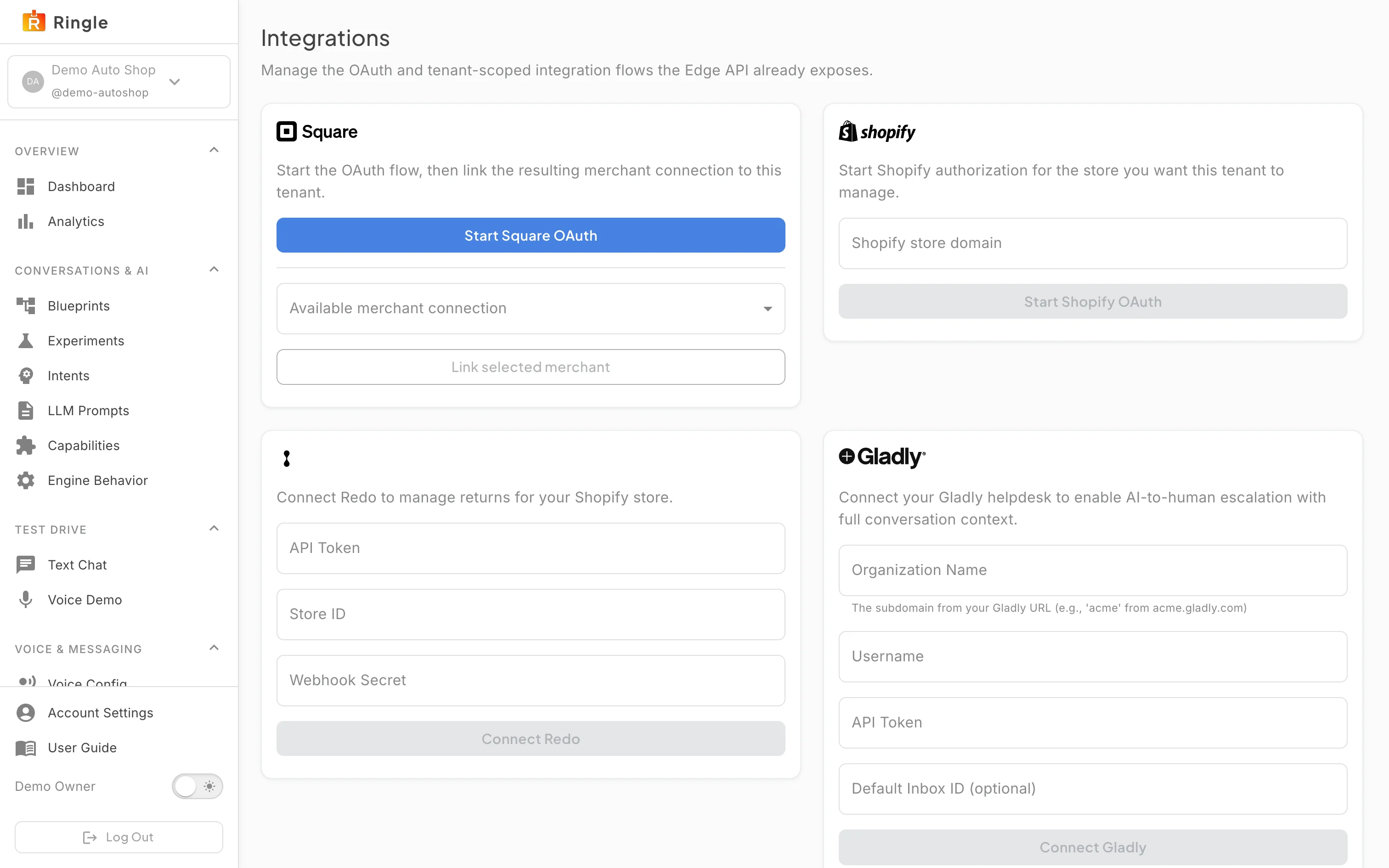
Action: Open Connections under Account & Access, or go to https://portal.merrows.ai/settings/integrations.
What you should see: The page shows the systems used in your industry first, with a search box and category filters at the top. For an online store that is Order management, then Helpdesk, Returns and Booking; point of sale systems sit under “Systems for other industries” at the bottom. A group with something connected is open, and a group with nothing connected is folded behind Show.
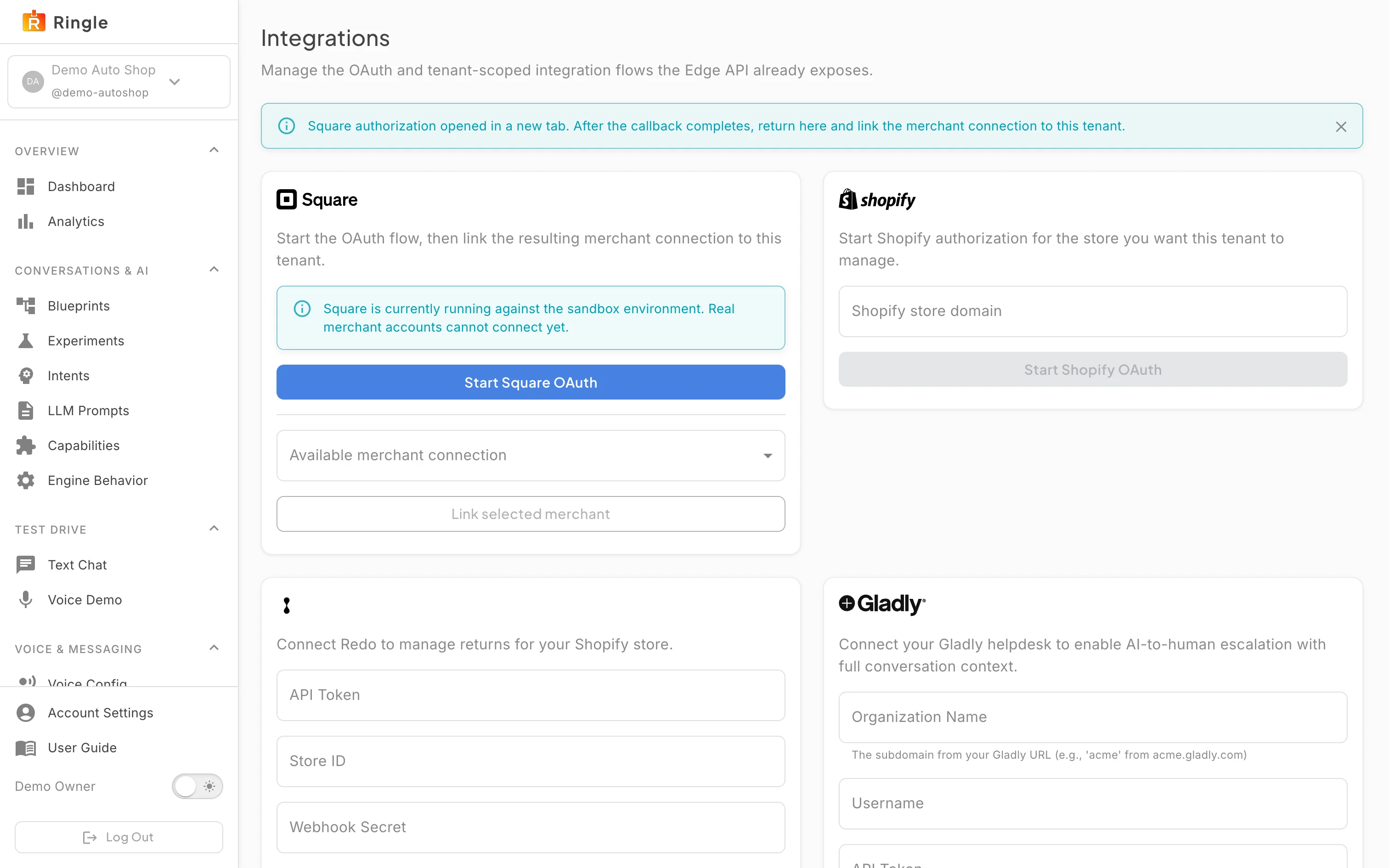
Action: Look at a connected system, for example Shopify.
What you should see: The card names the connected store and its health, for example “Not used yet” before the assistant first reads an order through it. “Skill rules that depend on Shopify” lists the skill steps that use the store. A store that is not connected shows Install from the Shopify App Store instead: Shopify asks you to approve access, then brings you back to this page.
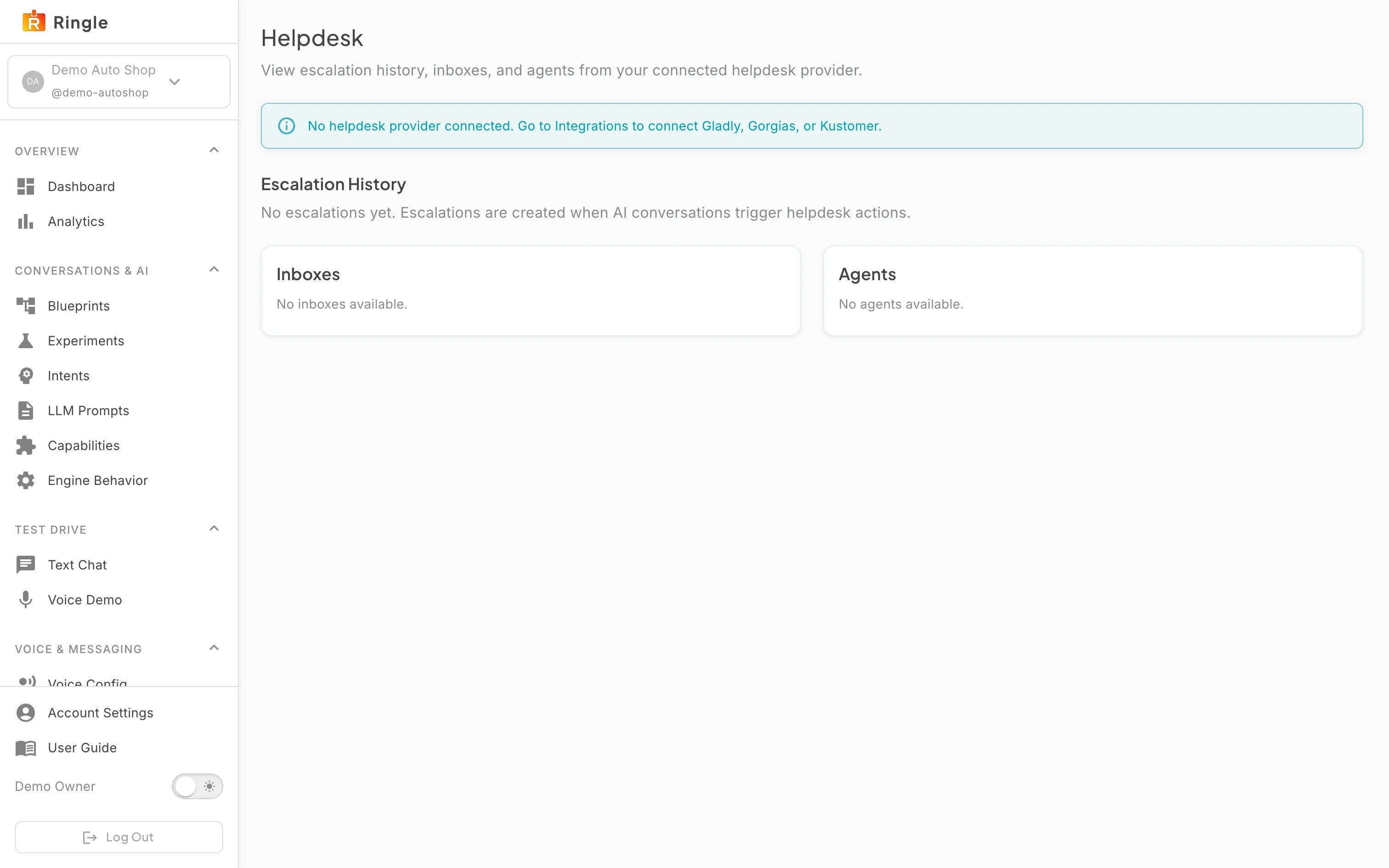
Action: Open a card that takes keys, for example Recharge.
What you should see: The card asks for what the provider issues, here an API token and an optional store domain, and keeps Connect disabled until the required fields are filled. Secrets are stored encrypted and never shown again.
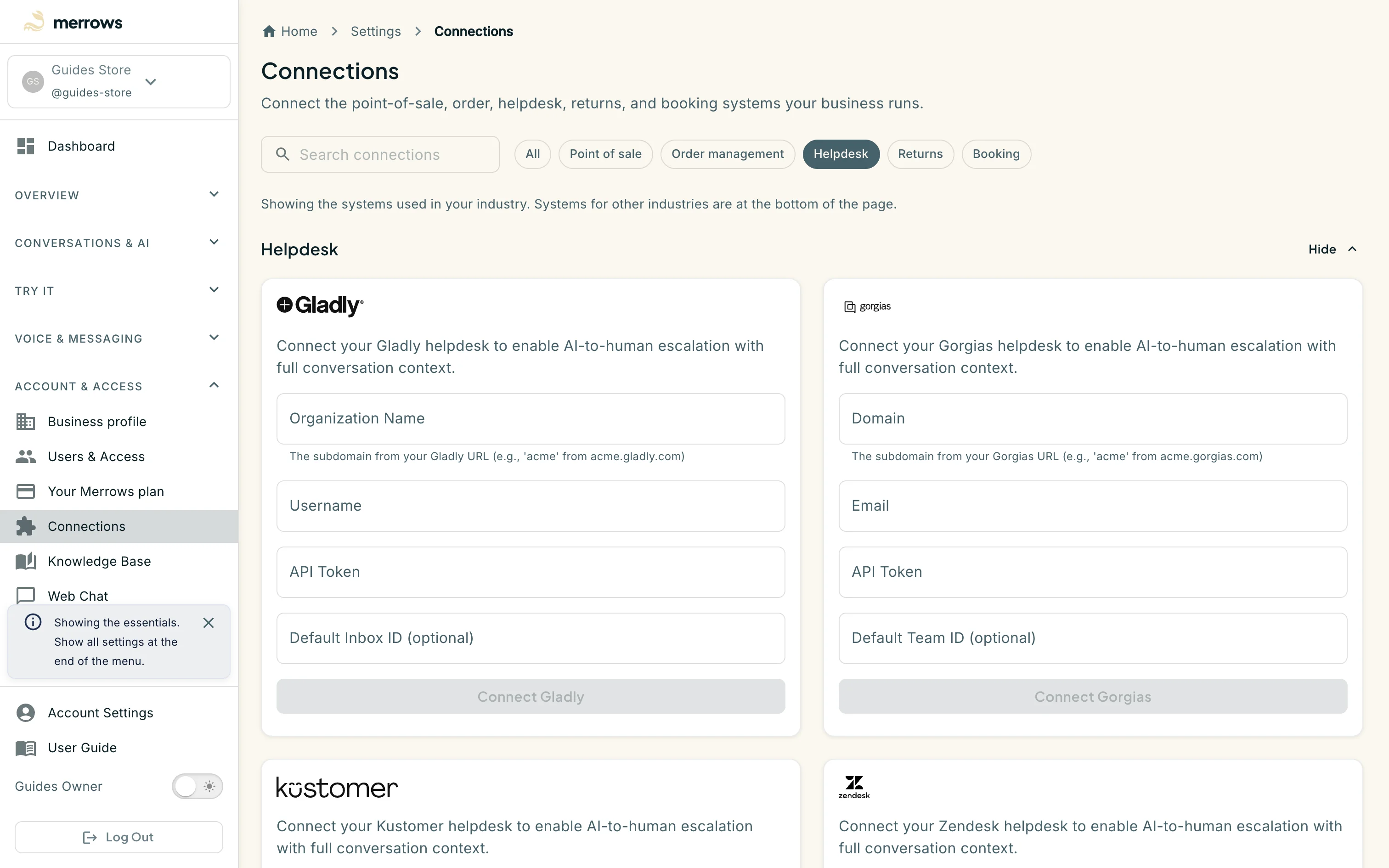
Action: Click the Helpdesk filter at the top, or expand the Helpdesk group.
What you should see: Gladly, Gorgias, Kustomer, Zendesk, Zammad and Zoho Desk cards, each asking for what that helpdesk needs: a subdomain and an OAuth sign-in or API token for Zendesk, an organisation name and token for Gladly, and so on. A connected helpdesk is where the assistant files a ticket when it hands a customer over; Zendesk also takes a group, defaults and field mapping after it is connected.
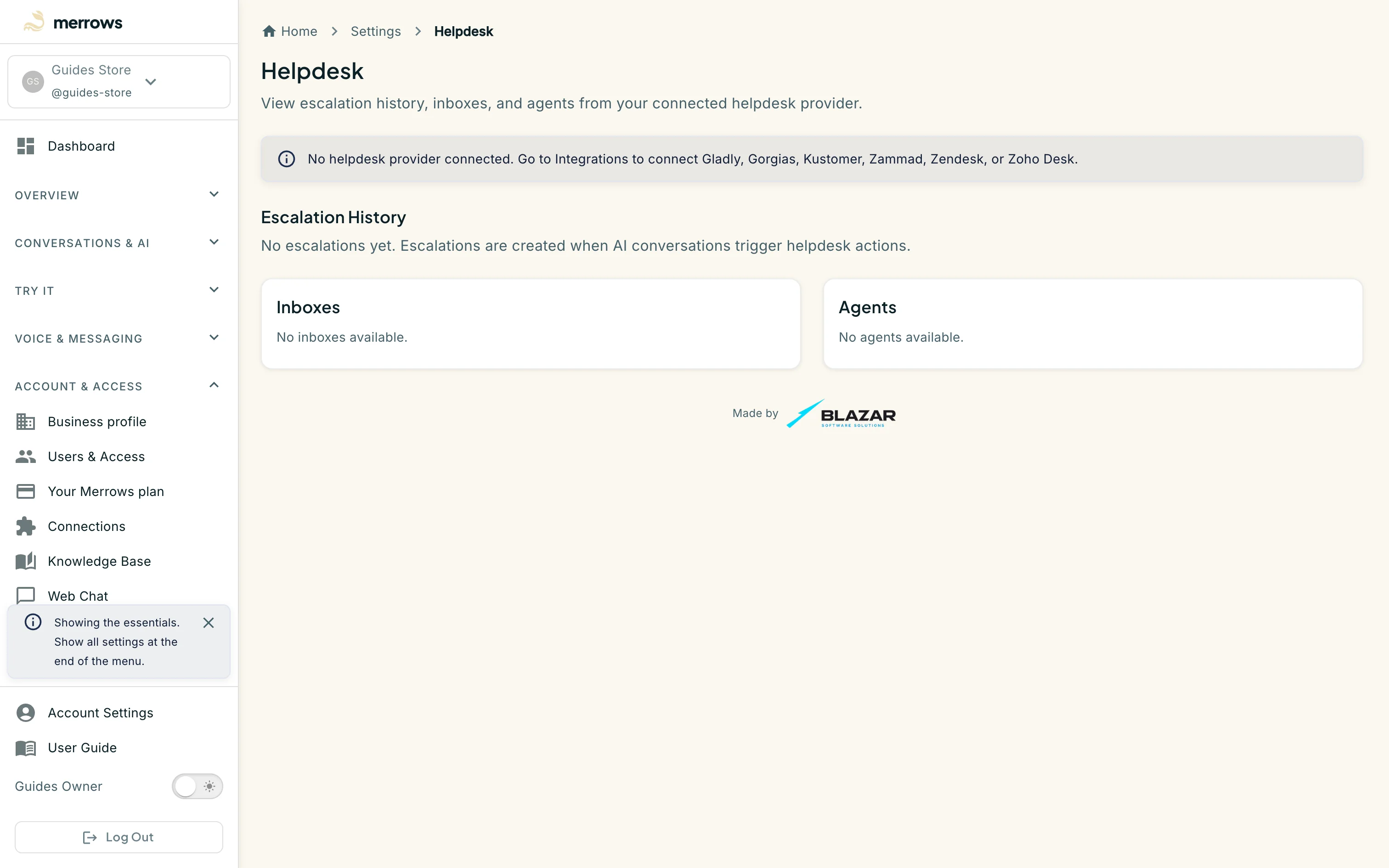
Action: Open Helpdesk under Account & Access (an advanced item), or go to https://portal.merrows.ai/settings/helpdesk.
What you should see: The page shows the escalations the assistant has filed with your connected helpdesk, along with that helpdesk’s inboxes and agents. With no helpdesk connected, as here, it points you to Connections and the lists stay empty.
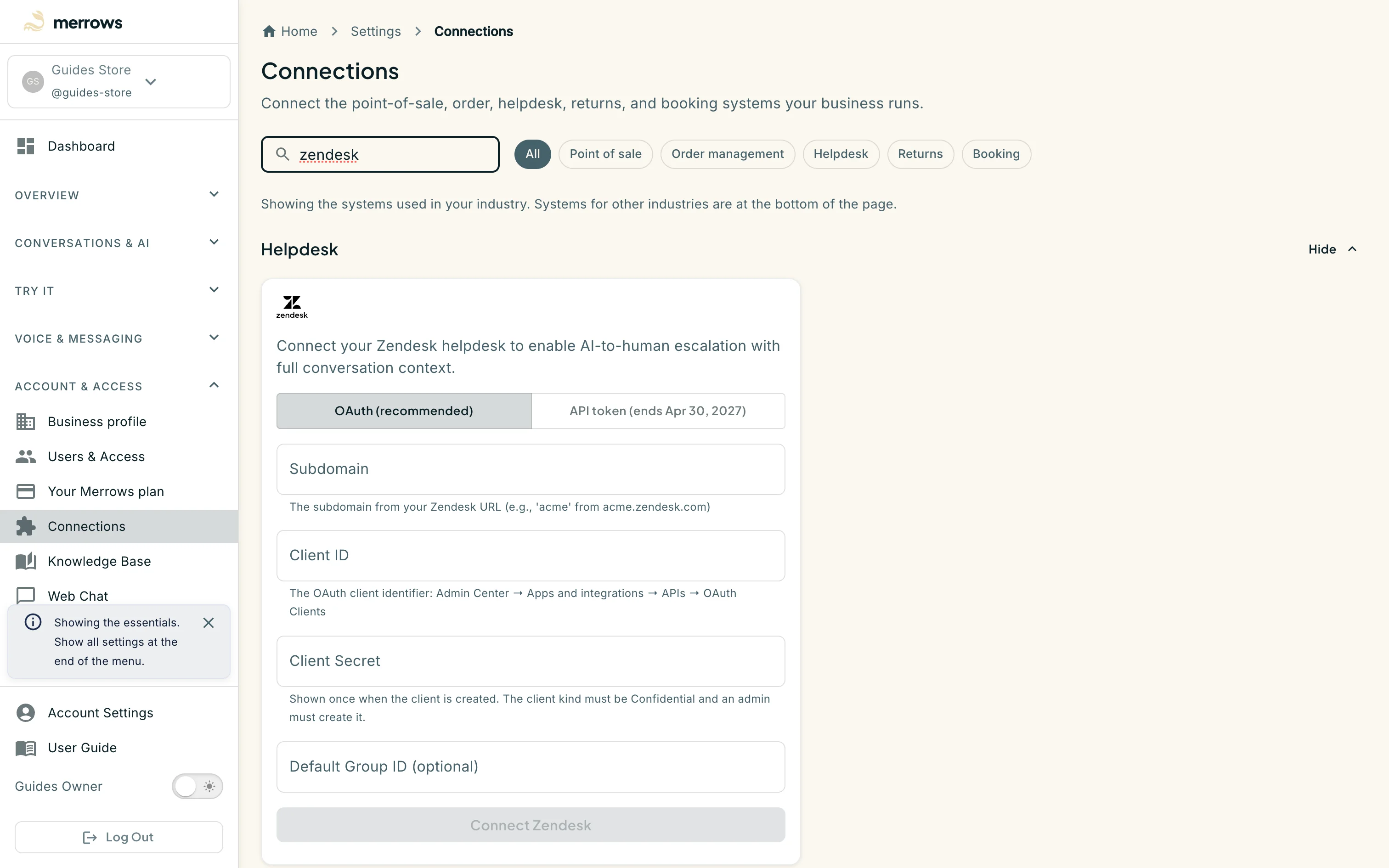
Action: Use the search box or a category filter.
What you should see: The list narrows to matching cards across every industry, which is the quickest way to find a system that is not usual for yours.

