Choose how your AI employee sounds on the phone, set its speaking speed, upload a welcome recording, and know what the page shows before the voice add-on is on your plan.
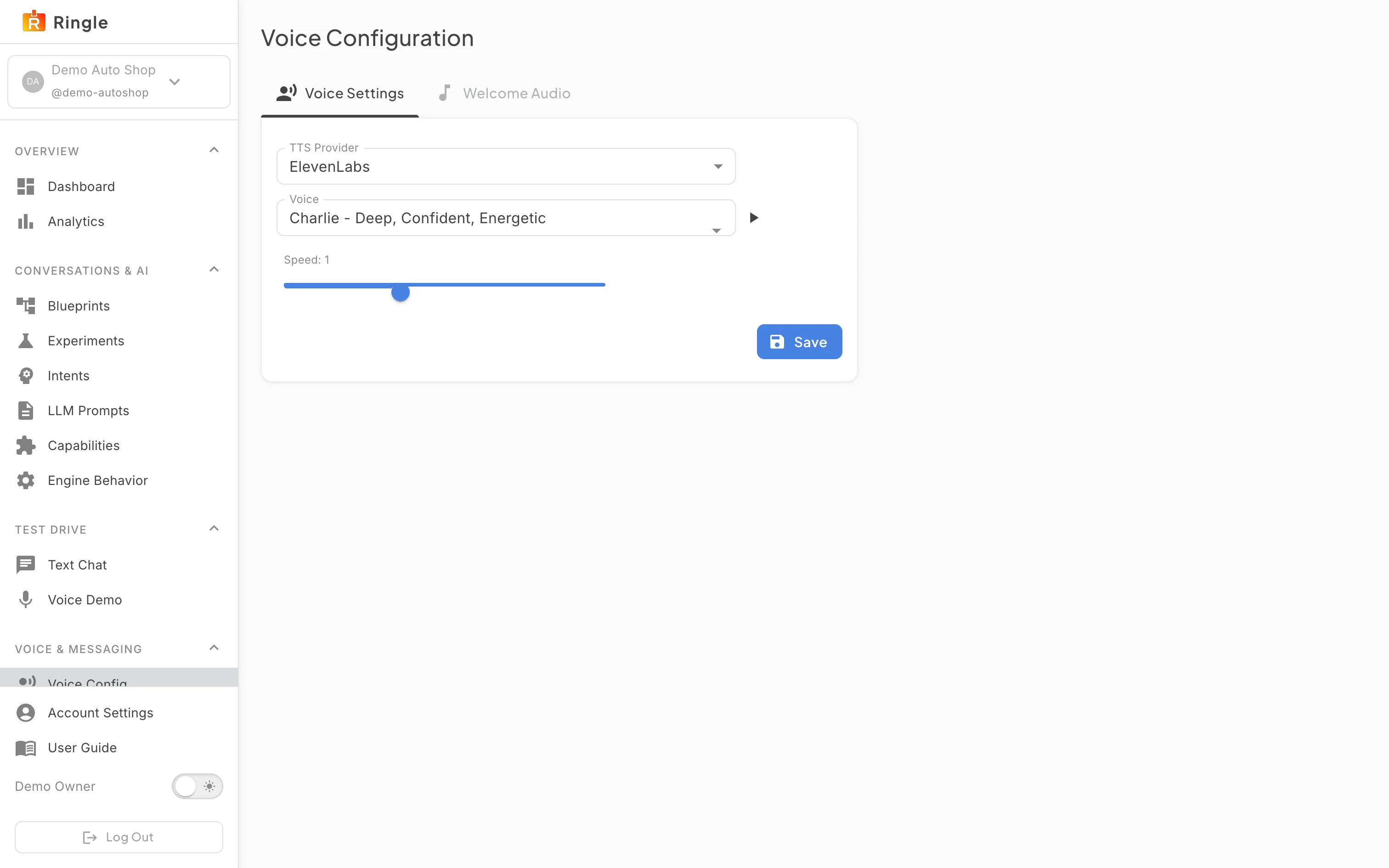
Action: Open Voice under Voice & Messaging, or go to https://portal.merrows.ai/settings/voice, on a business without the voice add-on.
What you should see: The sidebar entry carries a lock and the page reads “Answer every phone call”: what the assistant does on a call, then Add voice ($49 a month) and Add the phone line ($69 a month) buttons that take you to Your Merrows plan.
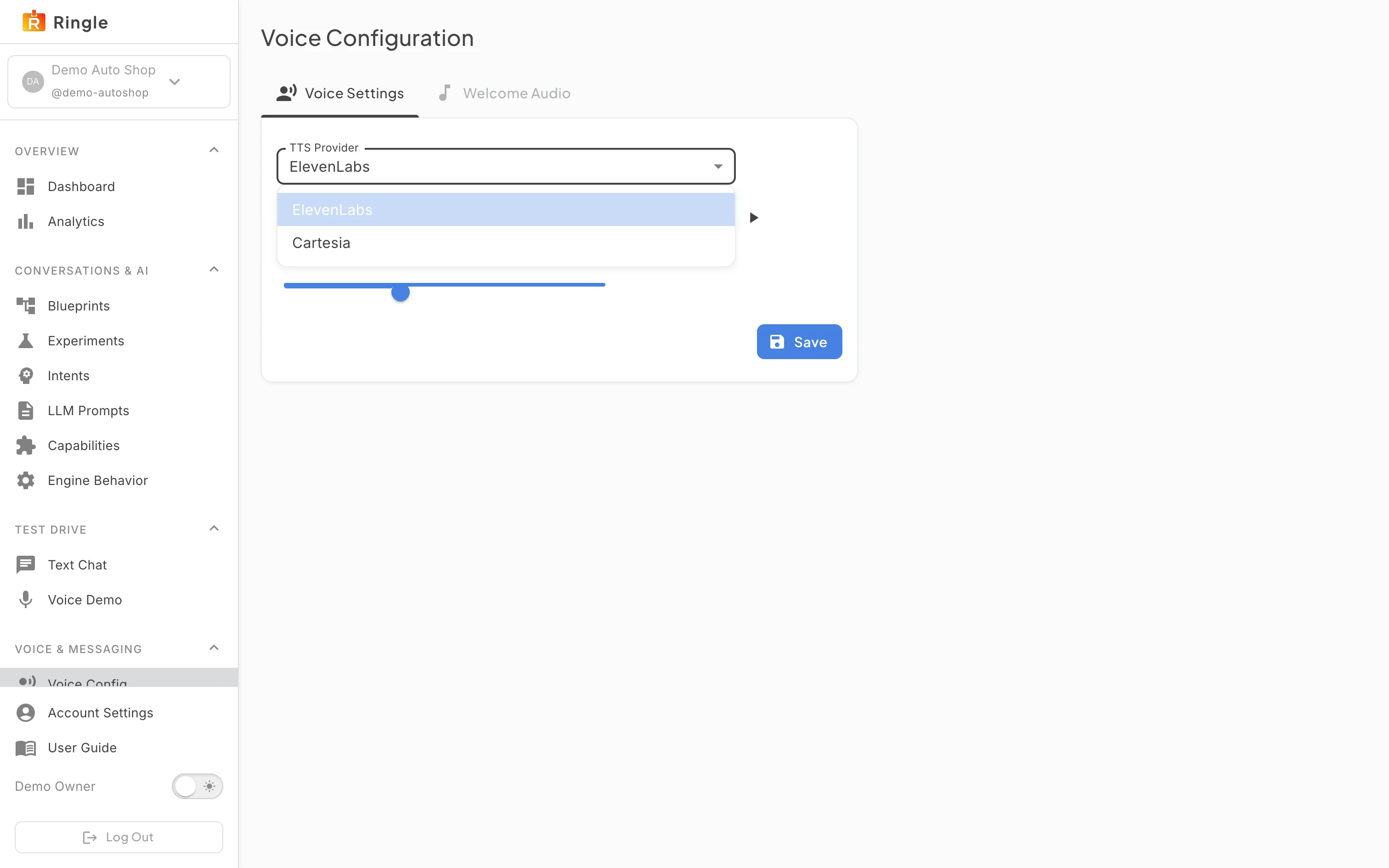
Action: Open the same page on a business with the add-on.
What you should see: Two tabs, How it sounds and Welcome Audio. How it sounds has a Voice selector with the voices on offer, a Preview Voice button, a Speed slider and Save.
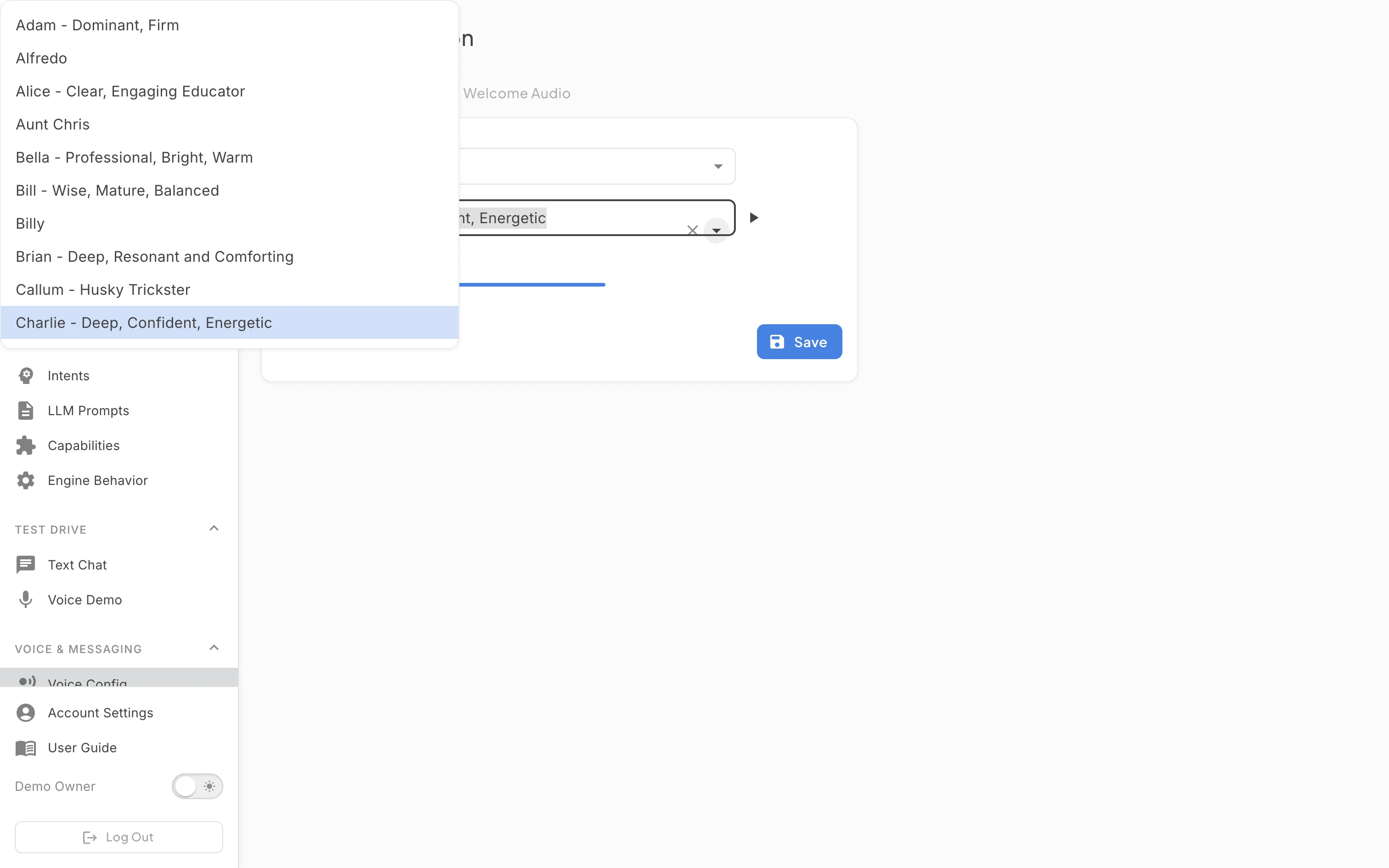
Action: Open the Voice selector and pick a voice, then click Preview Voice.
What you should see: The list names each voice with its character, for example Aoi, an order coordinator. Preview plays a sample sentence in the browser so you can compare before saving. The speed slider runs from slower to faster than normal speech; 1 is the natural pace.
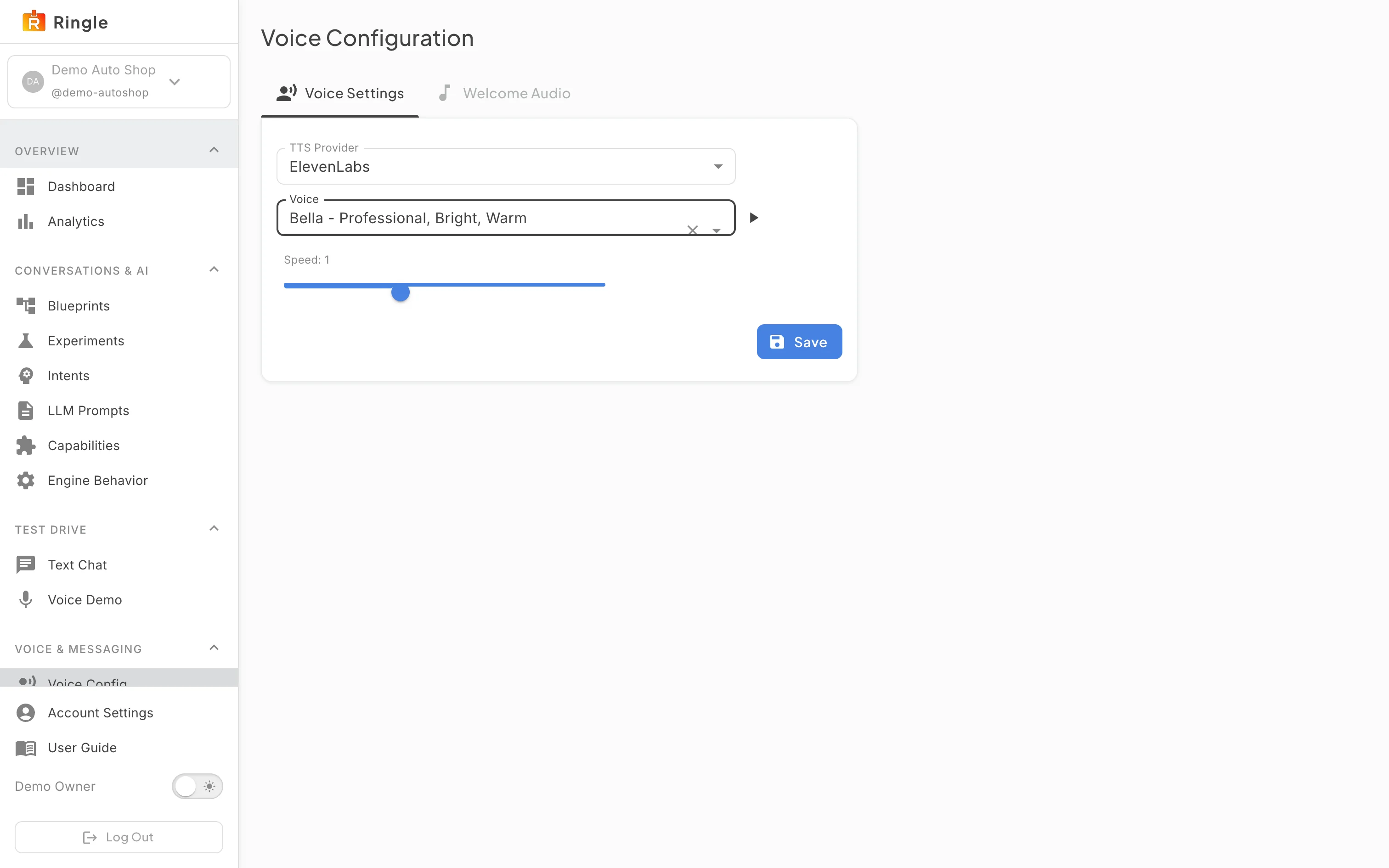
Action: Click Save.
What you should see: The next call uses the new voice and speed. Calls already in progress keep the old voice until they end.
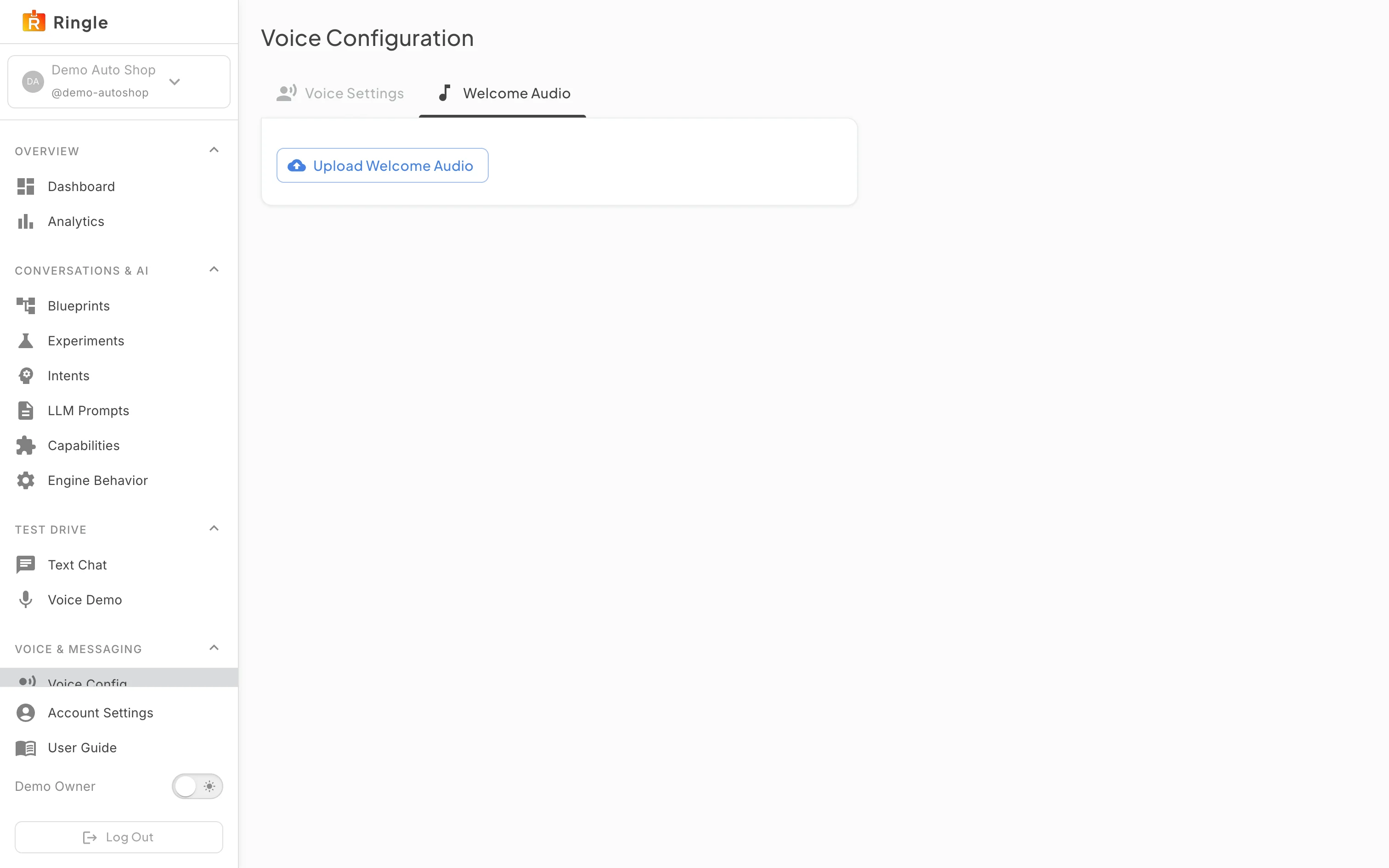
Action: Open the Welcome Audio tab.
What you should see: A standard chime plays when a call is answered. Upload a short mono WAV clip here to replace it, for example a greeting in the owner’s voice; deleting the clip brings the chime back.

