Reach the three pages behind “Show all settings” that shape how your AI employee listens and behaves: what customers say, its skills, and advanced tuning.
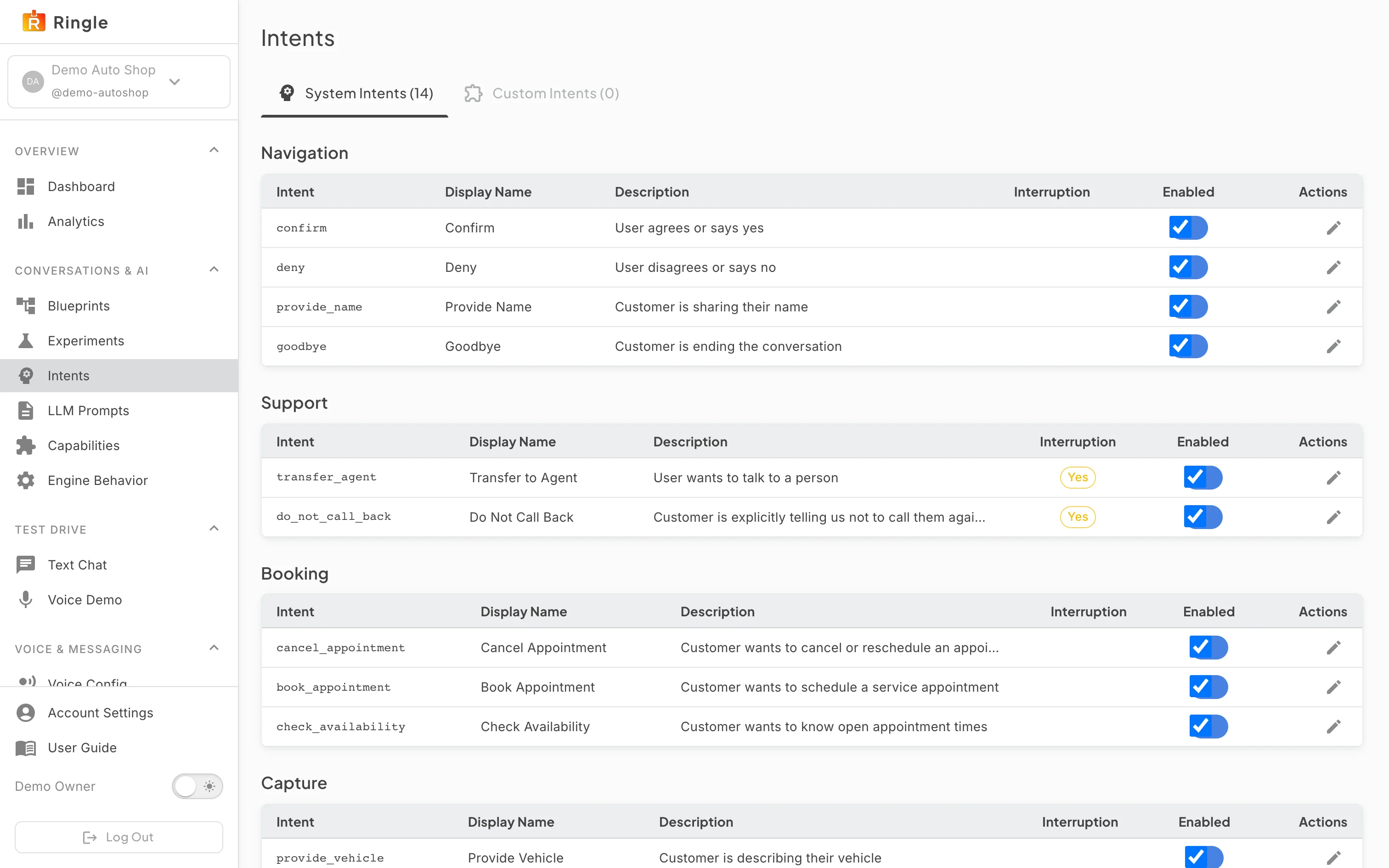
Action: Open What customers say under Conversations & AI, or go to https://portal.merrows.ai/settings/intents.
What you should see: Two tabs: Built-in, the phrase groups Merrows ships (Confirm, Deny, Provide Name and the rest, grouped by purpose), and Yours. Each row shows the phrase group, a description, whether it may interrupt the assistant, an Enabled switch and a pencil that customises it.
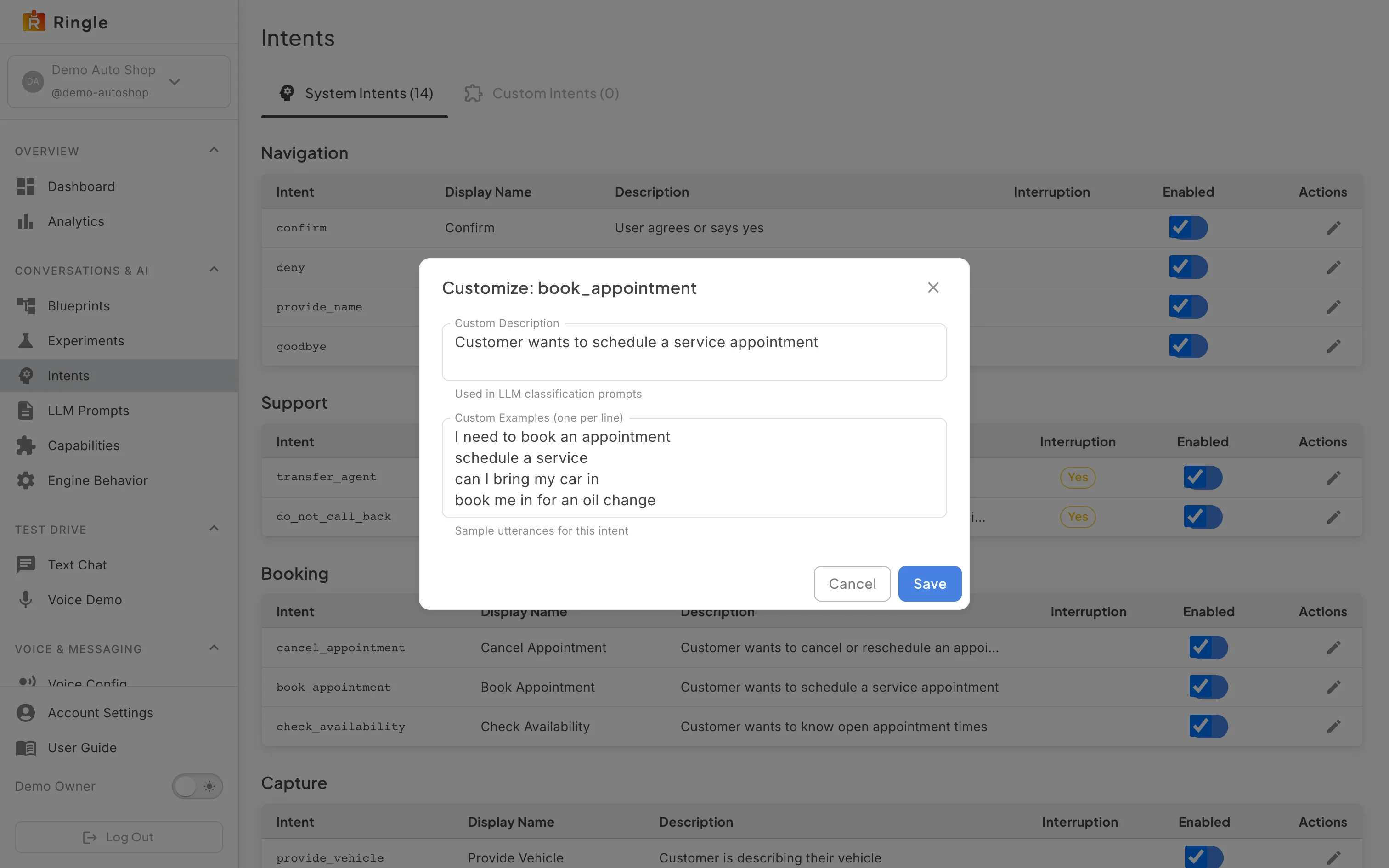
Action: Click the pencil on a built-in group, or add one of your own on the Yours tab.
What you should see: A dialog named after the phrase group shows its description and the example phrases it recognises. Adding phrases of your own, in any of your languages, teaches the assistant how your customers put things; your version becomes a row on the Yours tab and the built-in one stays as the fallback.
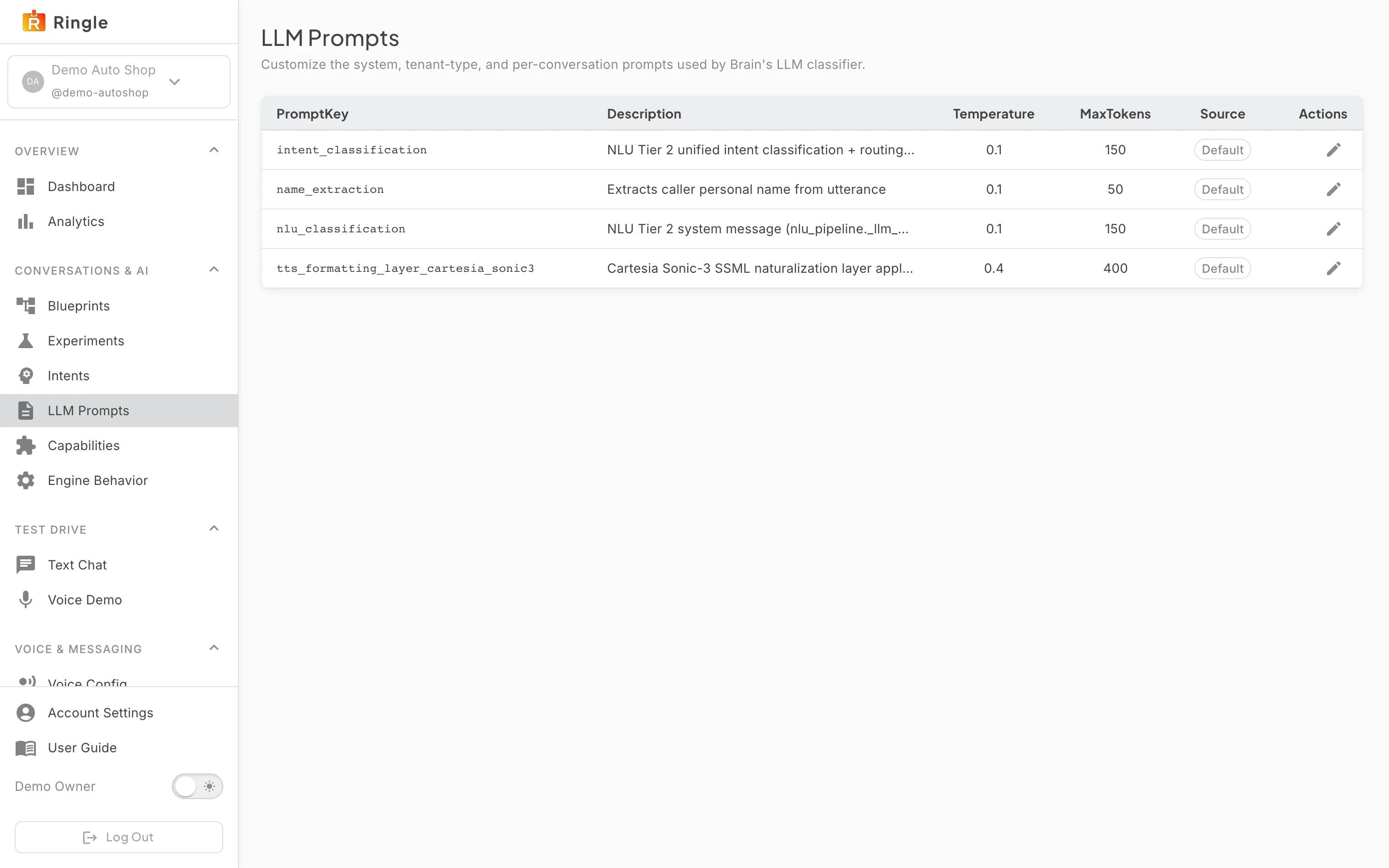
Action: Open Skills, or go to https://portal.merrows.ai/settings/capabilities.
What you should see: A table of what the assistant can do: Returns & Exchanges, Ticket Status, Greeting, Order Status, Business Hours, Subscription Management, Transfer to Agent, Order Cancellation and the rest, each with a display name, priority, the channels it answers on when it is limited to some (Transfer to Agent answers on voice), a Source and an Enabled switch. The pencil edits a skill. Turning a skill off here removes it from every channel without editing the conversation.
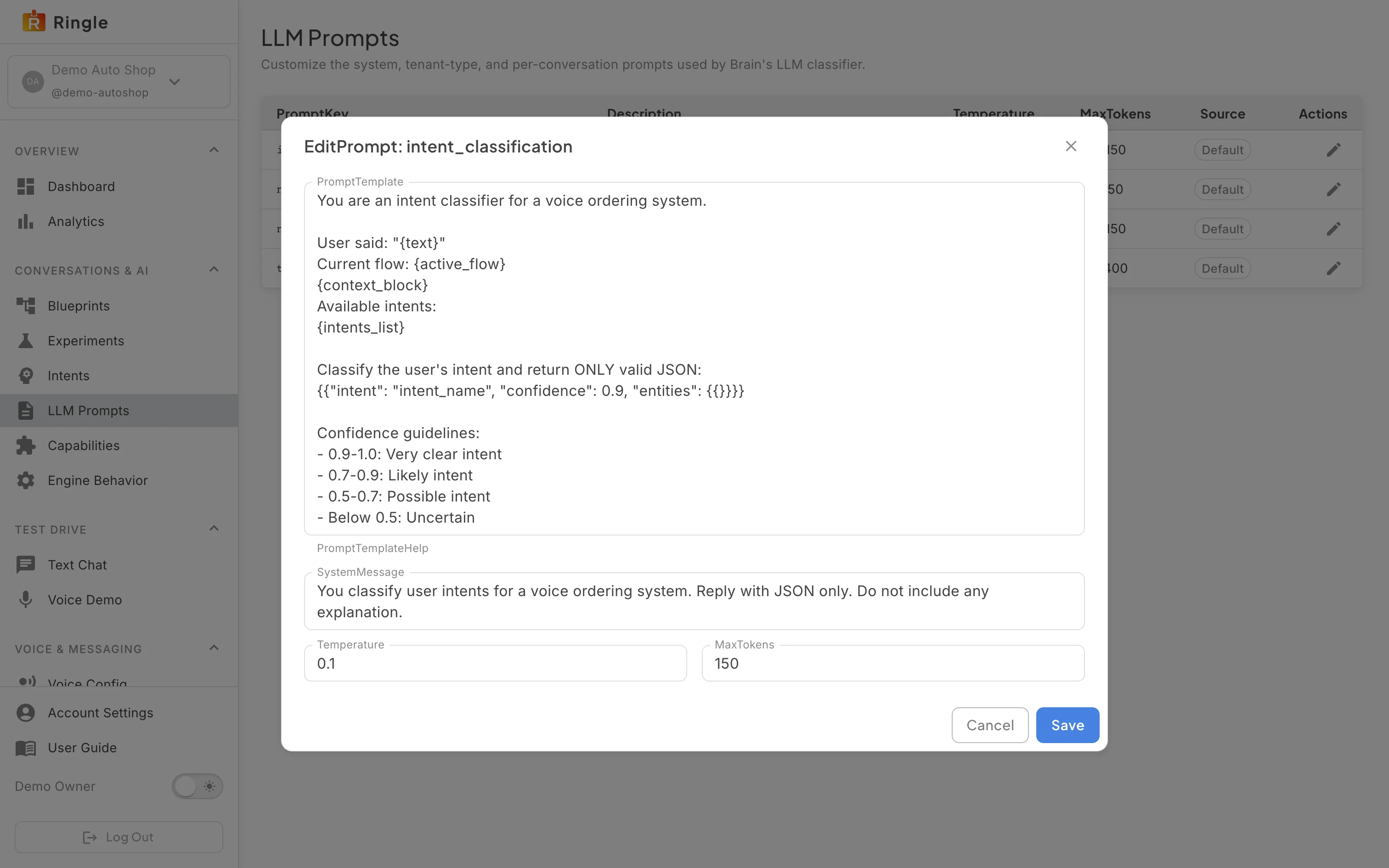
Action: Open Advanced tuning, or go to https://portal.merrows.ai/settings/engine-behavior.
What you should see: The General tab holds the Dead Air Threshold: how many milliseconds your AI employee waits on a quiet call before it speaks. “Save general settings” stores it; a saved value is live for the next call and applies to this business only.

