Manage the email and text templates your AI employee sends, read the delivery log, verify a sending domain of your own, and turn inbound texting on.
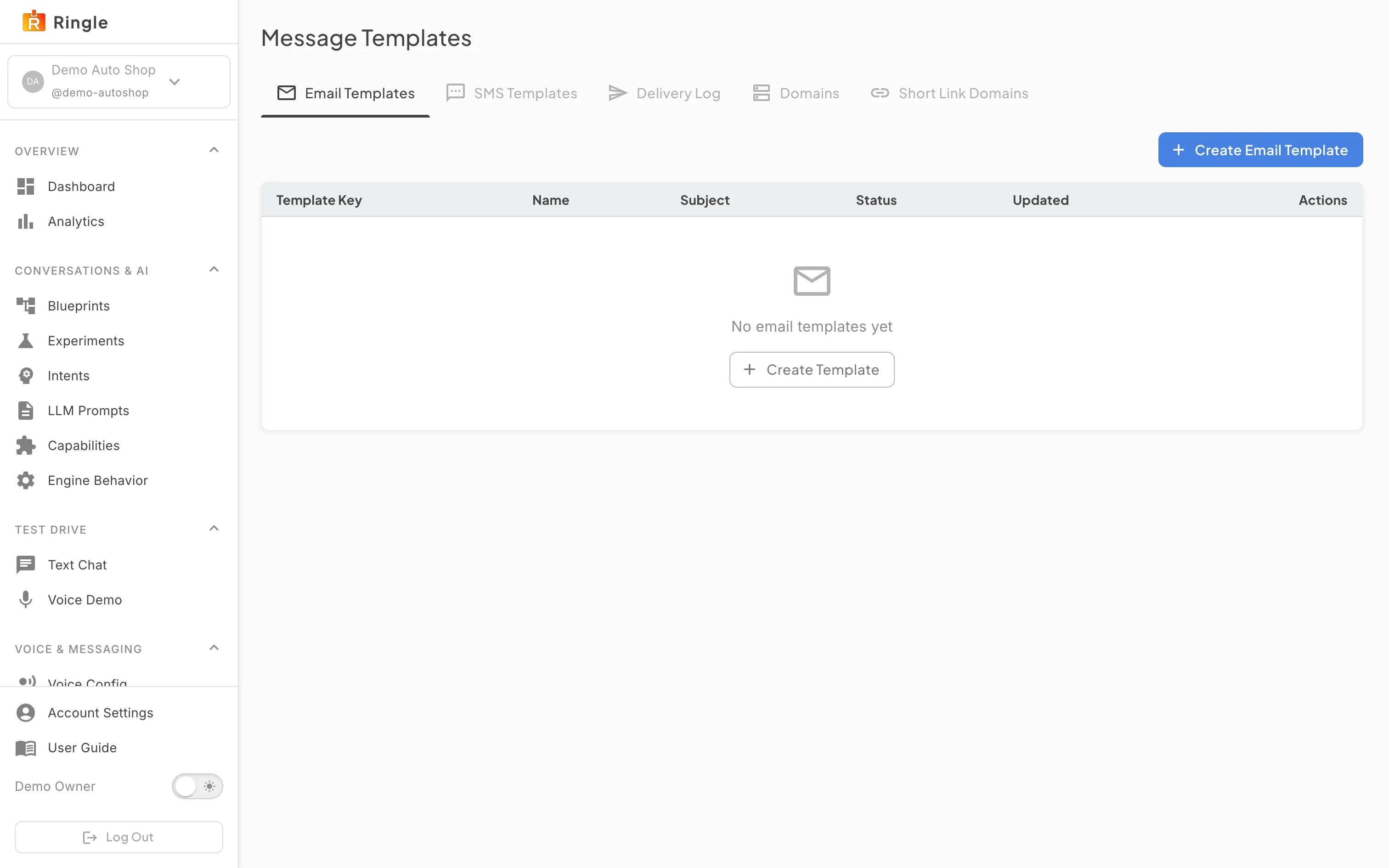
Action: Open Message Templates under Voice & Messaging, or go to https://portal.merrows.ai/settings/messaging.
What you should see: Five tabs: Email Templates, SMS Templates, Delivery Log, Domains and Short Link Domains. The Email Templates tab lists each template with its name, subject, status and last update, and a Create Email Template button.
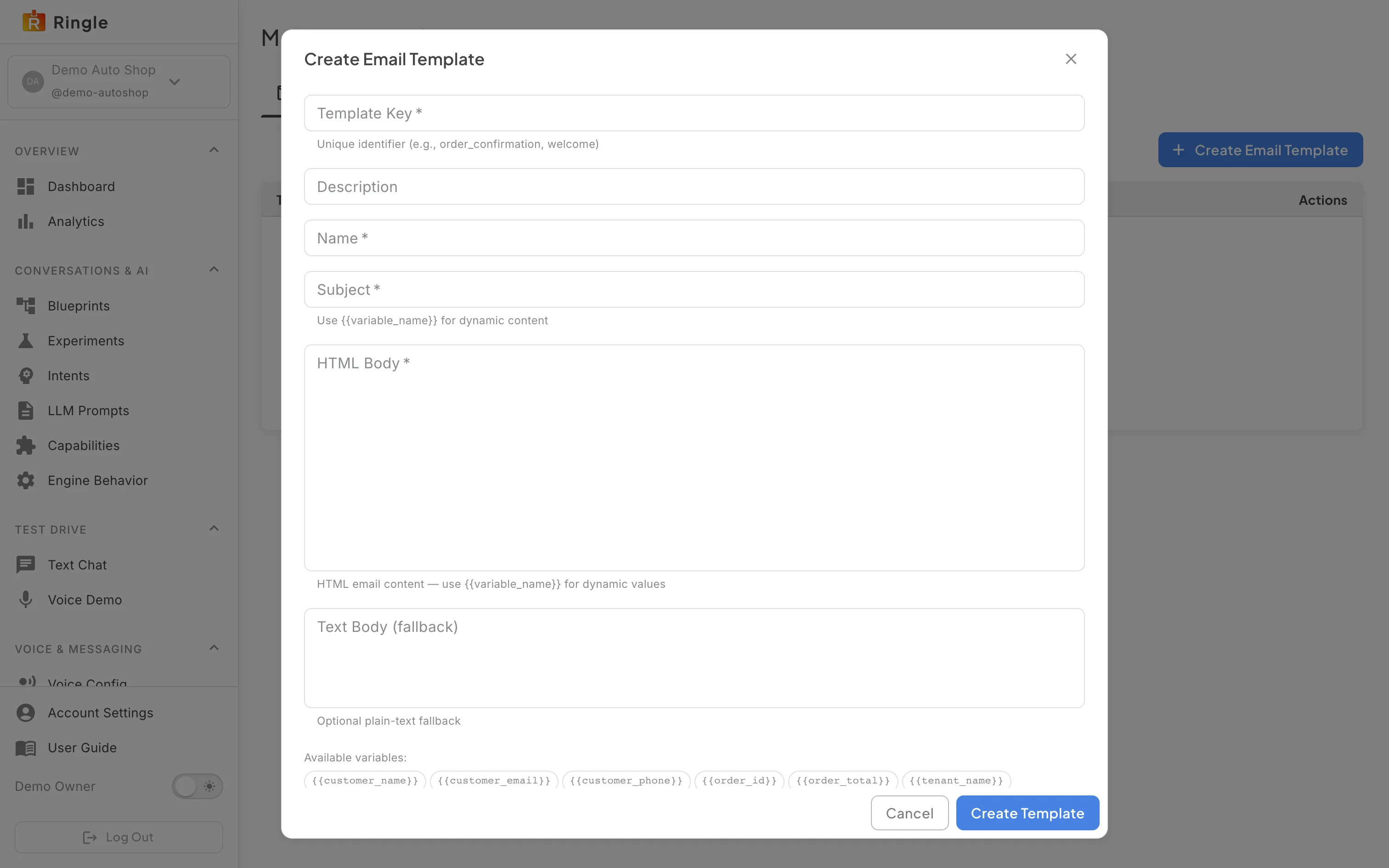
Action: Click Create Email Template.
What you should see: The editor asks for a name, an optional description, the subject and the body. “Insert a detail” under each field adds a named detail the assistant fills in when it sends, such as Order number or Customer name; it shows as a chip, here in the subject “Your order is confirmed: Order number”. Merrows names the template from what you type. Saving as a draft keeps it out of use until it is activated.
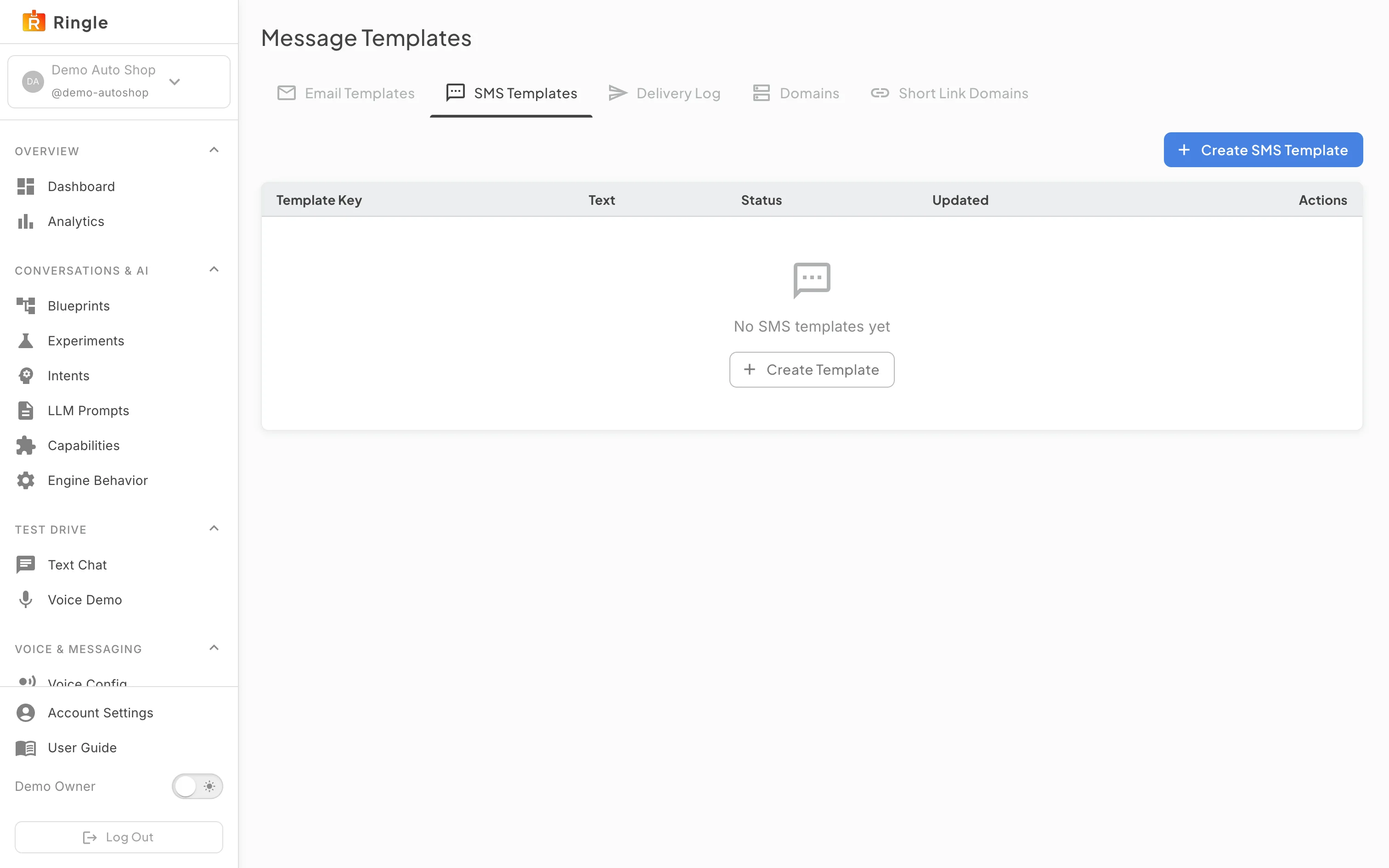
Action: Open the SMS Templates tab.
What you should see: Without the SMS add-on the tab offers it: “Reply to customers by text” with Add SMS and Add the phone line. With the add-on it holds the same list for texts, with the character count beside each body because a long text is split into several messages. The assistant sends a template when a step in a skill asks for it, for example an order confirmation.
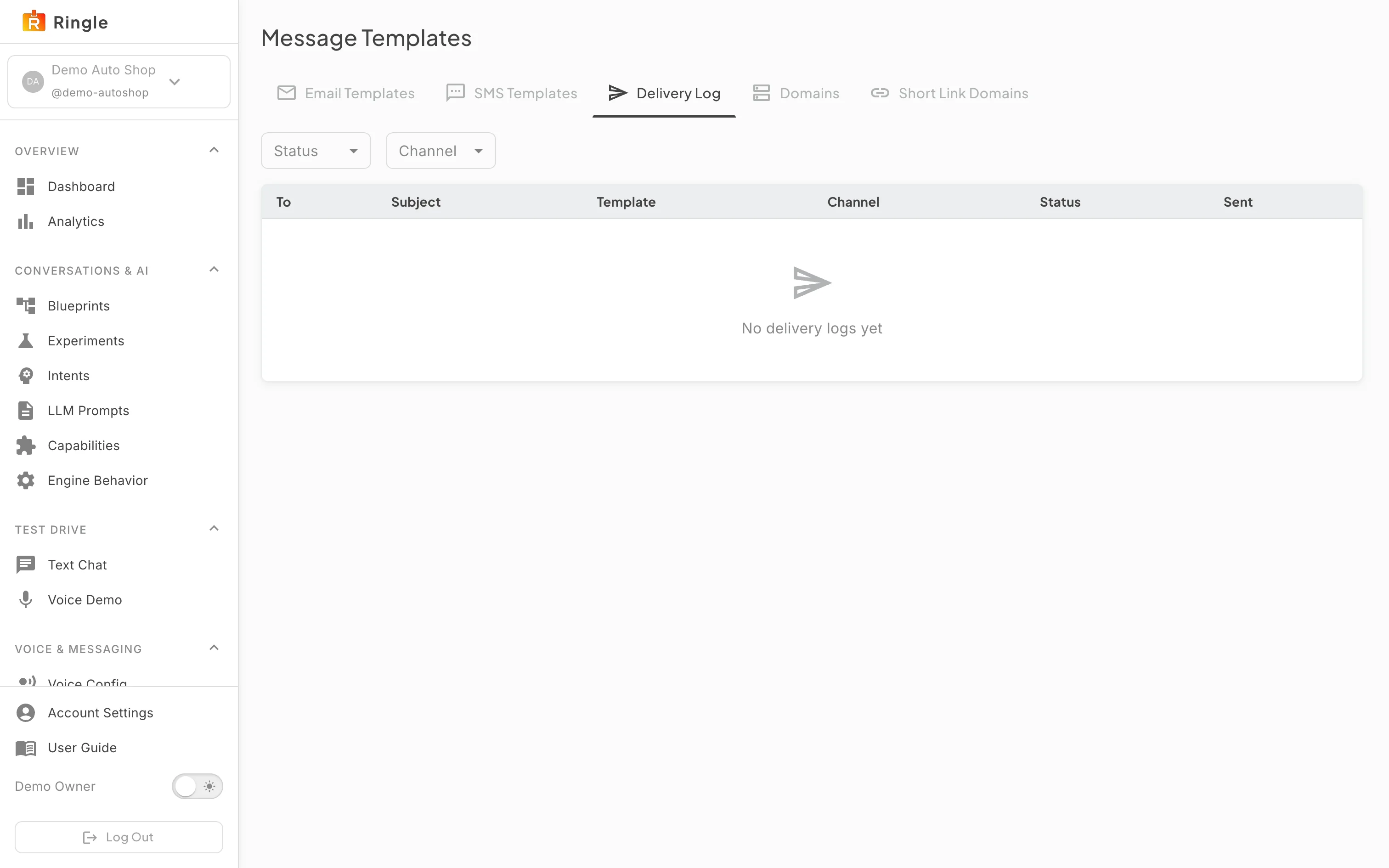
Action: Open the Delivery Log tab.
What you should see: Every email and text the assistant sent, with the recipient, the template, the time and whether it was delivered, bounced or failed. Use it to see why a customer did not get a message.
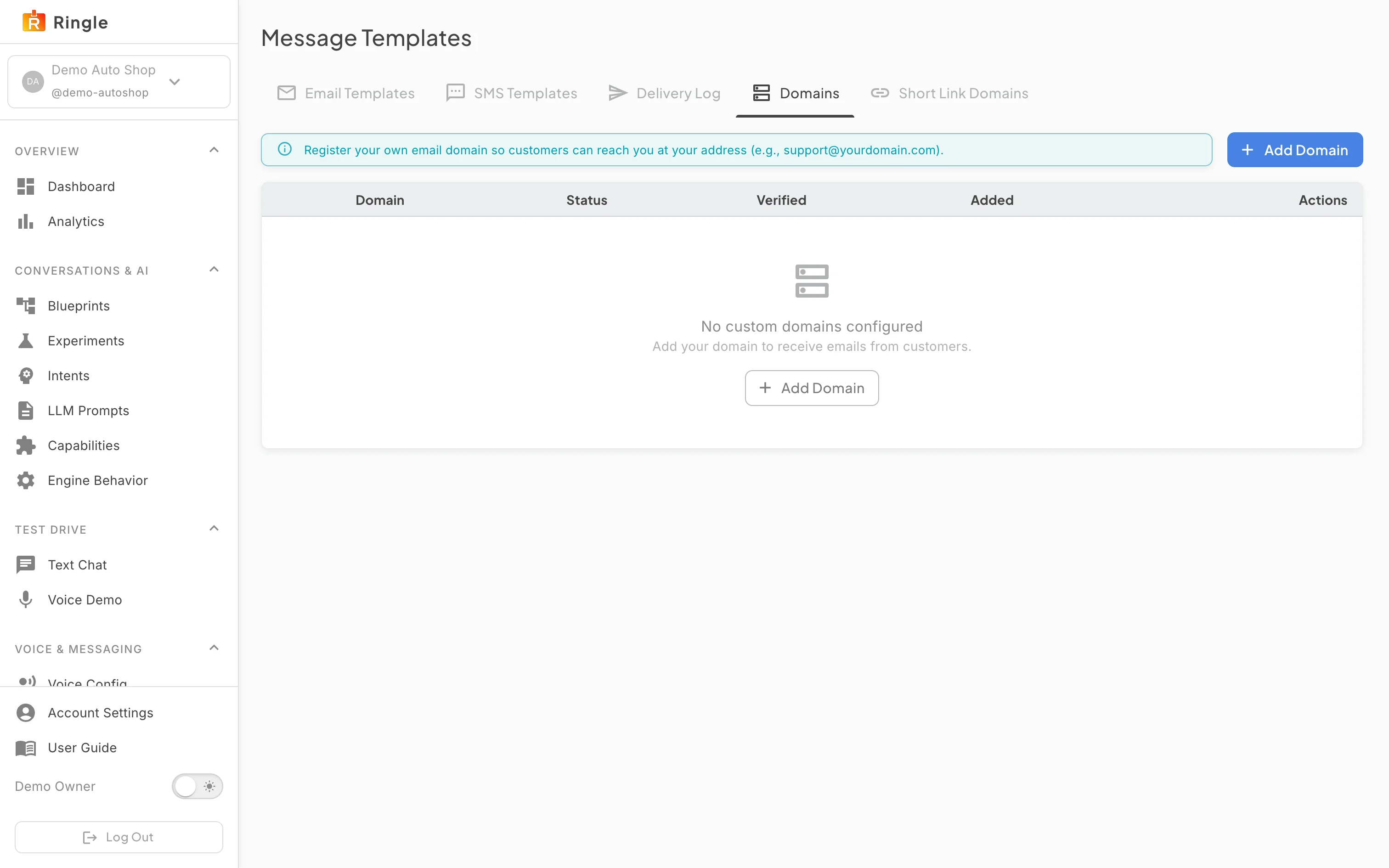
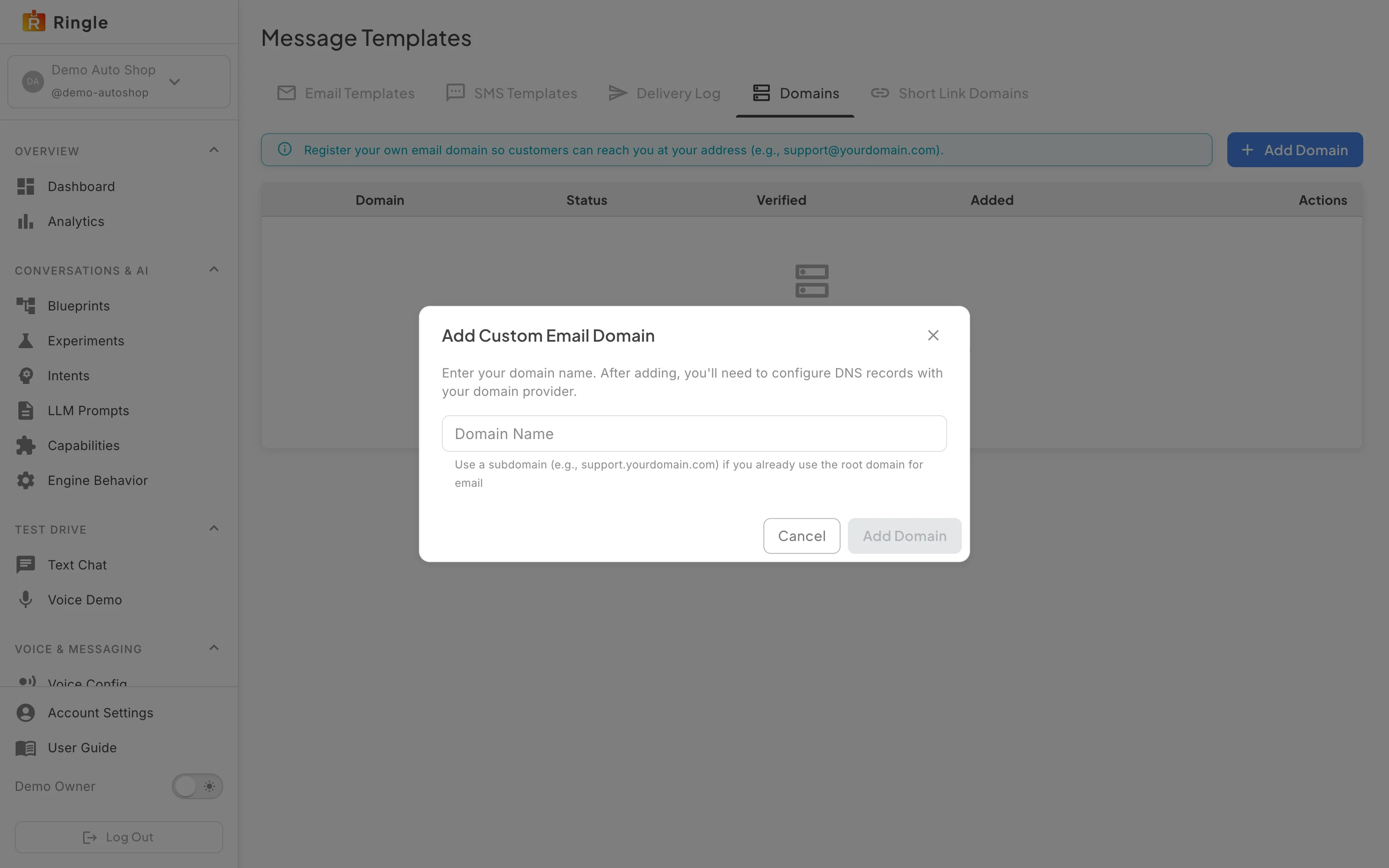
Action: Open the Domains tab and click Add Domain.
What you should see: A dialog takes your domain and shows the DNS records to add at your registrar. Until a domain is verified, messages go out from the business’s Merrows address; once it is verified they come from your own.
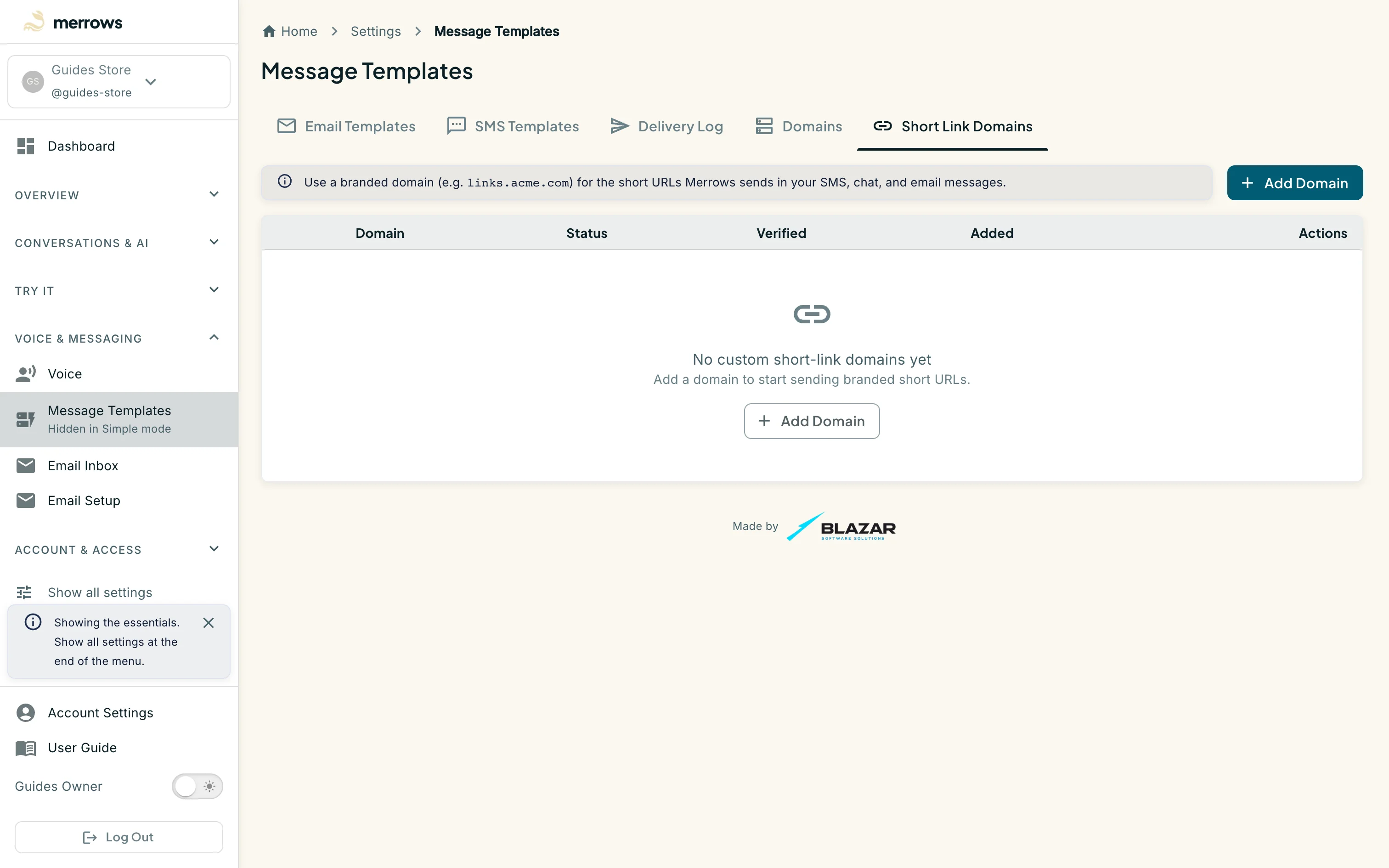
Action: Open the Short Link Domains tab.
What you should see: Links in texts are shortened on a Merrows domain by default. A branded short domain of your own is added here the same way, with its DNS record, so links in your texts carry your name.
Action: On the dashboard, find the Texts row of the live-status card.
What you should see: With the SMS add-on and a number attached, the Inbound texting card lets you switch inbound texting on, so customers can text the business and the assistant answers. Texts to a number that is attached but not switched on are relayed to the business email instead.
Screenshot not available (the customer page opens only from a link texted to a customer; no text message was sent during this walk)
Action: As a customer, open a link from a text the assistant sent.
What you should see: The link opens a plain chat page in the browser where the conversation continues without an account; the business sees it in Analytics like any other conversation.

