Talk to your own AI employee before customers do, by text or by voice, from inside the editor.
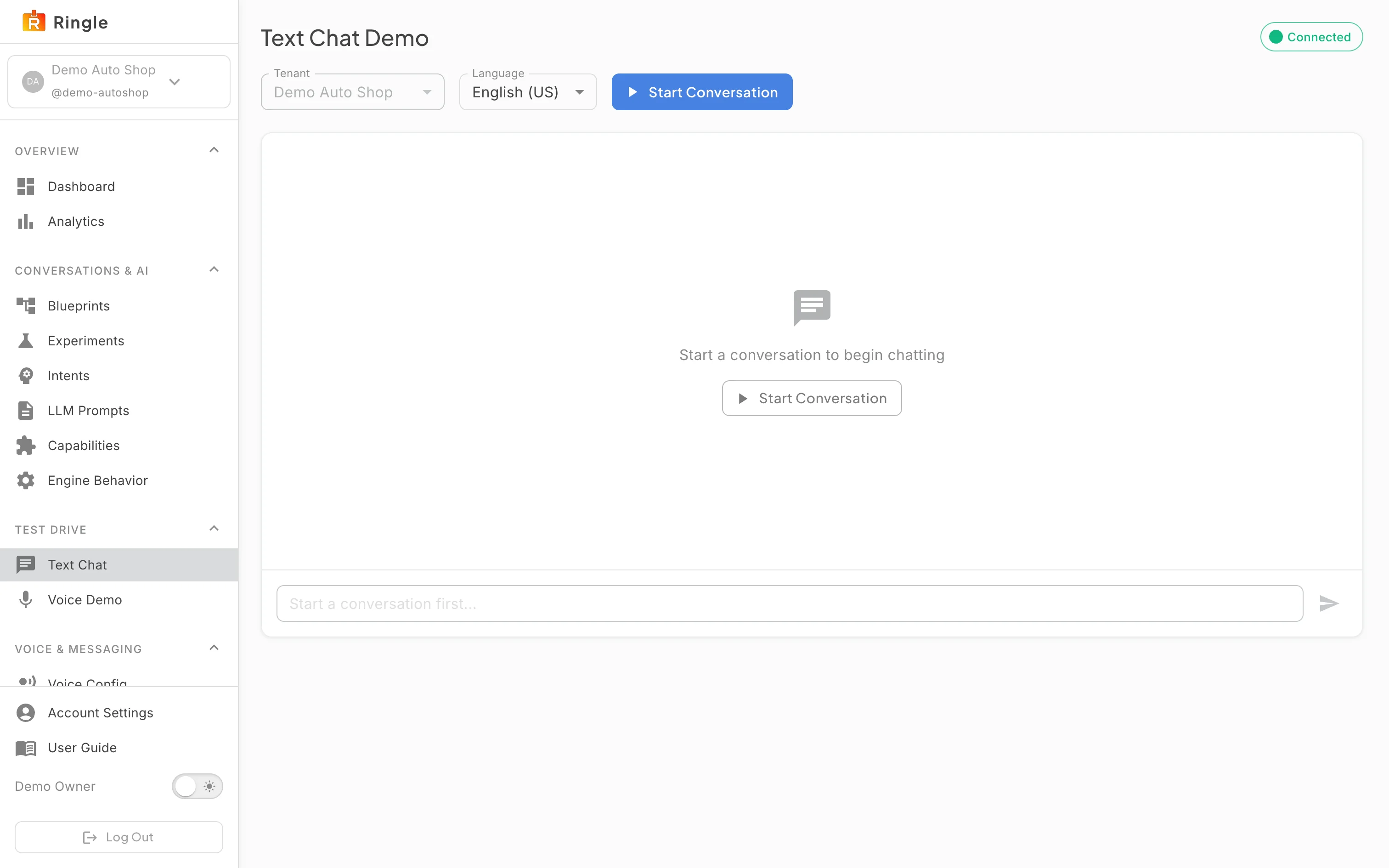
Action: Open Try it in the sidebar and click Text Chat.
What you should see: The editor opens on your skill set with the “Try the conversation” drawer already open on the Chat tab. The drawer offers Email, Text message and Phone tabs, a sample order to test with, the language, and a “Start at this skill” switch, then suggested customer messages and a “Reply as the customer” box. The playbook stays on the left, so you can read the step the assistant is on while you talk to it.
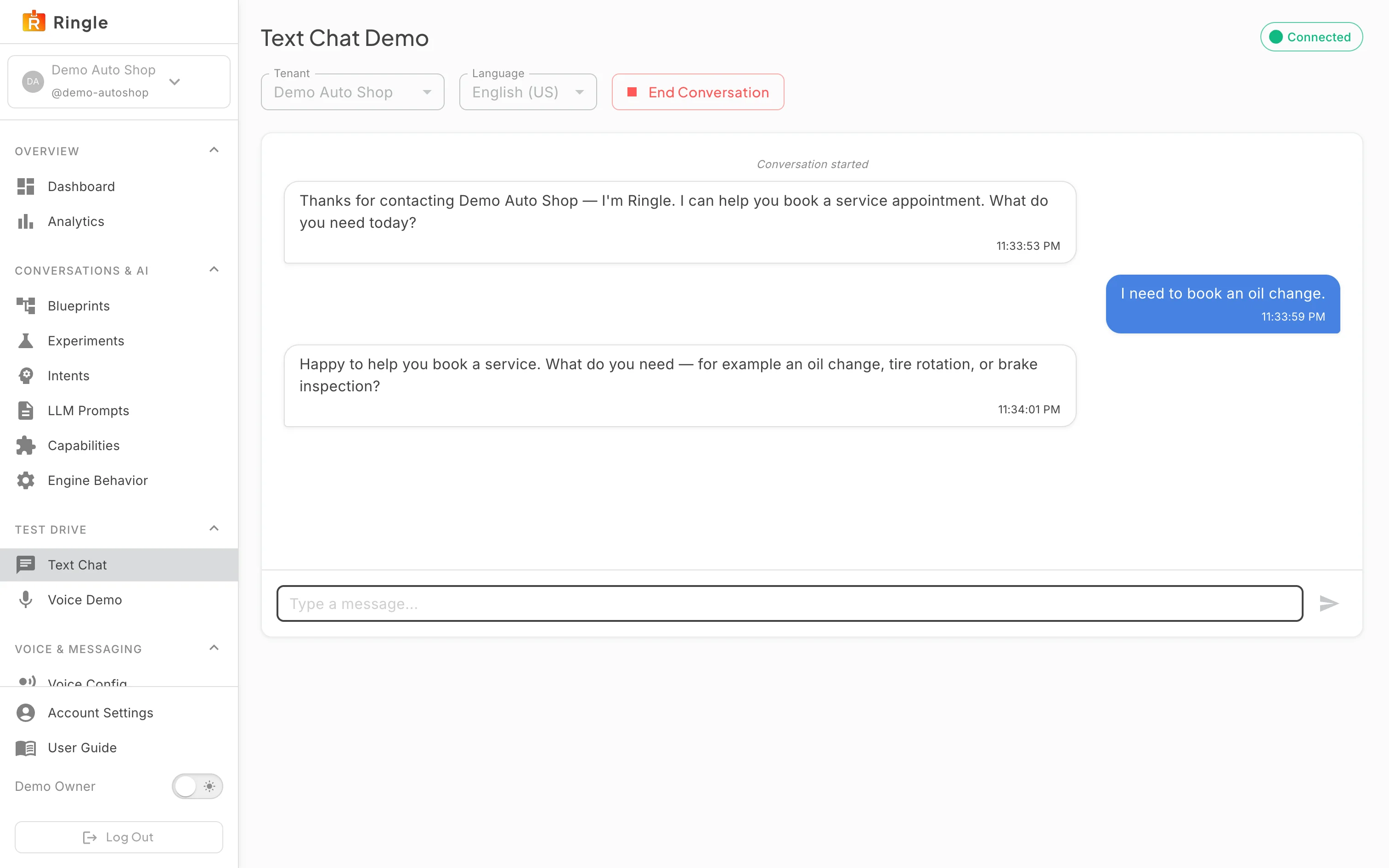
Action: Type a message a customer might send and press Enter.
What you should see: The assistant answers in the chat as it would on your website, using the skill on screen and your business details. The step it took lights up in the playbook. The preview runs in a sandbox: nothing it says reaches a customer and the conversation does not count in Analytics.
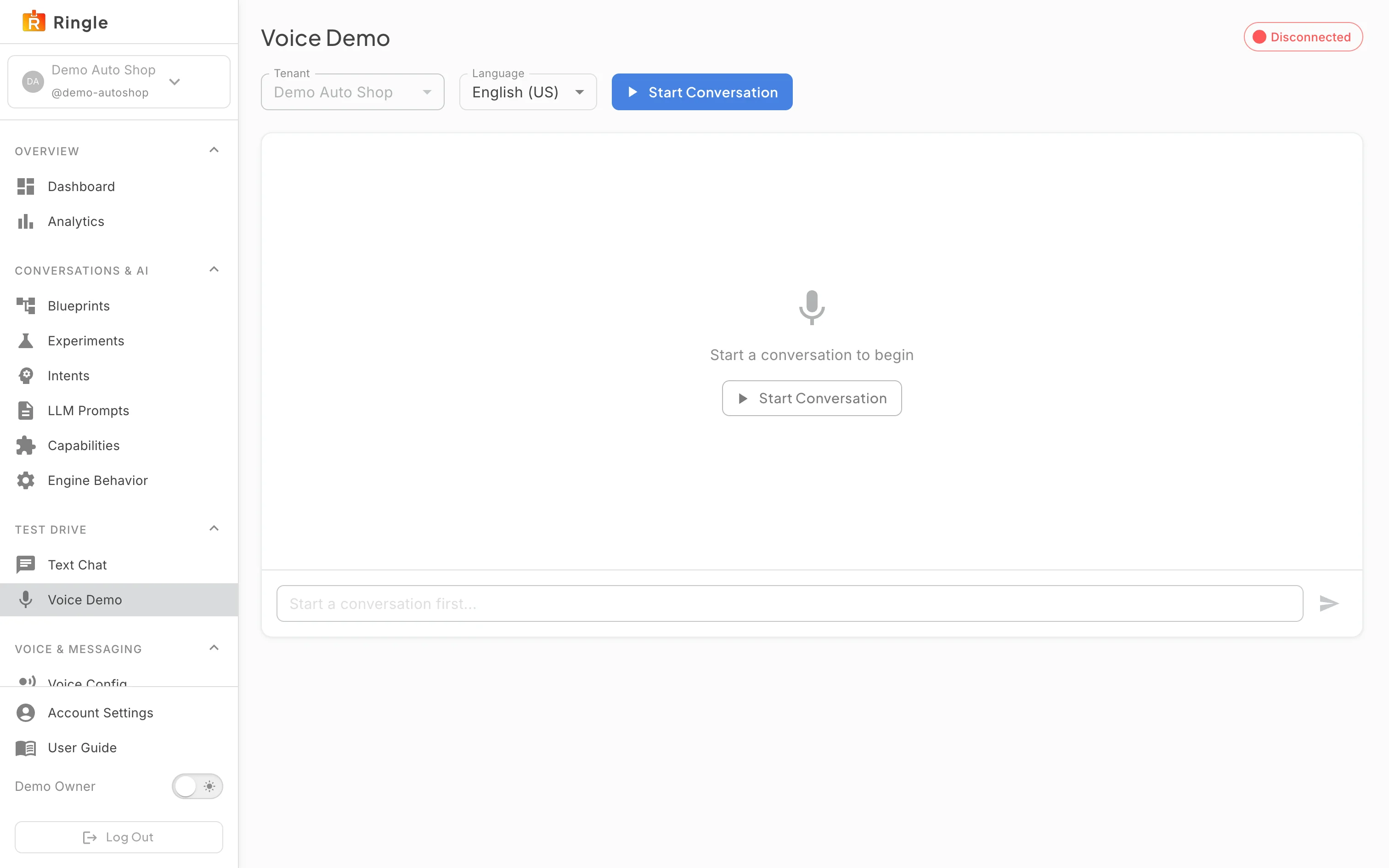
Action: Click the Phone tab in the drawer, or open Try it and click Voice Demo.
What you should see: The drawer switches to the voice version of the conversation and shows the spoken greeting as a transcript. Picking a tab changes only the preview; the editor keeps showing the wording every channel uses. The phone preview is a transcript only, with no call or audio; a live call needs the voice add-on and a phone number, and the Voice Demo entry carries a lock until the add-on is on the plan.
Screenshot not available (the capture browser has no microphone; the voice session needs one)
Action: With the voice add-on, call the number attached to the business.
What you should see: The assistant answers out loud with the voice chosen on the Voice settings page, and the call appears in Analytics with its transcript and recording like any other conversation.

