Ask for access to a business on Merrows when nobody has invited you yet, and follow what happens to the request.
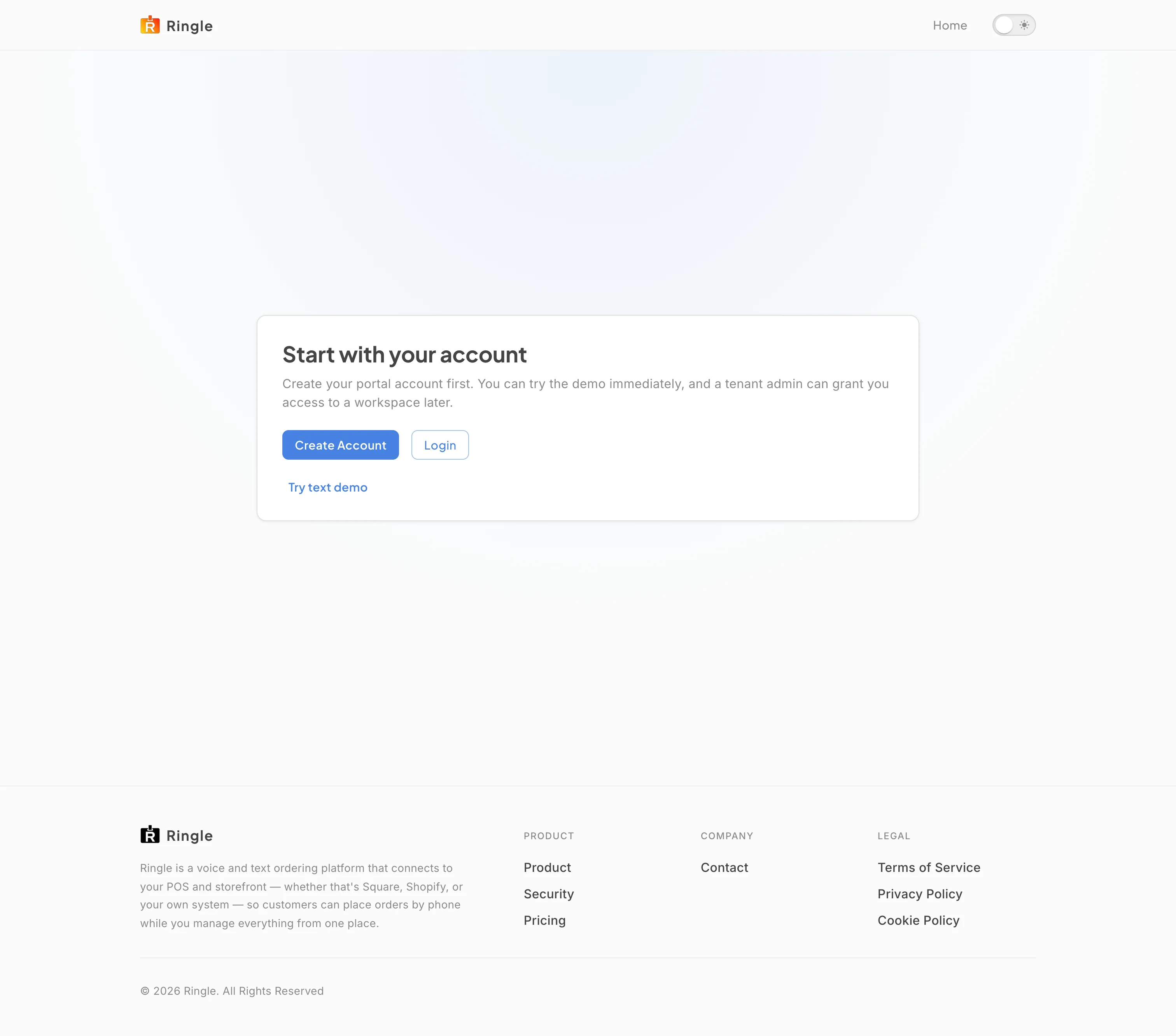
Action: While signed out, open https://portal.merrows.ai/tenant-signup.
What you should see: A card titled “Start with your account” explains that you create a portal account first, can try the demo right away, and that a business admin can grant access later. It offers Create Account, Login and “Try text demo” links.
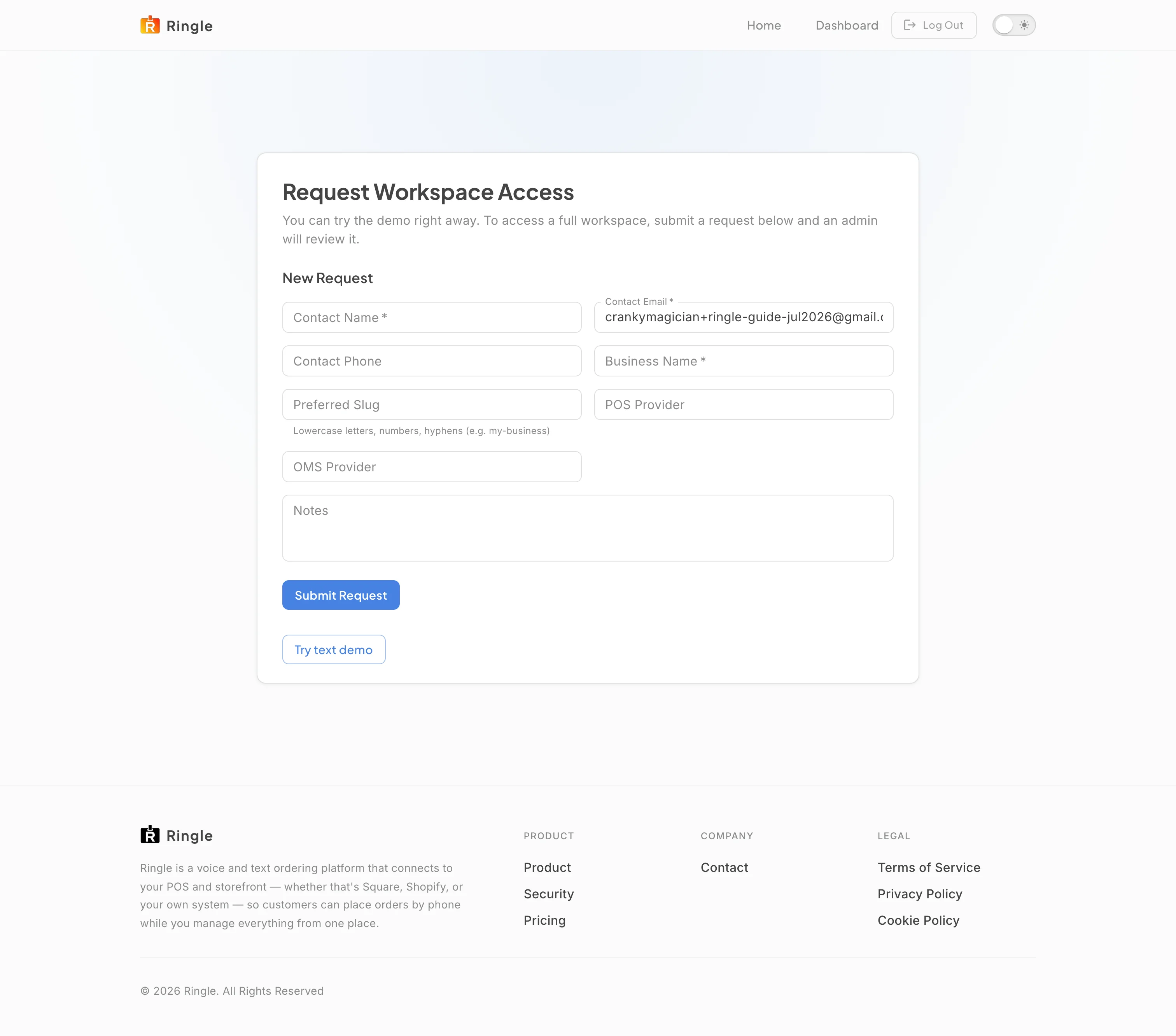
Action: Sign in and open the same address again.
What you should see: The card now reads “Request Workspace Access” with a New Request form: Contact Name, Contact Email (filled in from your account), Contact Phone, Business Name, Web address name and Notes, with a Submit Request button. Requests you sent earlier are listed above the form. A signed-in account that belongs to no business is otherwise taken to the self-serve setup page, where it can start its own business instead.
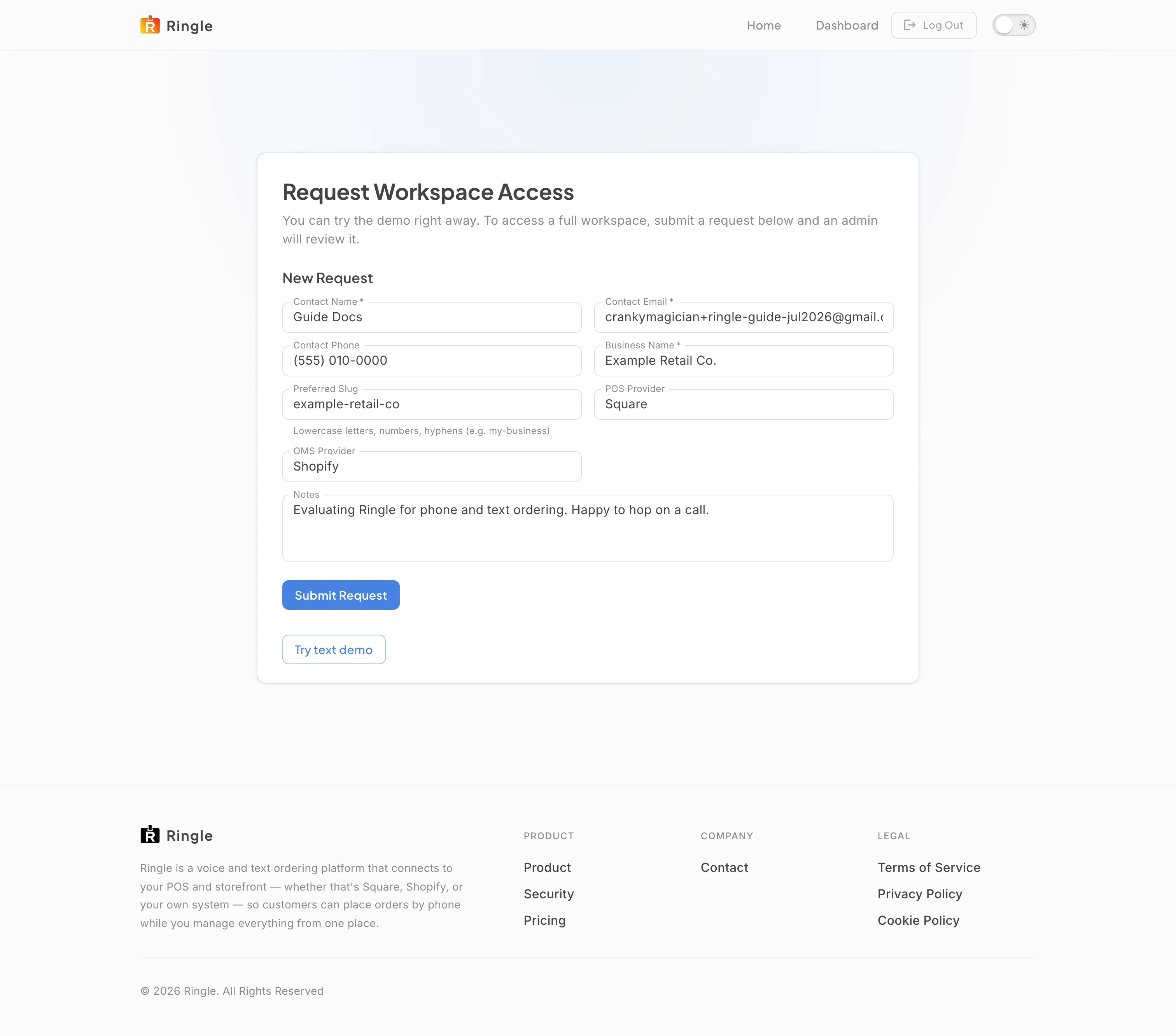
Action: Fill in the form: your name, the business name, a web address name for the business (lowercase letters, numbers and hyphens, like my-business), and anything the reviewer should know, such as what the business sells and the systems it runs.
What you should see: Name, email and business name are the minimum; the rest is optional and speeds up the review. The form accepts the values and Submit Request becomes the next step.
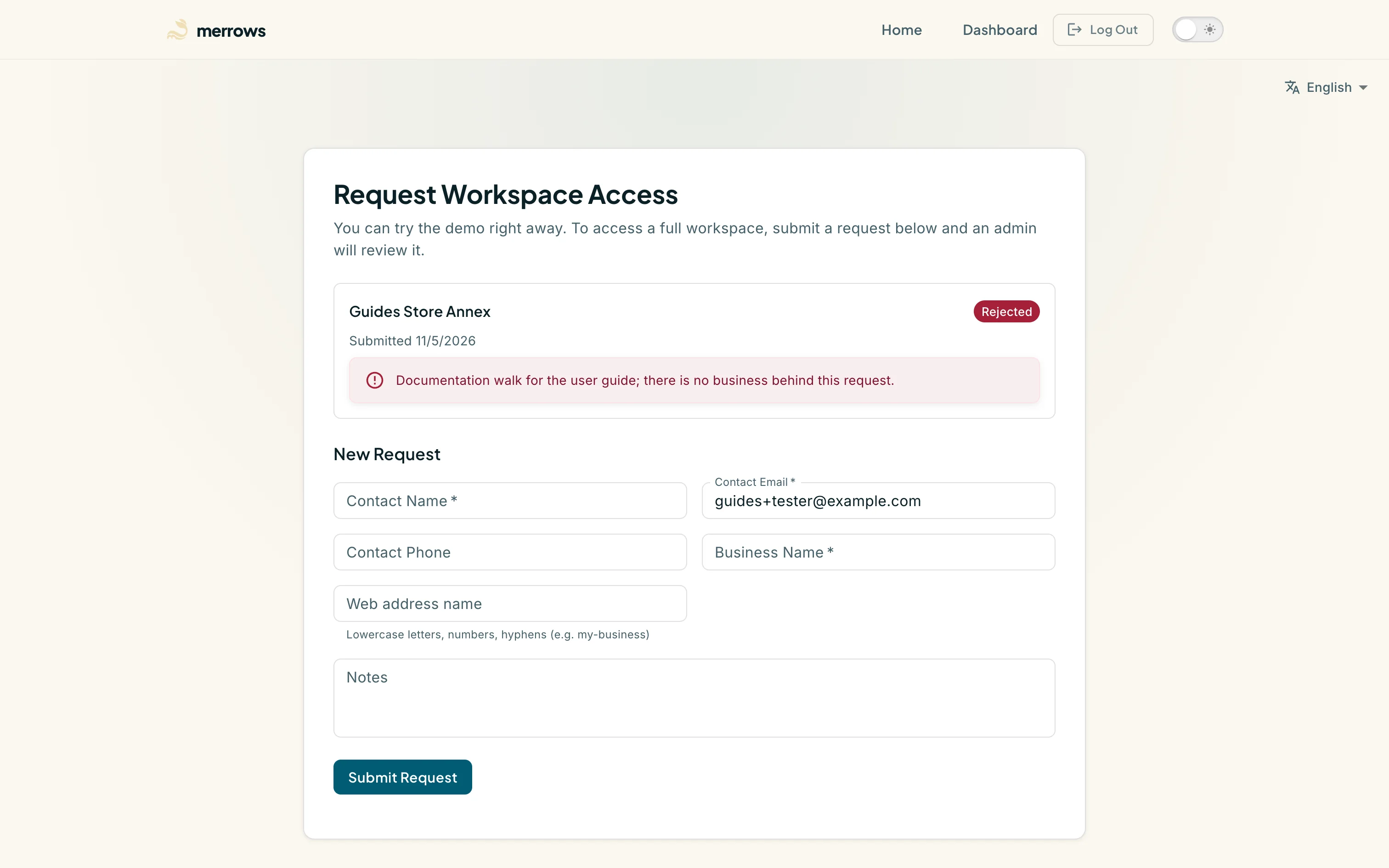
Action: Click Submit Request.
What you should see: Your request appears above the form with the business name, the date it was submitted and a status chip. It reads Pending, with a Cancel Request link, until a platform admin reviews it from the admin Access Requests page. When it is approved the business appears in your switcher. When it is rejected the chip reads Rejected and the reviewer’s note is shown under it, as on the earlier request pictured here.

