Move between the businesses your account belongs to, and know where demo workspaces live when they are not in the same list.
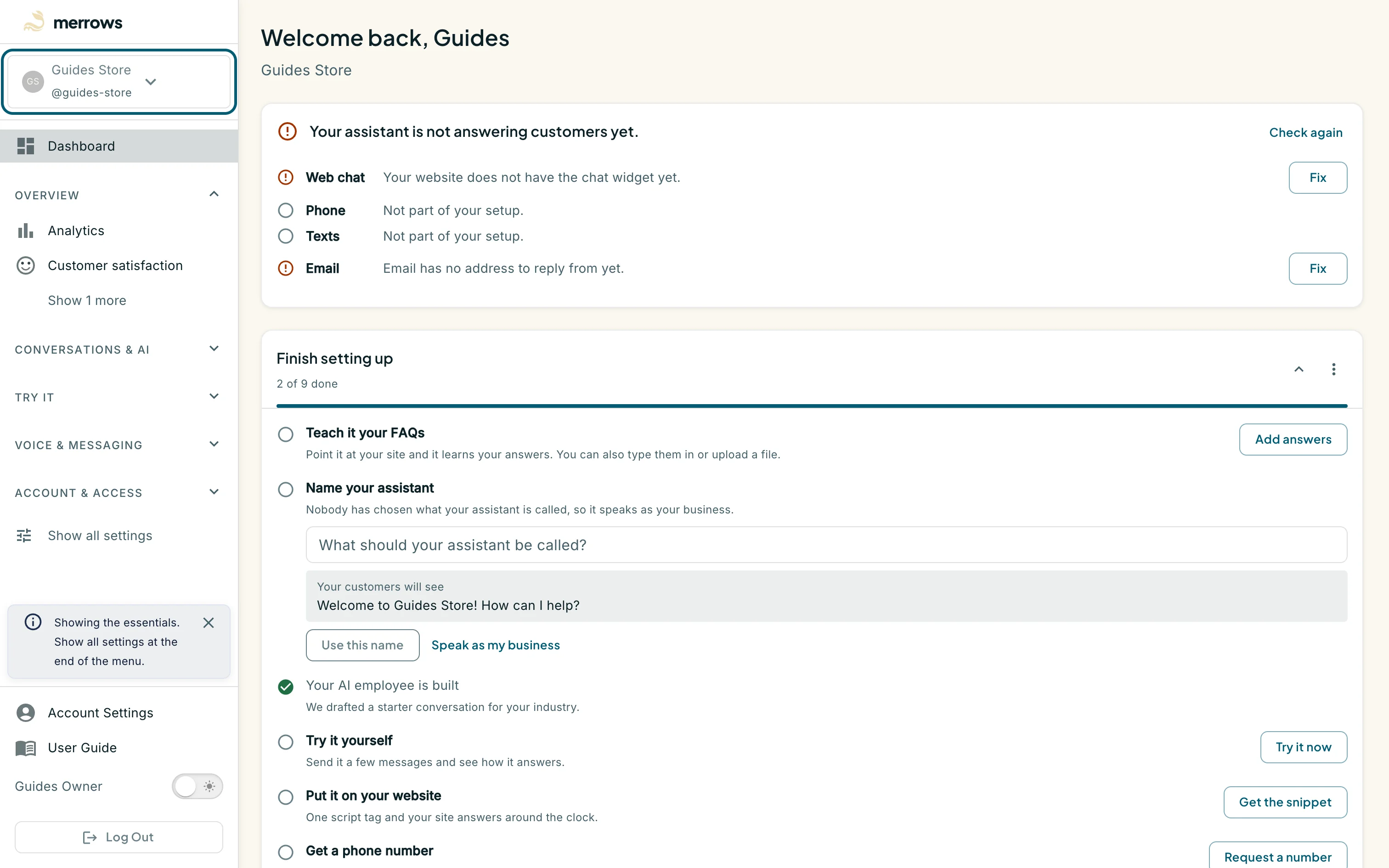
Action: Sign in and look at the top of the sidebar, directly under the Merrows mark.
What you should see: A button shows the active business: its initials, its name and its @slug (here Guides Store with @guides-store). Every page you open is scoped to this business until you switch.
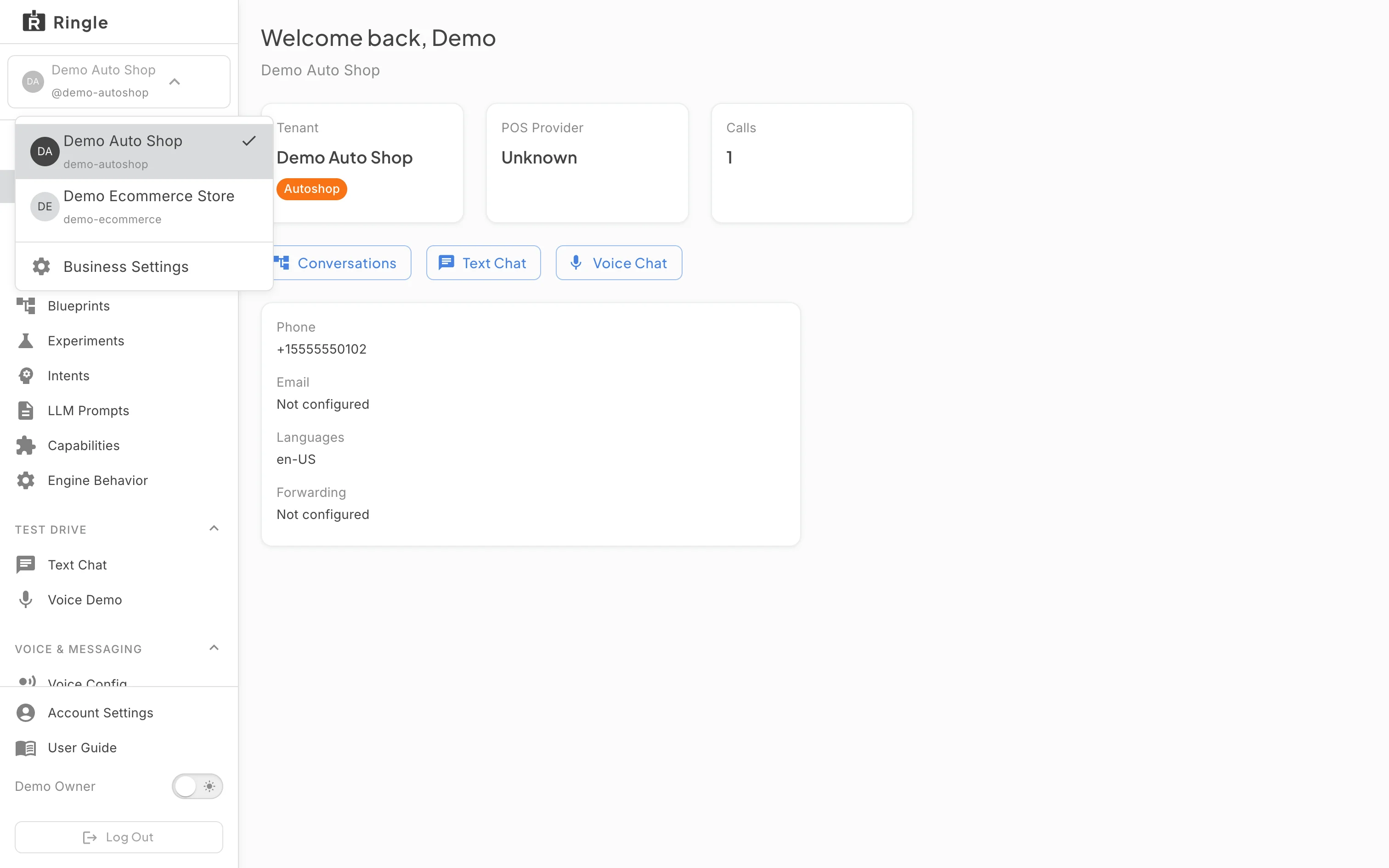
Action: Click the business button to open the switcher.
What you should see: A menu lists every business your account can reach, each with its initials, name and slug. Below a divider, Business Settings opens the Users & Access page of the active business.
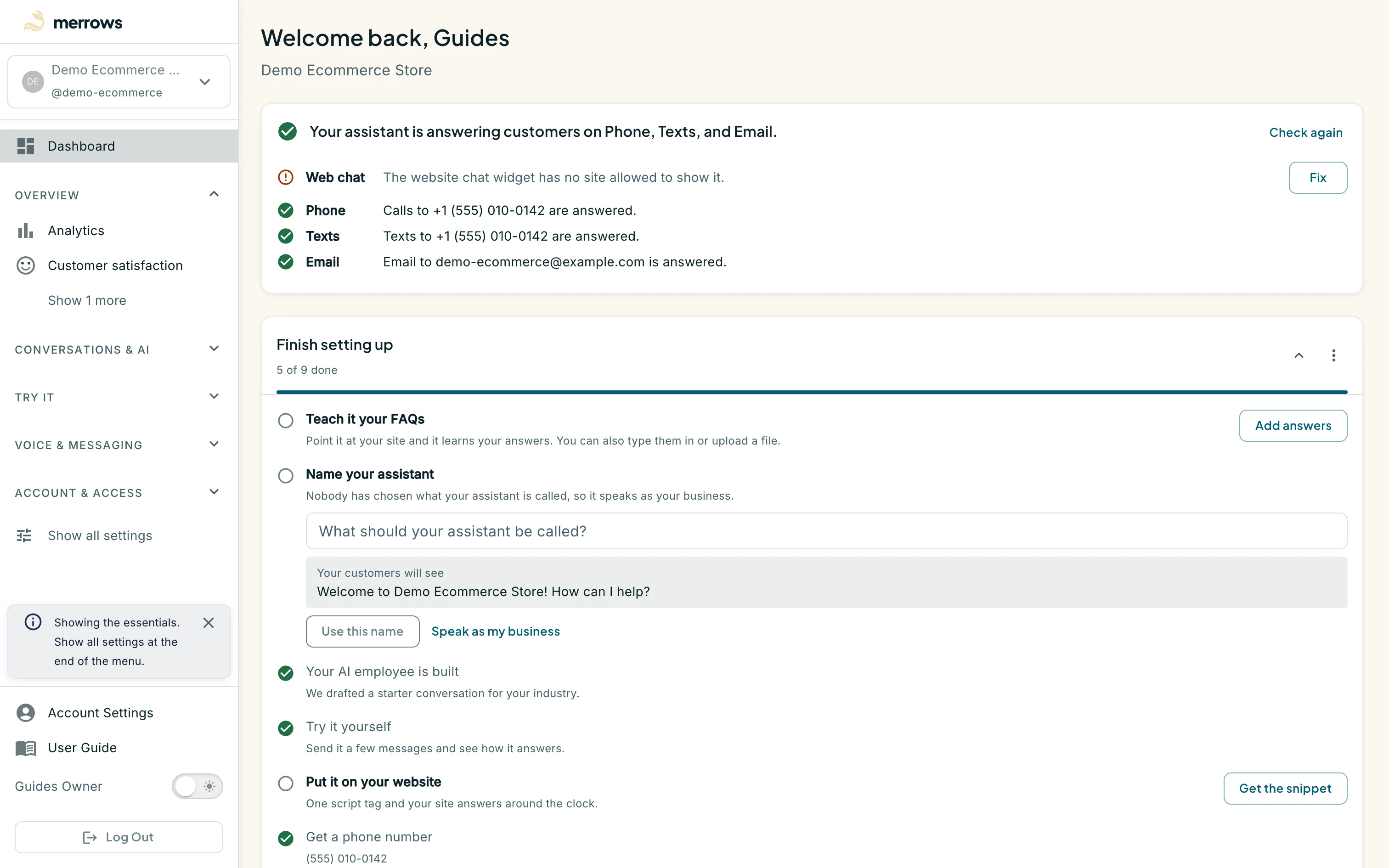
Action: Click another business in the list (here Demo Ecommerce Store).
What you should see: The switcher button and the dashboard header change to the business you picked, and everything in the portal now belongs to it: dashboard cards, analytics, skill sets and settings. If you were in the conversation editor, the portal returns you to the skill sets list first so nothing is saved into the wrong business.
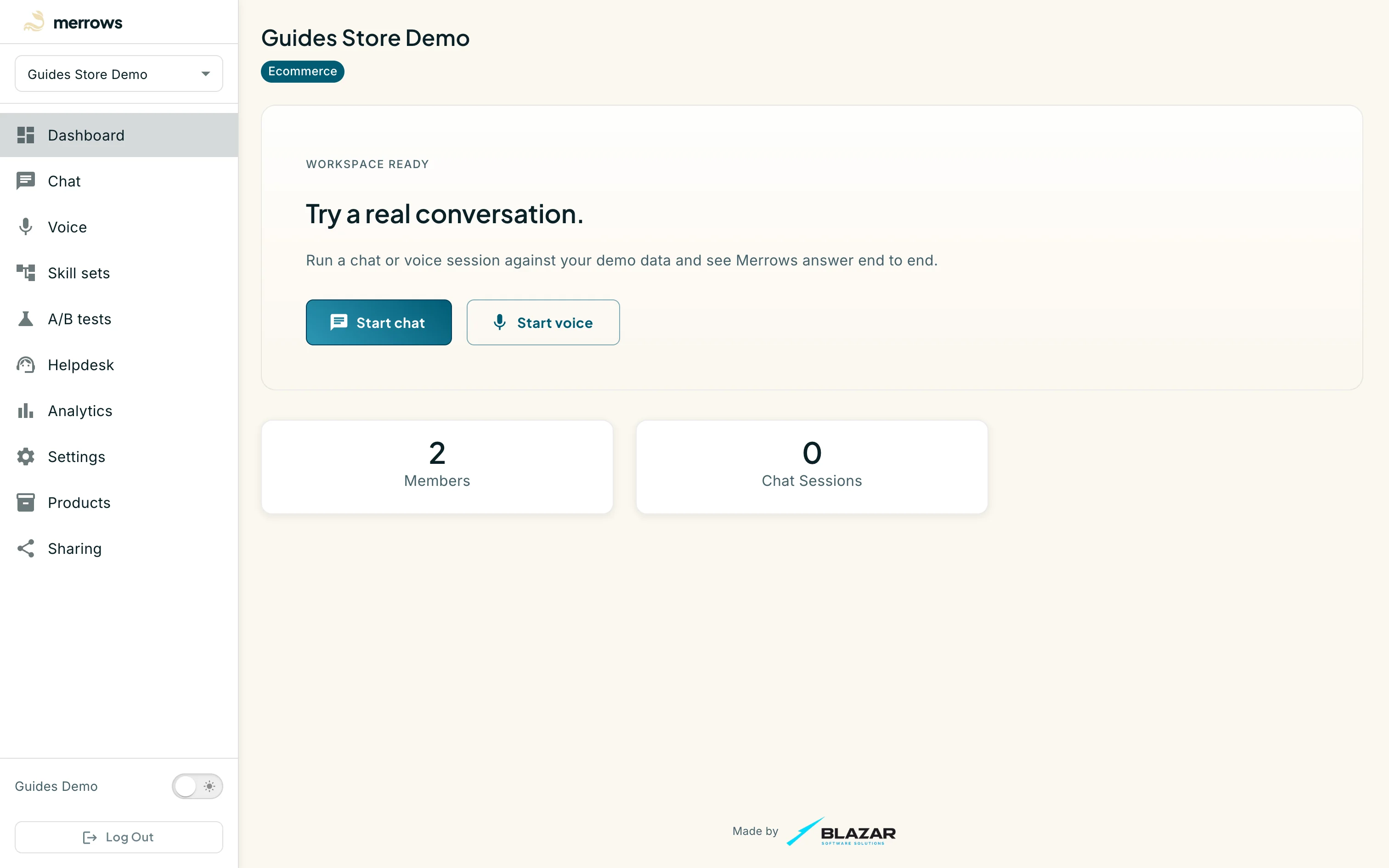
Action: Open one of your demo workspaces from the link you were given or from My demos if you are staff.
What you should see: Demo workspaces do not appear in the business switcher. They have their own home under /demos with a separate sidebar, and their own selector at the top of it. See the “Demo workspaces” guides.

