Tell your AI employee who it works for and how to behave, set the rules for handing customers to your team, and reach the two advanced pages behind it: API keys for your own integrations and payment links for customers.
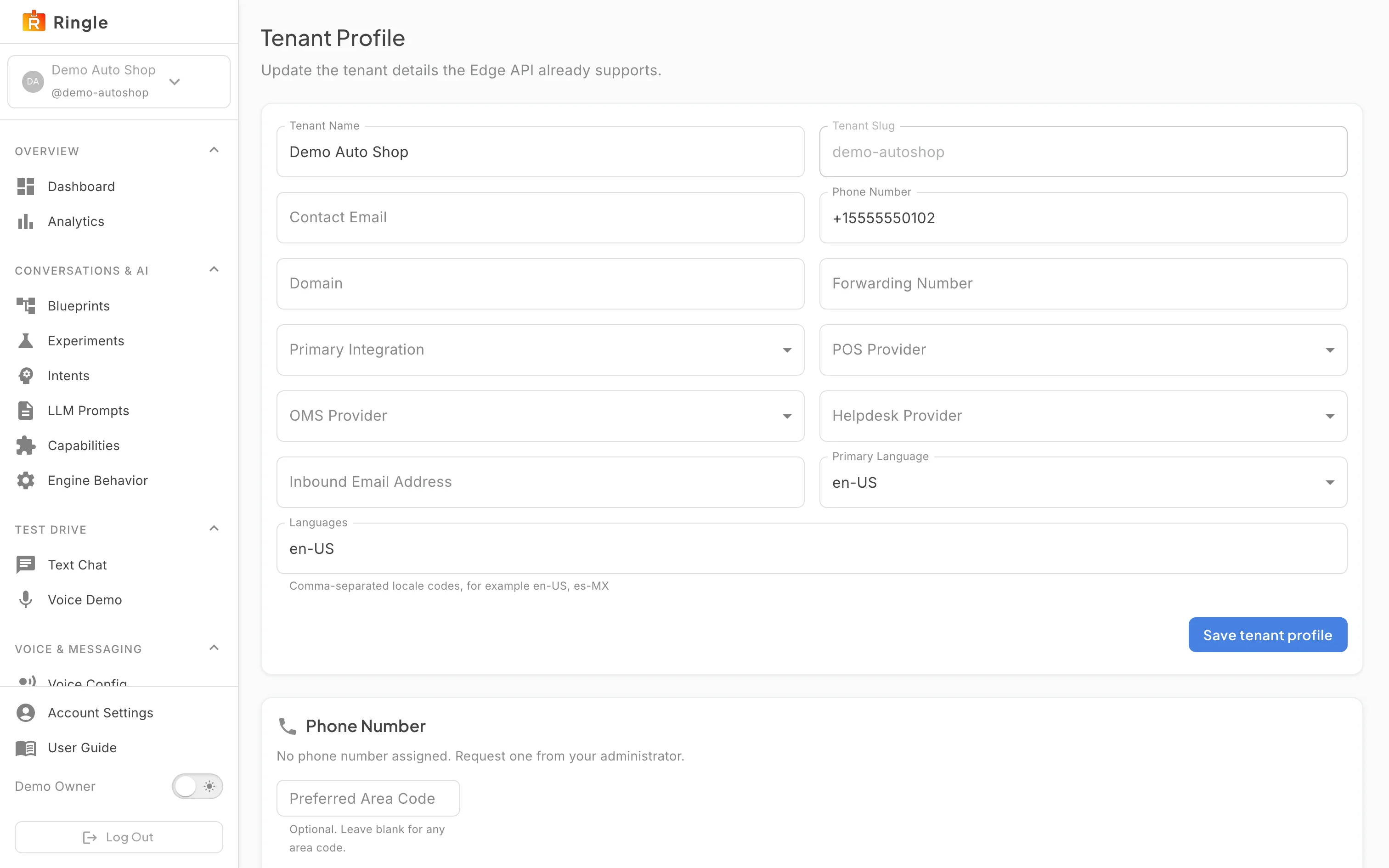
Action: Open Business profile under Account & Access, or go to https://portal.merrows.ai/settings/tenant.
What you should see: The top of the page holds the Business name, Contact Email, Website, a description under “About your business”, the Number customers call and the number to Forward calls to. Then “Your assistant”: what it is called, a preview of the greeting customers see, the Primary Language, the other Languages it can hold a conversation in, and “When it cannot help”, the route a conversation takes when the assistant cannot finish the job.
Action: Scroll to Business hours, Assistant working hours and the Hand-off rules.
What you should see: Business hours take a timezone and rows of days and times. Save them before changing Assistant working hours below. Choose Always on, Outside business hours, or Custom hours. Always on keeps the current behavior. Outside business hours uses the business hours above; Custom hours has its own weekly schedule. Clearing business hours resets Outside business hours to Always on and leaves Custom hours unchanged.
Before enabling a schedule, set up team routing for every active channel. Website chat can open your existing messenger or a secure support link. Calls can stay with your phone system or ring a team number. Email and SMS can stay with your existing inbox, or incoming messages can be relayed to a verified team mailbox. An SMS email relay does not provide two-way texting. Complete and test any setup in your phone or inbox provider before confirming it here. Team routing does not use the assistant, although phone and message transport fees may still apply.
New interactions follow the schedule. Calls and live chats already in progress can finish. Email and SMS threads assigned to your team stay with the team until you explicitly return future messages to the assistant schedule. Recent team routing shows selected routes, delivery failures and provider acceptance separately from a confirmed human connection. Failed deliveries keep the original incoming message and can be retried while safe. They do not restart the assistant.
Hand-off rules decide when the assistant passes a customer on: only during business hours, whether it transfers phone calls (needs a forwarding number), hands conversations to your helpdesk, or calls customers back, and what it does when your team is away, for example open a ticket. “When to hand off” sets the limits: misunderstood messages in a row, automatic hand-offs per conversation, repeated failed actions and the same reply repeated; an empty field keeps the standard setting.
Action: Expand Advanced settings.
What you should see: The platform-level knobs: the email idle timeout, the callback cooldown and the number of callback retries, whether the assistant returns a call that dropped, and the PII redaction level, which is managed by the Merrows platform team. The store policies the assistant quotes, such as the return window and the subscription rules, live in the skill set and are edited in the conversation editor.
Action: Change a value and click Save changes.
What you should see: A confirmation appears and the assistant uses the new value from its next conversation. Adding a language translates every step of your customised skills; review them in the editor.
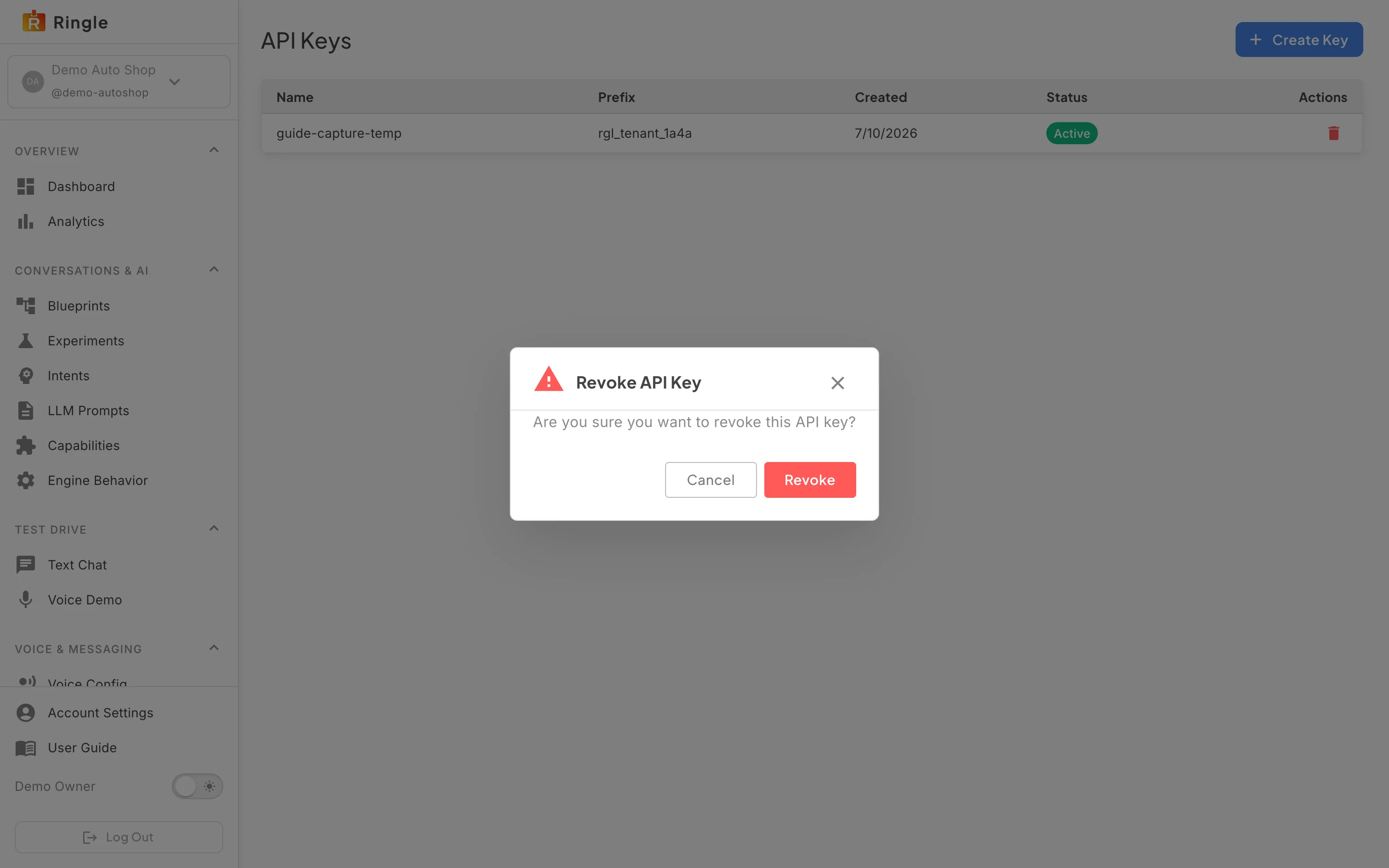
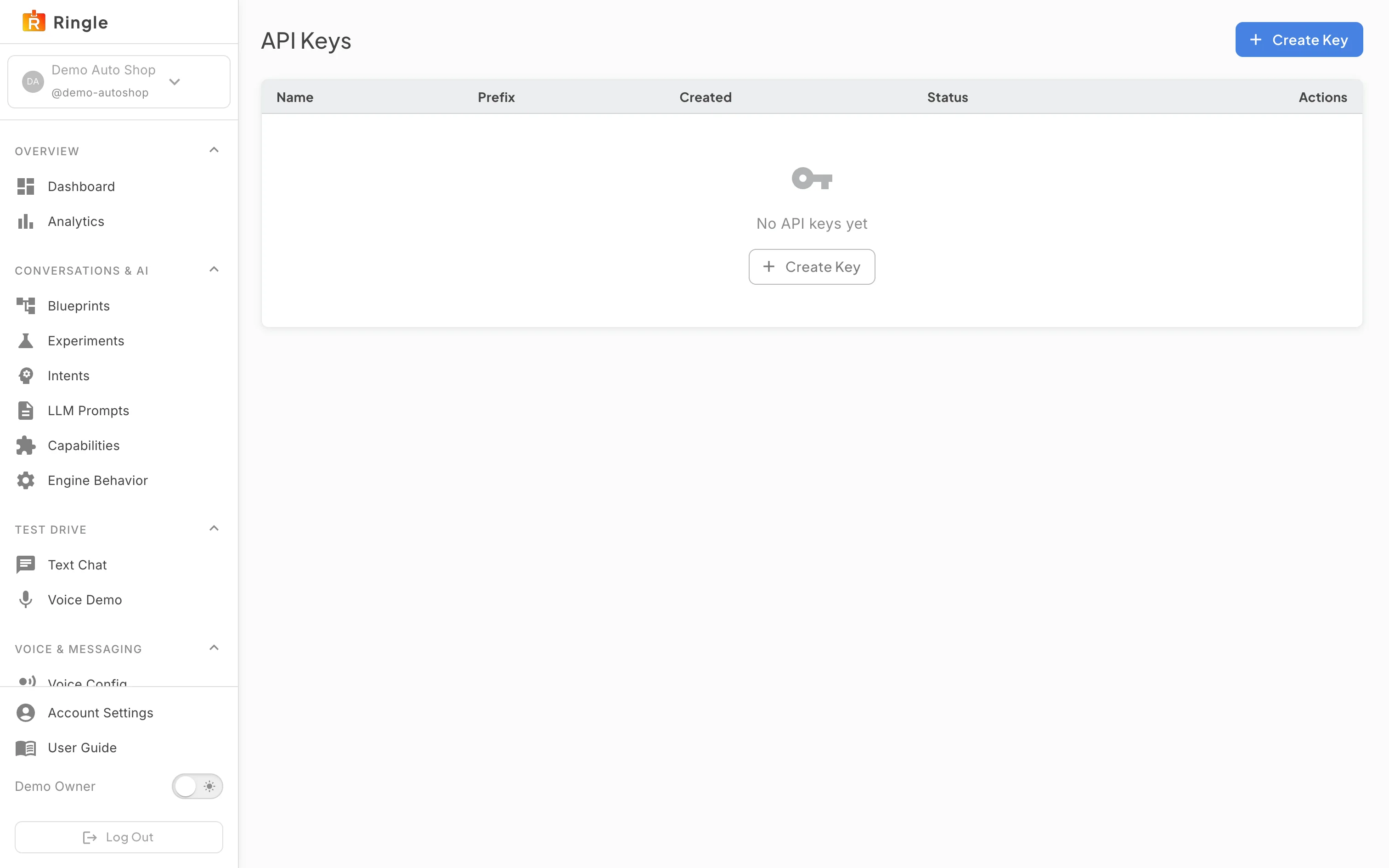
Action: Open API Keys under Account & Access, or go to https://portal.merrows.ai/settings/api-keys.
What you should see: A table of the keys the business has created, with the name, the prefix, the creation date and the status, and a Create Key button. The keys are for calling the Merrows API from your own systems; the API documentation is at docs.merrows.ai.
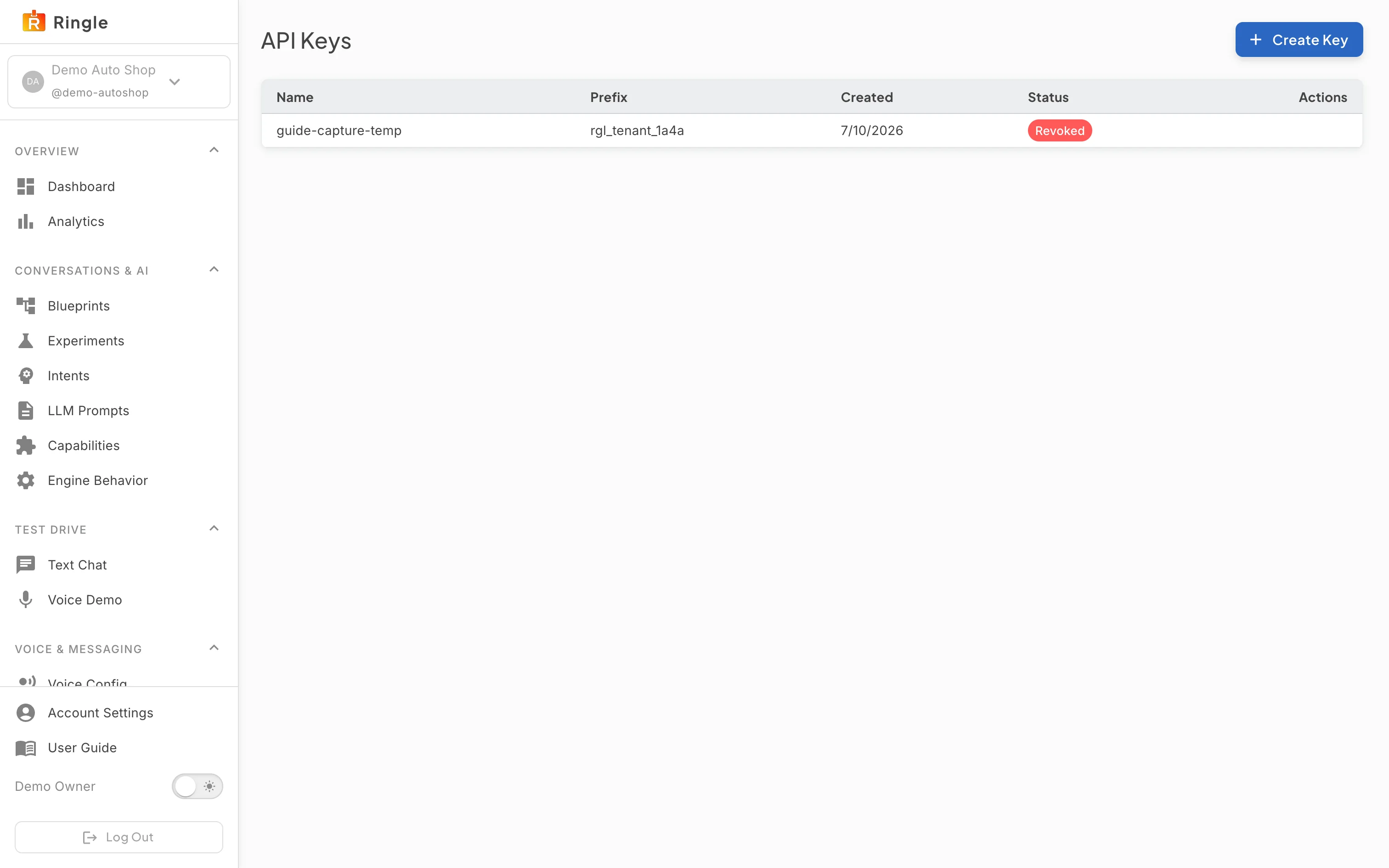
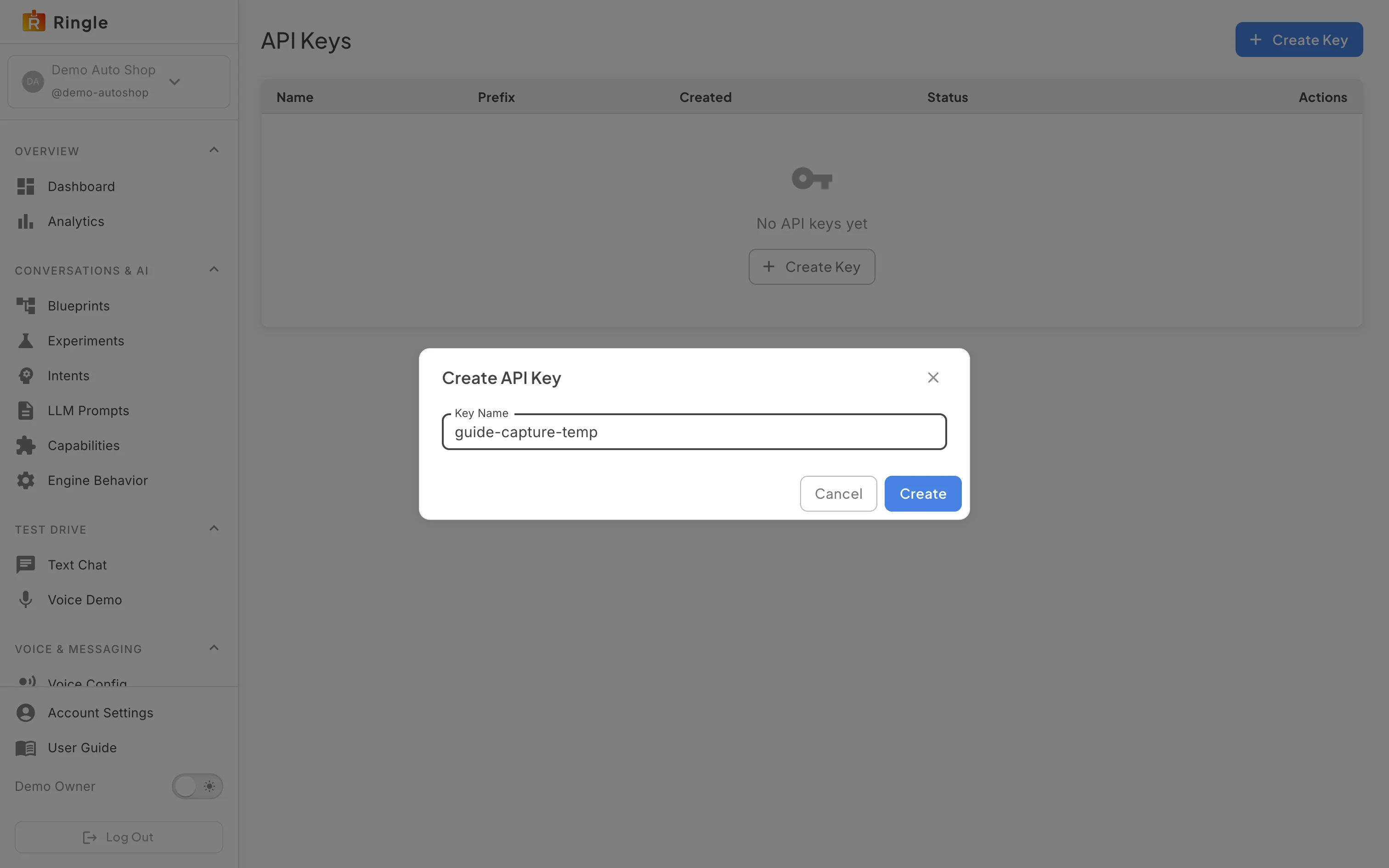
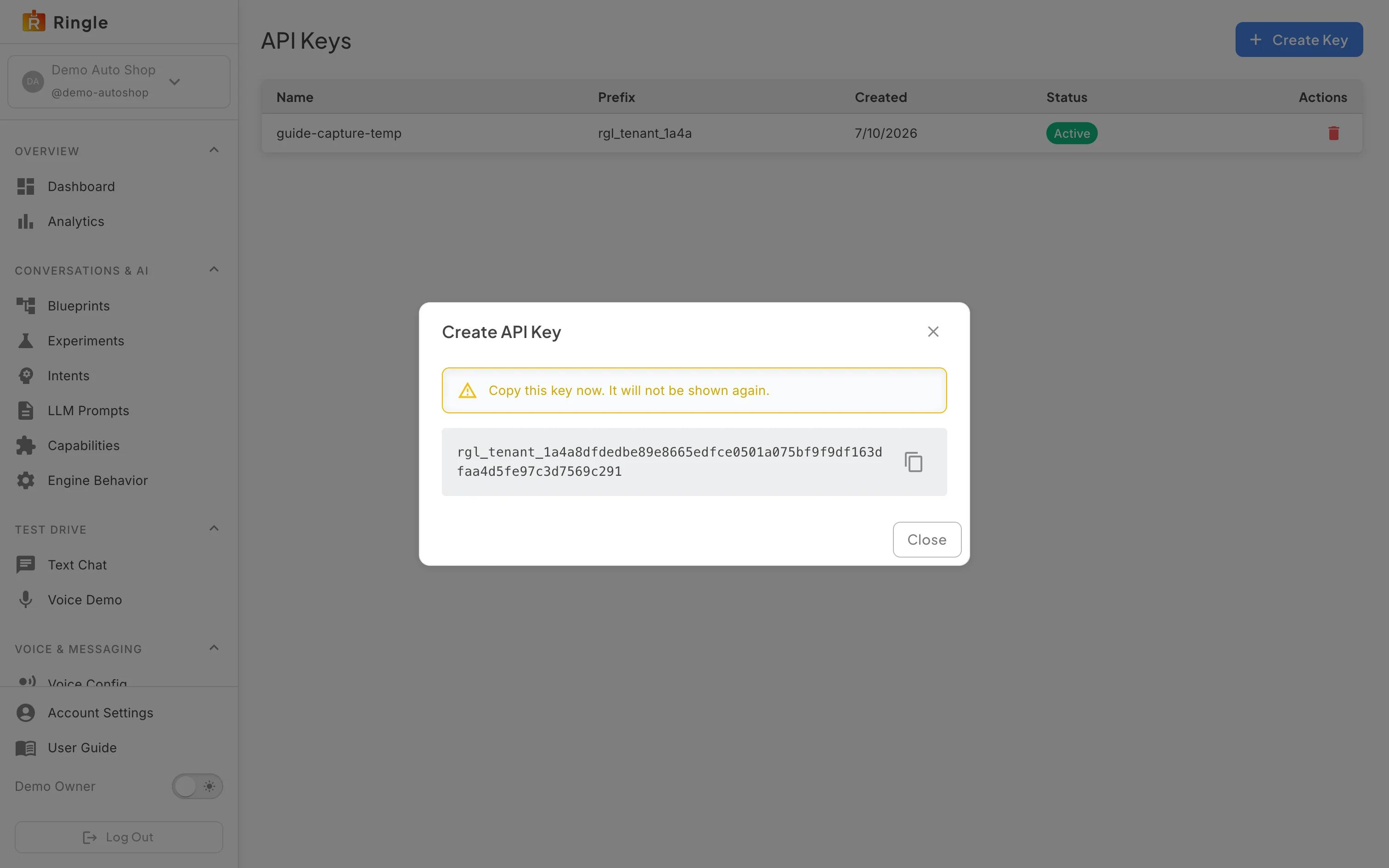
Action: Click Create Key, name it and confirm.
What you should see: The full key is shown once, with a copy button; afterwards only its prefix is visible. Store it where your system reads it. Revoke on a row disables the key at once and the status reads Revoked; only this business can revoke its own keys.
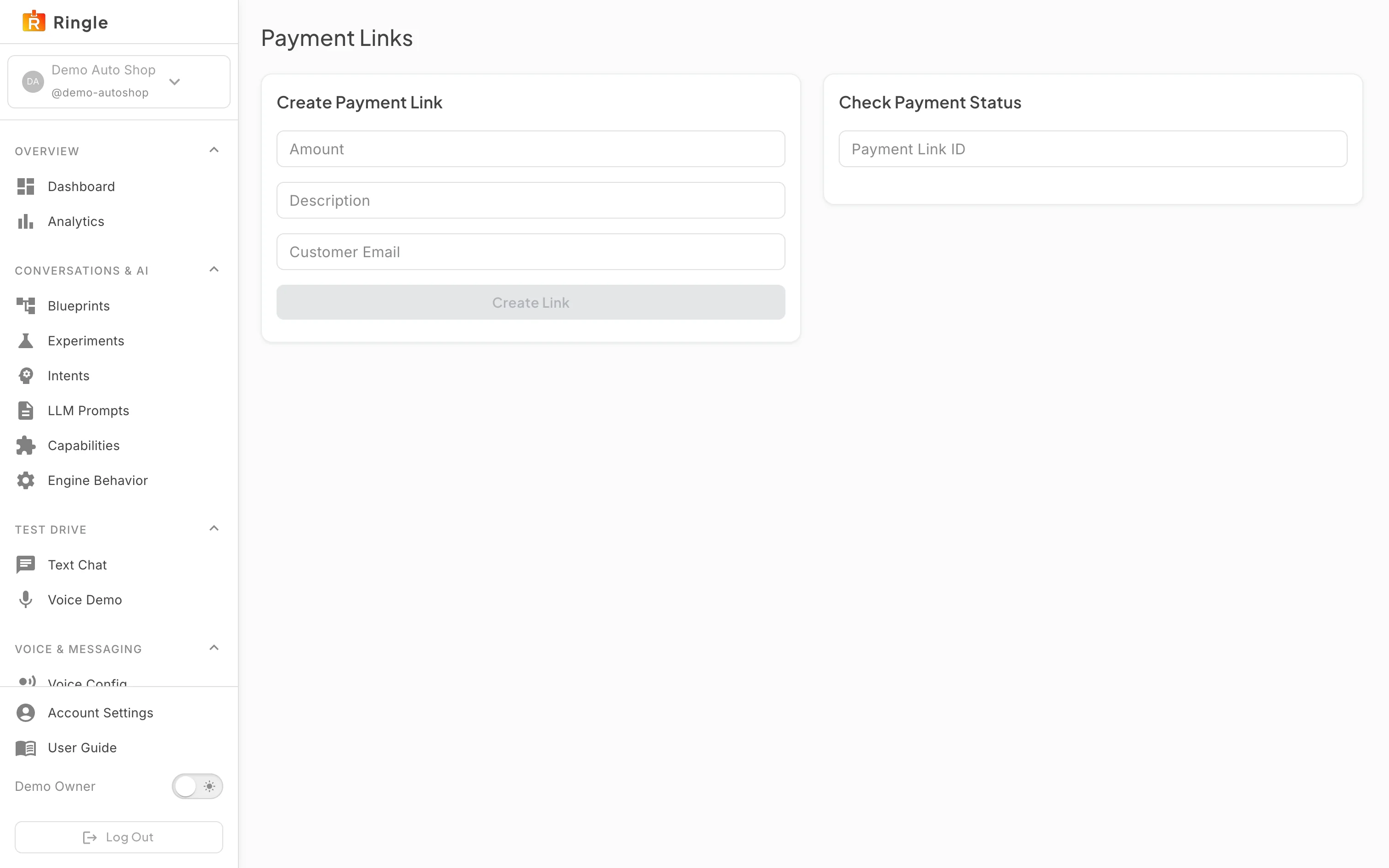
Action: Open Customer payments under Account & Access, or go to https://portal.merrows.ai/settings/payments.
What you should see: Create payment link takes an amount, a description and the customer’s email and makes a link the assistant or your team can send; Check payment status looks a link up by its ID and says whether it was paid.
rgl_tenant_ and go in the X-Api-Key header of
each request.
