Turn a fresh account into a business of its own: describe the business, pick the channels your AI employee answers on, and start the 14-day free trial of a paid plan, or start on the Free plan (100 conversations a month on web chat and email, no card, no trial).
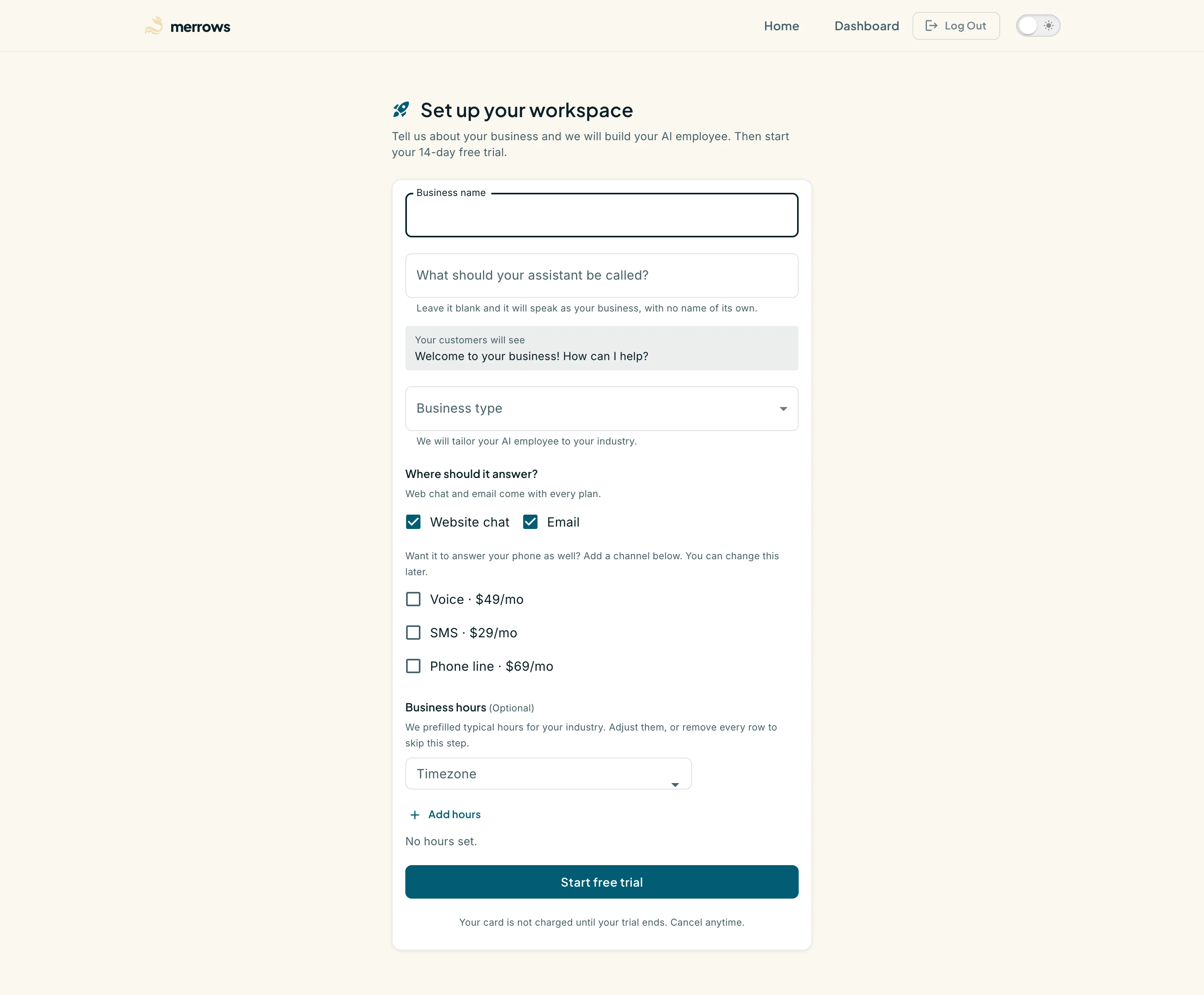
Action: Sign in. An account with no business lands on https://portal.merrows.ai/get-started.
What you should see: “Set up your workspace” asks for the Business name and, optionally, what the assistant should be called, with a preview of the greeting your customers will see. Below are Business type, the channels, optional business hours and a Start free trial button.
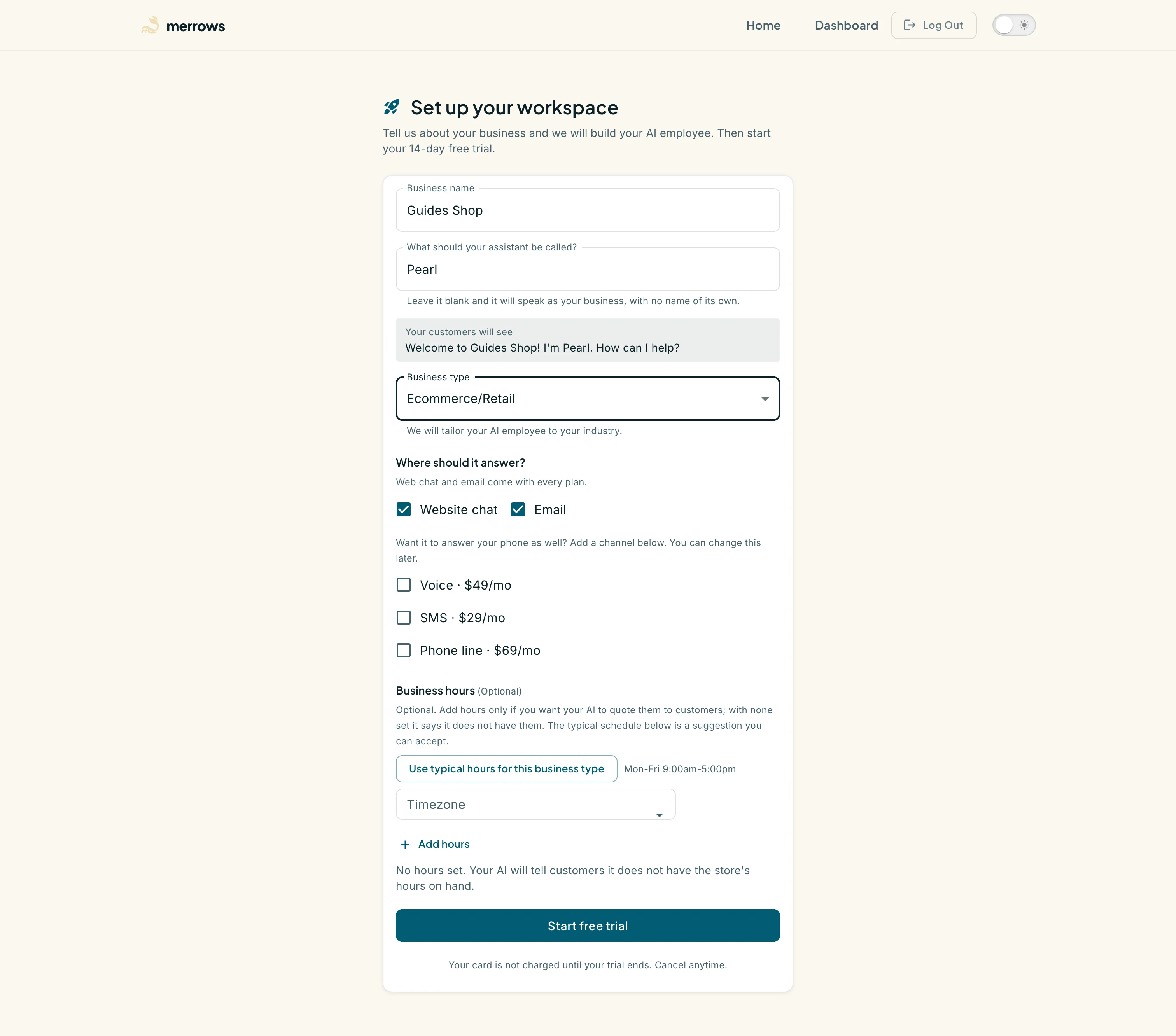
Action: Type the business name and an assistant name, and pick the Business type from the list.
What you should see: The greeting preview updates with the names you typed. The business type decides which starter conversation and skills your AI employee is built from, so pick the closest industry; it can be refined later in the editor.
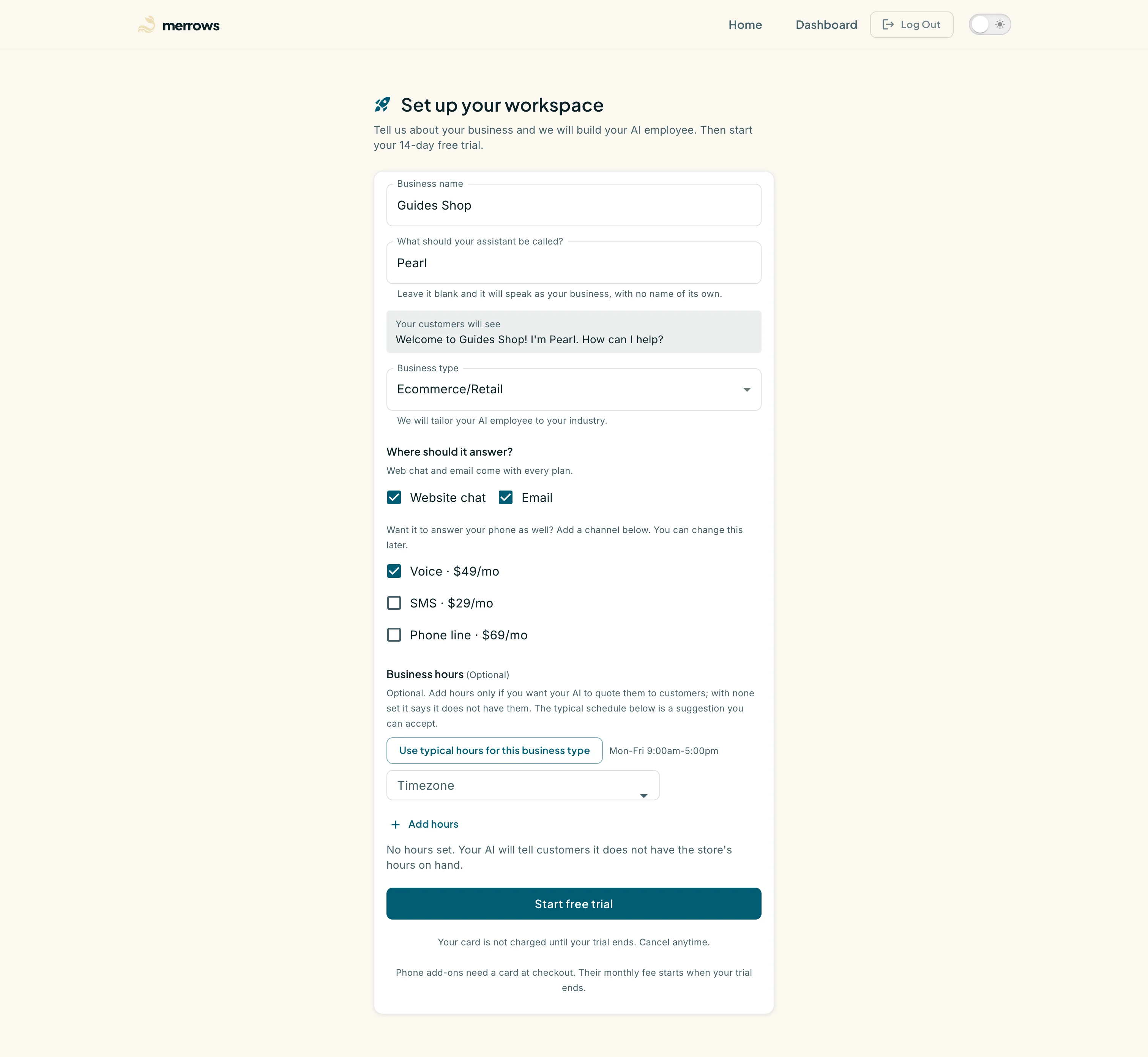
Action: Under “Where should it answer?”, keep Website chat and Email, and tick a phone channel if you want one.
What you should see: Website chat and Email come with every plan and are ticked already. Voice, SMS and a phone line are monthly add-ons with their prices beside them; a ticked add-on is included in the checkout. Any of this can be changed later from Your plan.
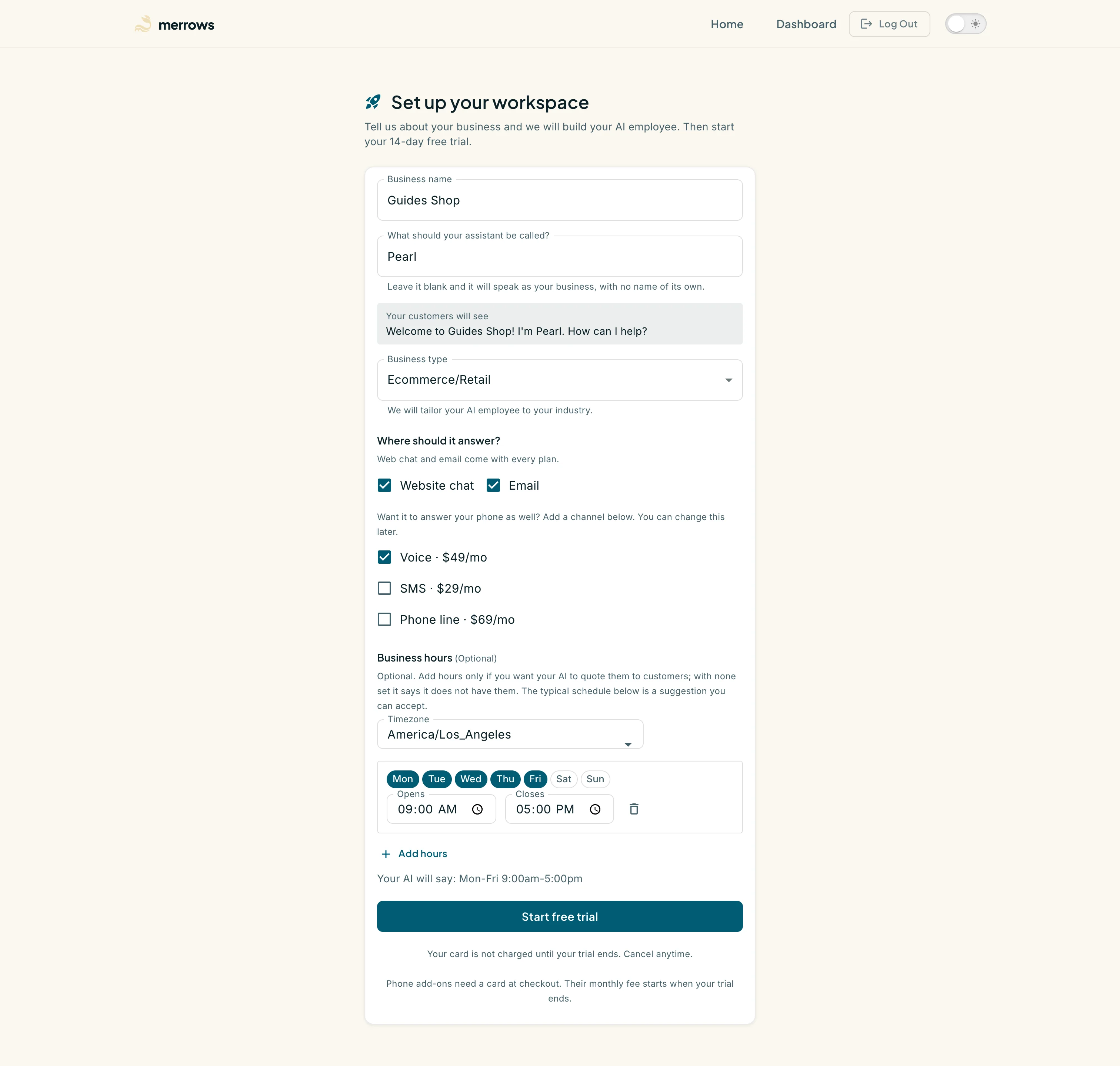
Action: Add your opening hours, or leave the section empty to skip it.
What you should see: Add hours opens a row with the days and times, in the timezone you choose above it, and “Your AI will say” shows how the assistant will read them out. “Use typical hours for this business type” fills in a suggested schedule instead. For an online store hours are optional: with none set, the assistant tells customers it does not have the store’s hours on hand. Remove every row to skip the step.
Screenshot not available (the checkout is a Stripe page outside the portal, and the capture tooling never loads it)
Action: Click Start free trial.
What you should see: The portal creates the business and hands you to the Stripe checkout for the plan and any add-ons you ticked. Your card is not charged until the 14-day trial ends. Closing the checkout keeps the business: the dashboard shows a pending plan notice until you finish paying, and Your plan lets you start the checkout again.
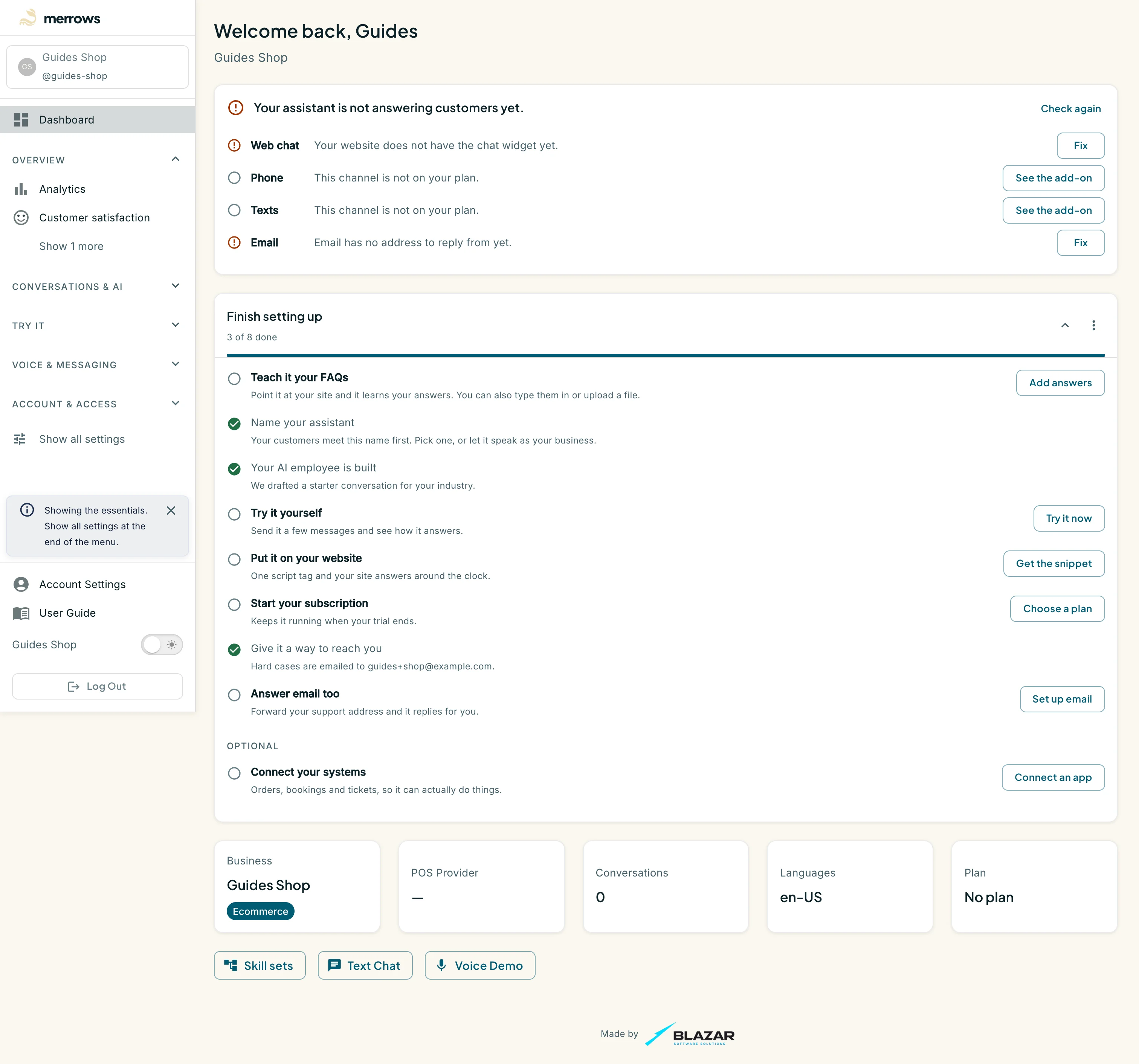
Action: Open the dashboard.
What you should see: Your new business is active in the switcher and the dashboard shows the “Finish setting up” checklist: teach it your FAQs, name your assistant, try it yourself, put it on your website, start your subscription, give it a way to reach you, answer email, connect your systems. Each item opens the page that completes it. See the “Dashboard and go-live checklist” guide.

