Find your way around a demo workspace: what the dashboard shows, where each sidebar entry leads, how the workspace switcher moves between your workspaces and businesses, and where to sign out.
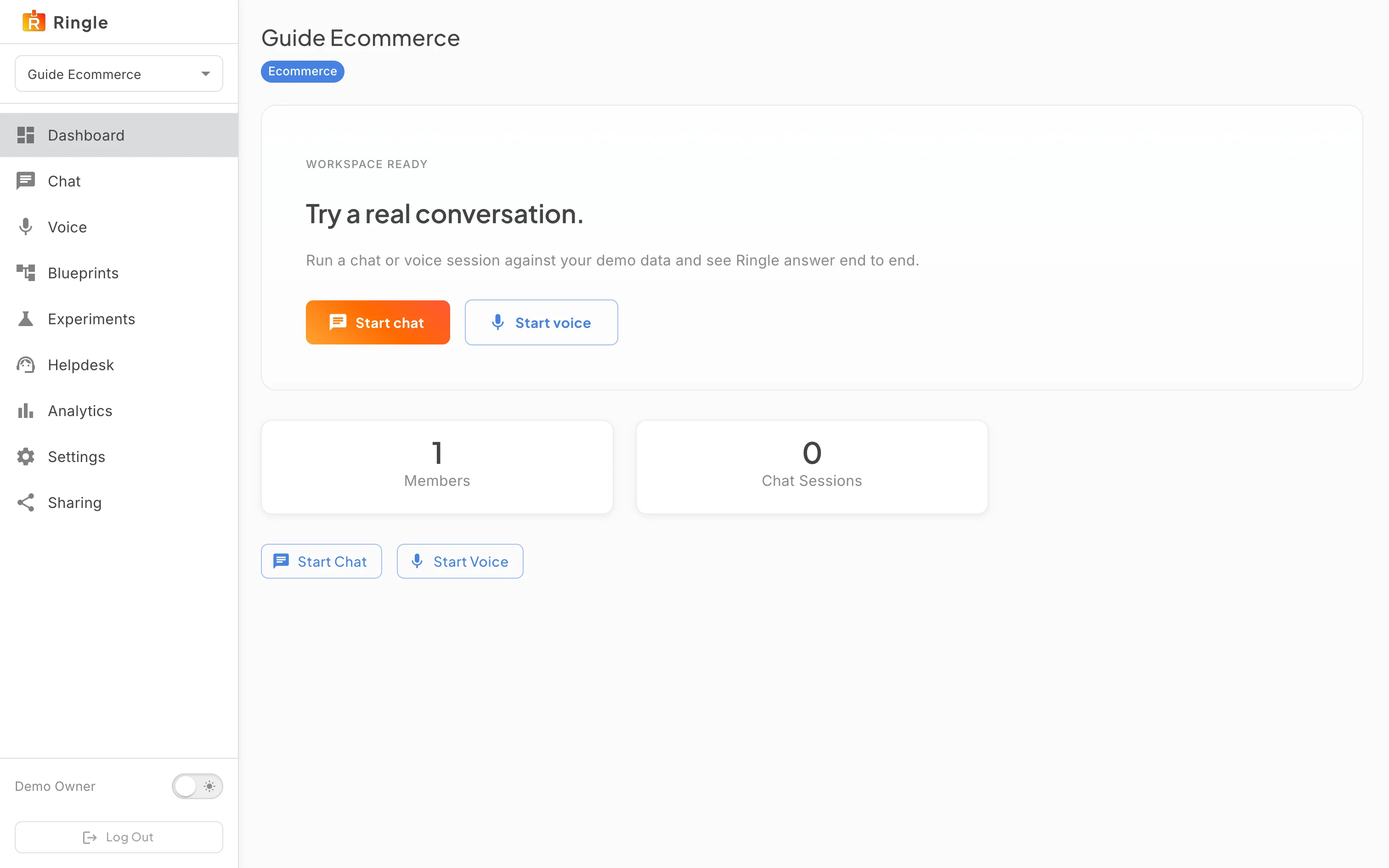
Action: Open your demo workspace. Its address is https://portal.merrows.ai/demos/ followed by the workspace id, and the workspace switcher in the sidebar lists it by name.
What you should see: The dashboard shows the workspace name with a chip for its sector and a “Workspace ready” chip. A card invites you to try a real conversation with Start chat and Start voice buttons. Below it, counters show the number of members and the number of chat sessions run so far.
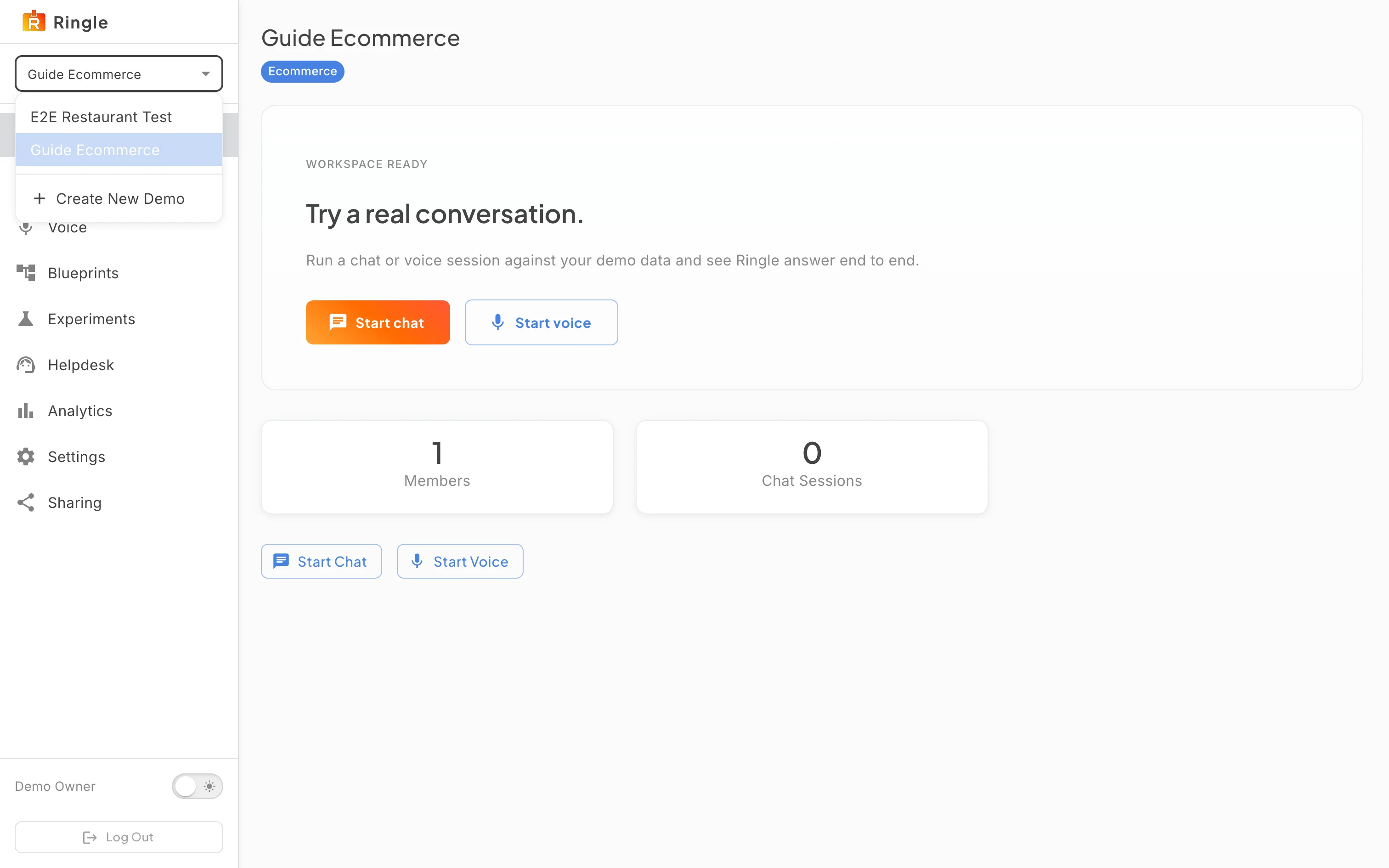
Action: Look over the sidebar on the left.
What you should see: The entries are Dashboard, Chat, Voice, Skill sets, A/B tests, Helpdesk, Analytics, Settings, Products and Sharing. Chat and Voice open the two live conversation pages; Skill sets and A/B tests shape what the assistant says; Helpdesk, Analytics, Products and Settings hold the sample data and the workspace options; Sharing manages members, invitations and share links. Each has its own guide in this section.
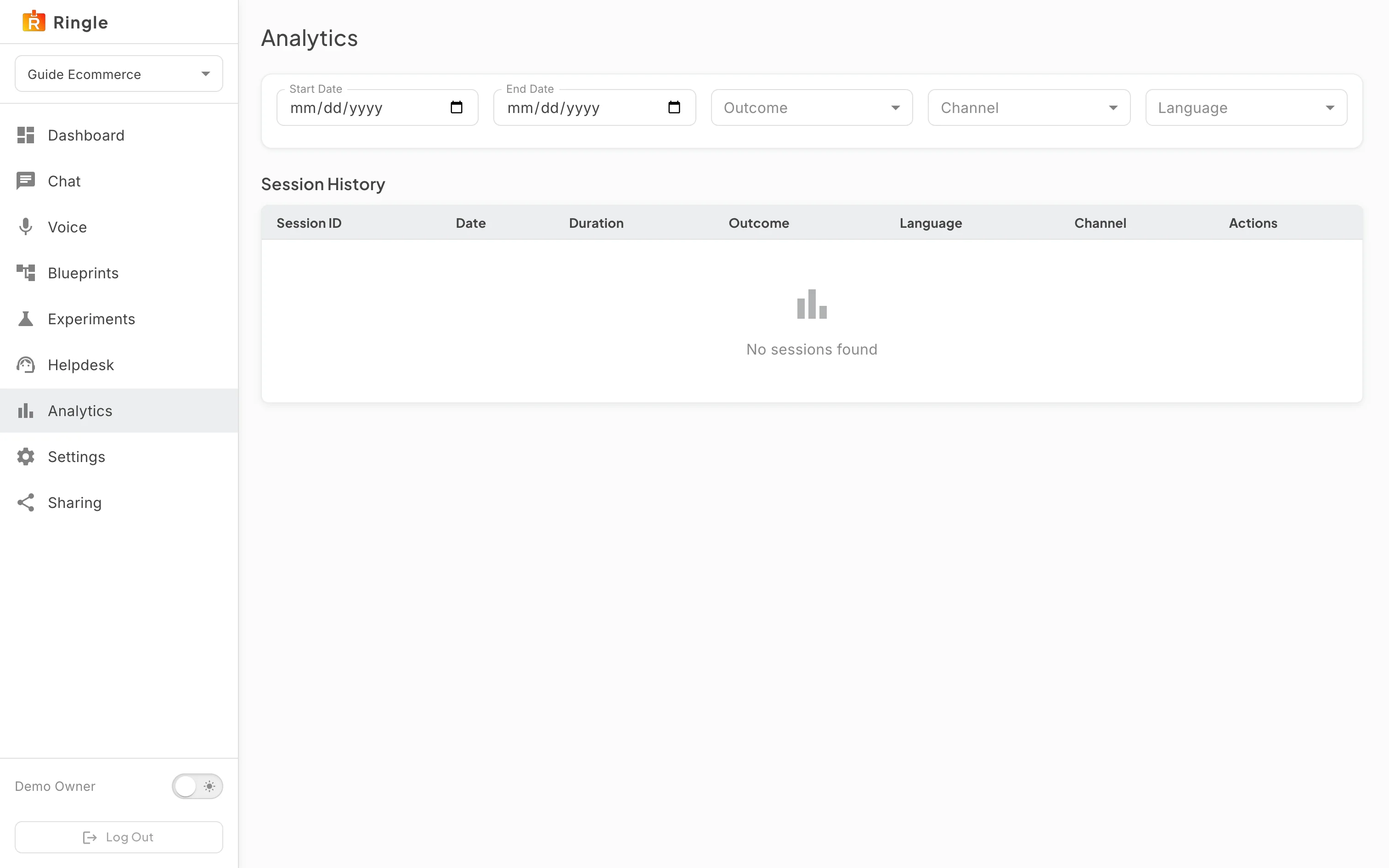
Action: Click the workspace switcher, the dropdown under the Merrows mark that shows the current workspace name.
What you should see: A list opens with every demo workspace you belong to, a single entry for a fresh account, and below it any business you are a member of. Picking a workspace loads its dashboard; picking a business leaves the demo and opens that business’s portal. Press Escape to close the list without switching.
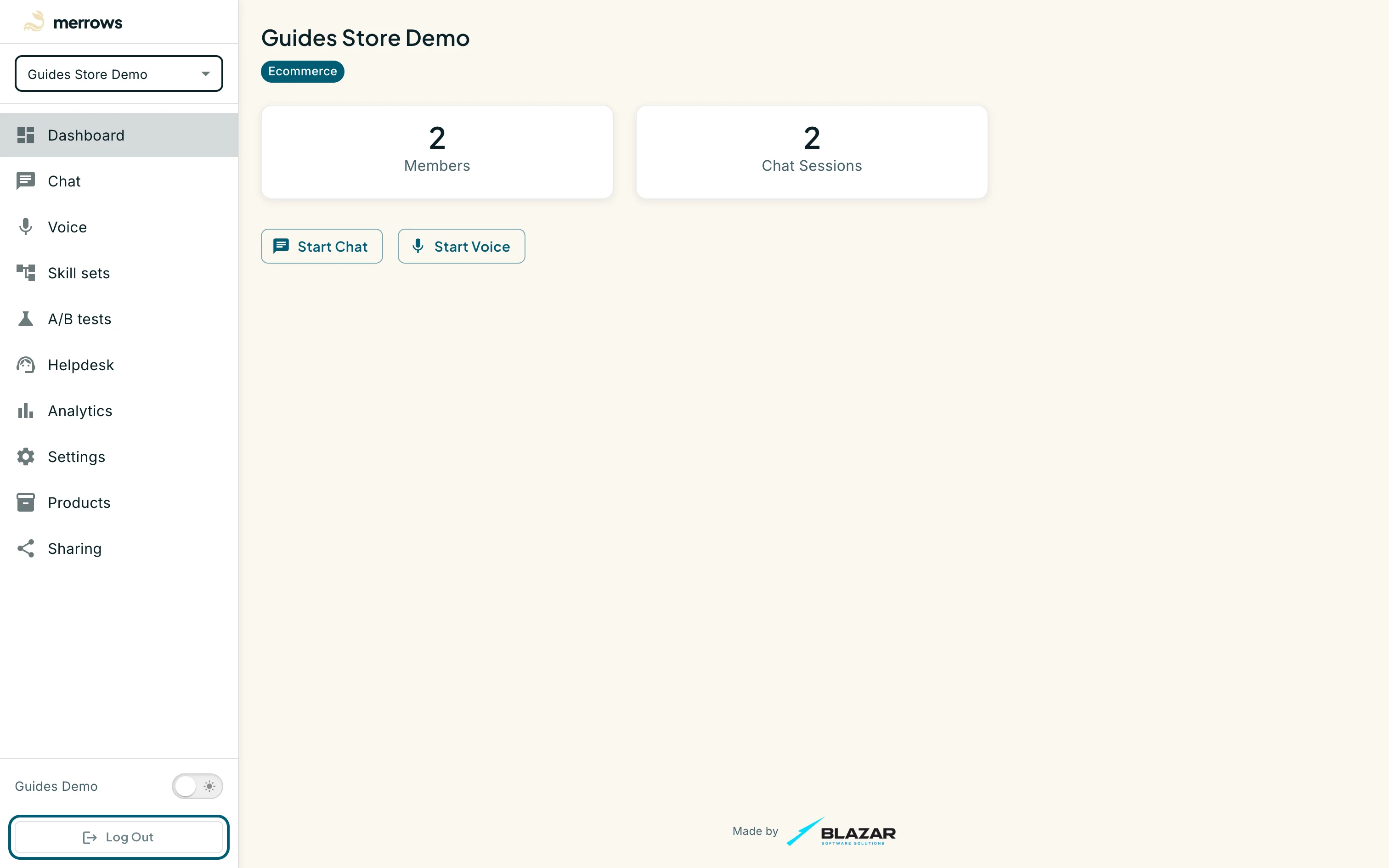
Action: Scroll the sidebar to its foot.
What you should see: The foot of the sidebar shows your name, a dark mode switch and a Log Out button. Logging out ends the session for every workspace and business at once. A guest who has not signed up sees a Login button here instead, and a banner on every page offering to keep the workspace by signing up.

