Run a live text conversation with your workspace’s assistant and see, in the panel beside the chat, the sample orders it looks up when a customer asks about one.
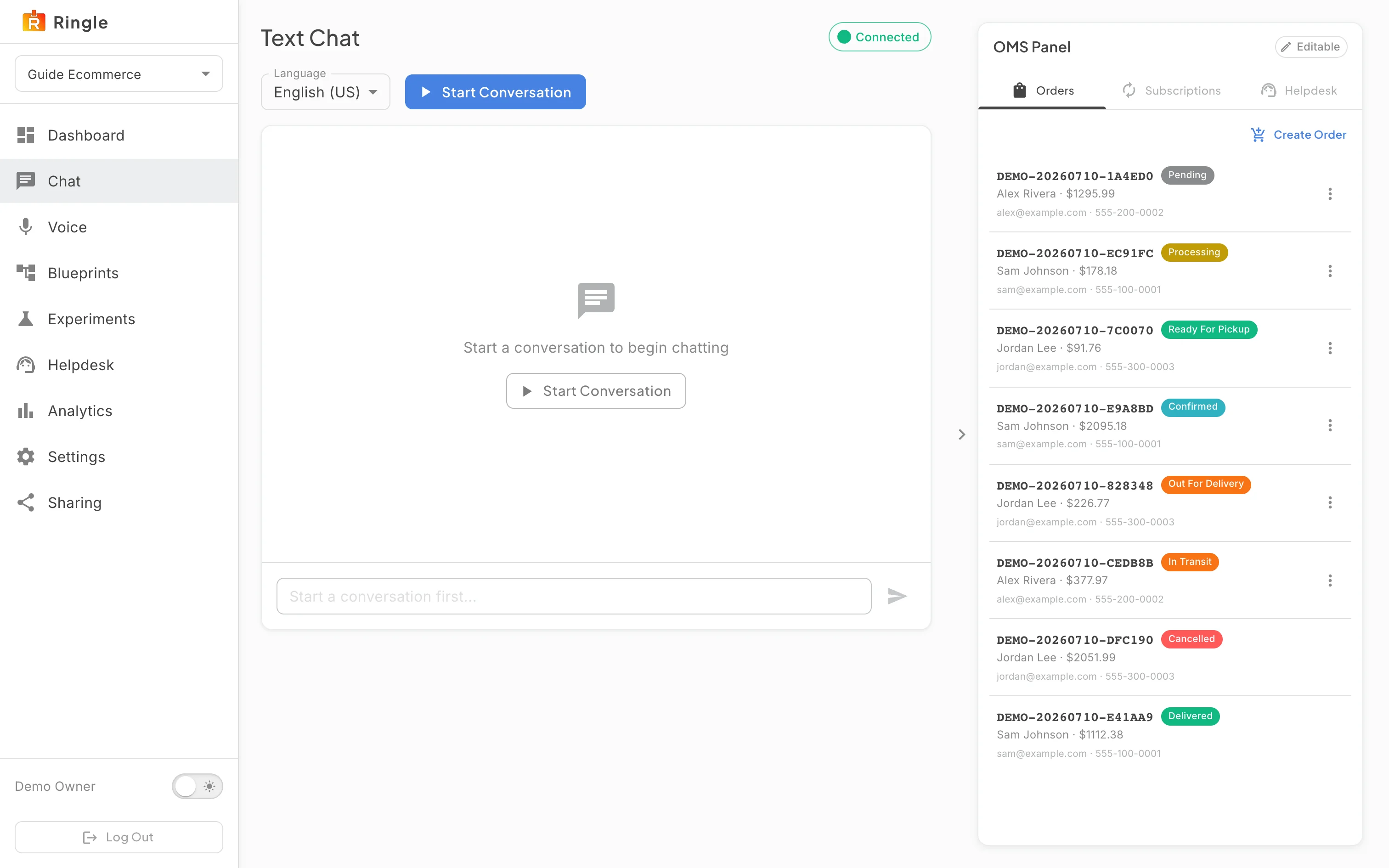
Action: Click Chat in the workspace sidebar, or “Start chat” on the dashboard.
What you should see: The Text Chat page shows a Connected chip, a Language selector set to the workspace’s first language, and a Start Conversation button. The message box is disabled until a conversation starts. On the right, the OMS Panel is marked Editable and has Current Order, Orders, Subscriptions and Helpdesk tabs.
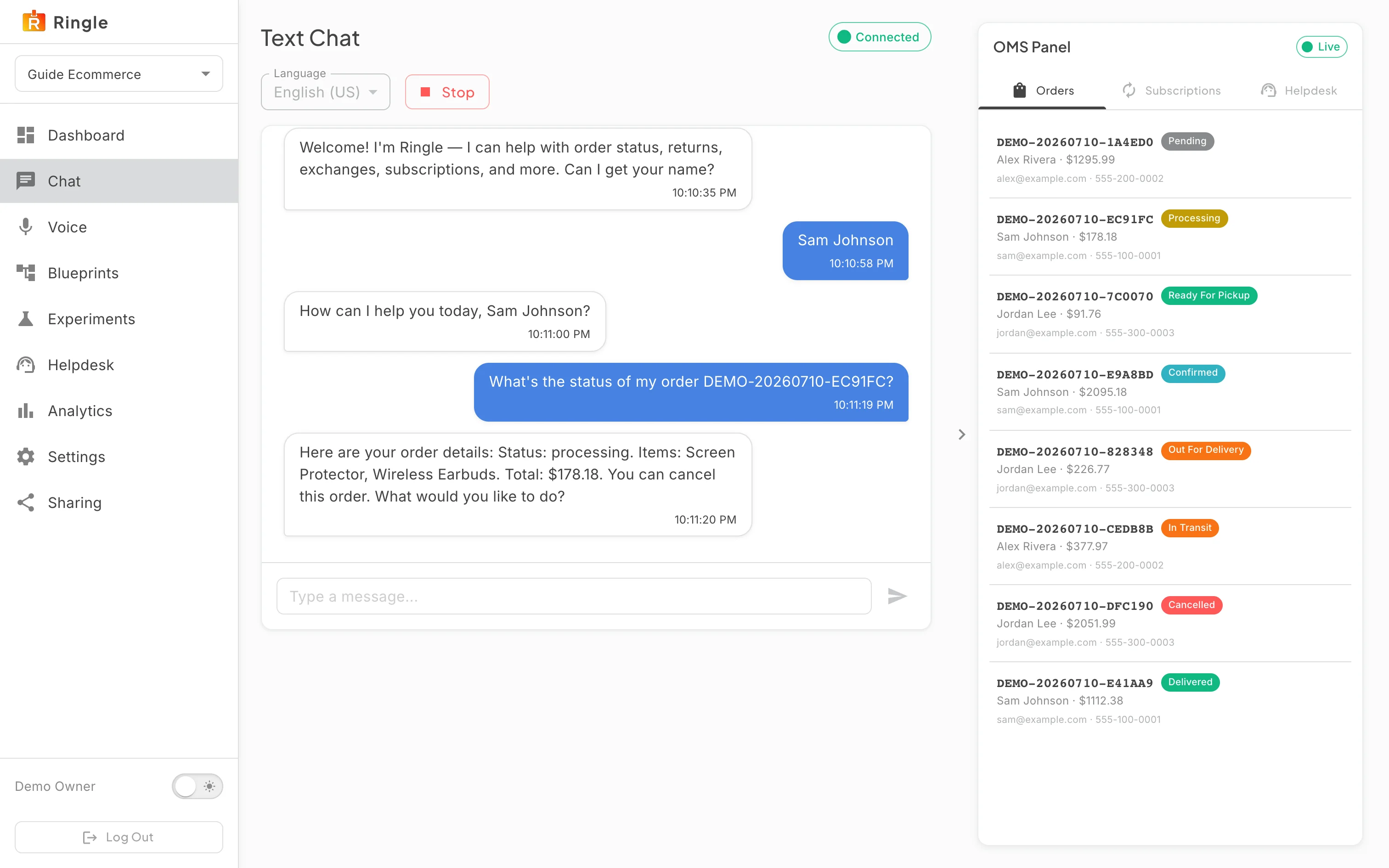
Action: Pick a language if you want one other than the default, then click Start Conversation.
What you should see: A “Conversation started” marker appears, the assistant greets you in the tone you chose at setup and asks for your name, and the message box wakes up. The panel’s chip changes from Editable to Live: for the length of the session the panel follows the conversation. The Language selector locks until you stop.
Action: Give a name, then ask about an order, for example “Where is my order?”, pressing Enter after each message.
What you should see: Each message appears on the right with a timestamp. The assistant greets you by name and asks for the email address or phone number on the order.
Action: Type the email of one of the sample customers, for example alex@example.com. The Orders tab of the panel lists every sample customer with their contact details.
What you should see: The assistant lists that customer’s orders with each one’s status and total, for example “Shipped, on its way”, and asks which one you want to check. Answer with one of them to hear more about it.
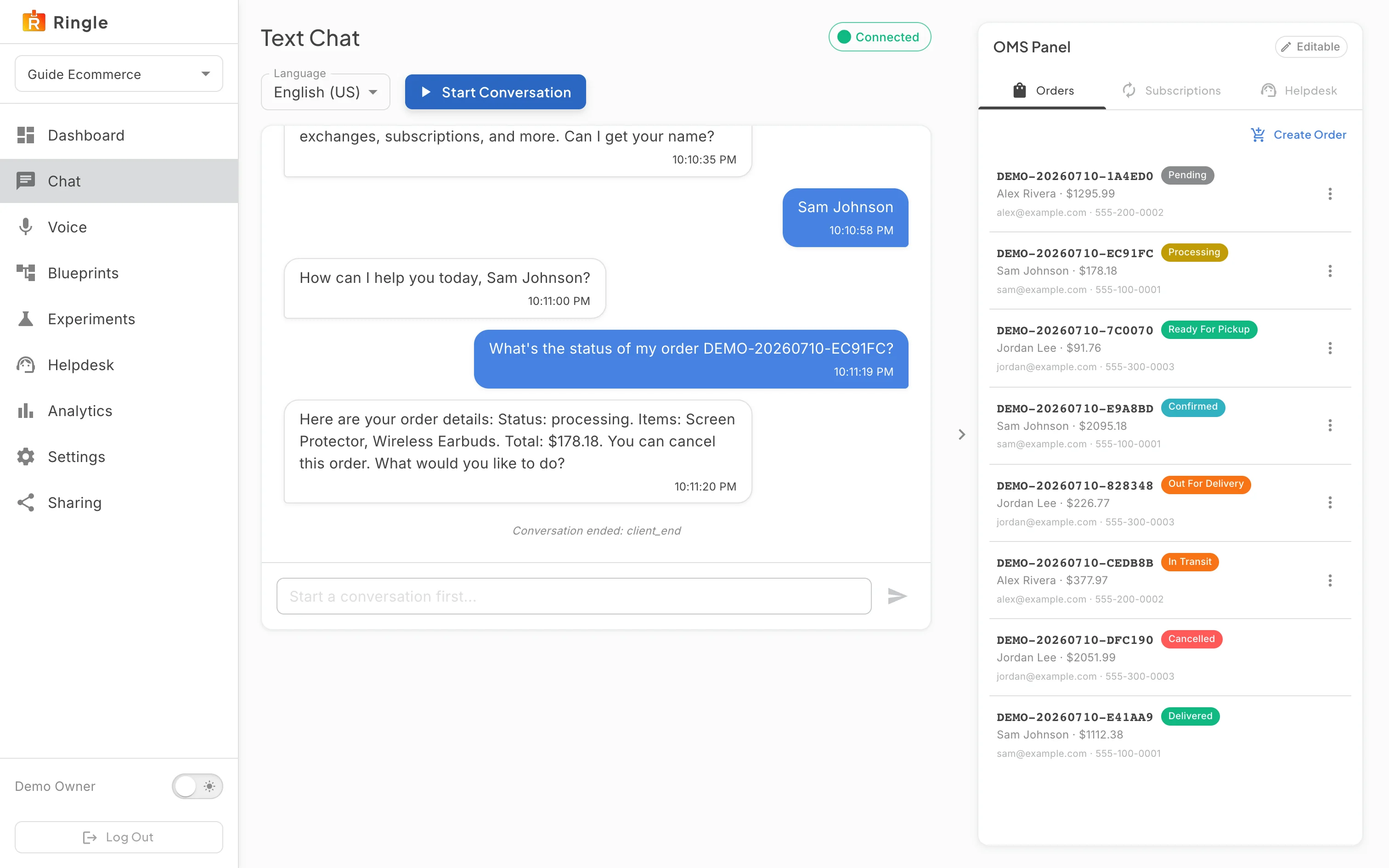
Action: Click the Orders tab in the panel.
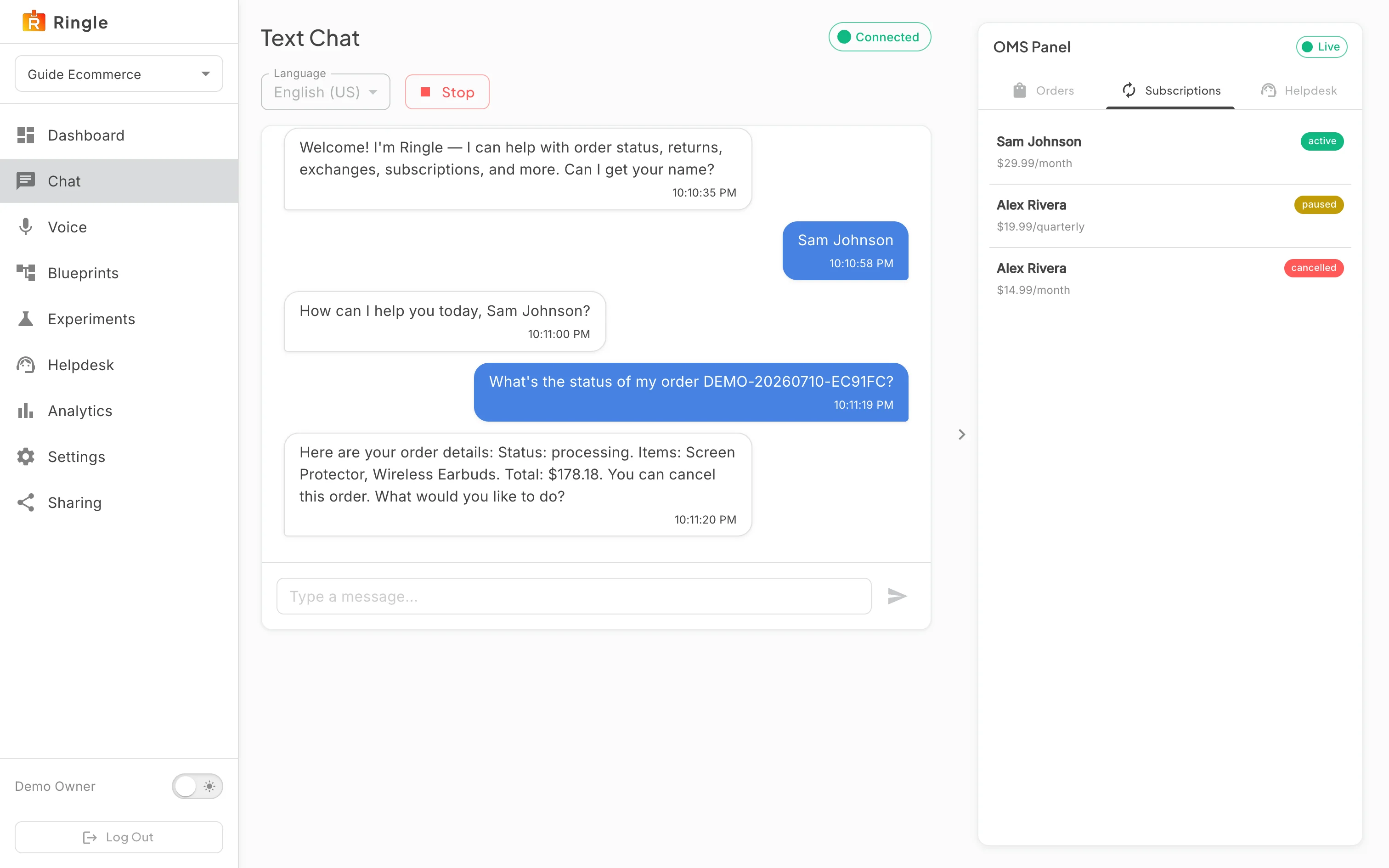
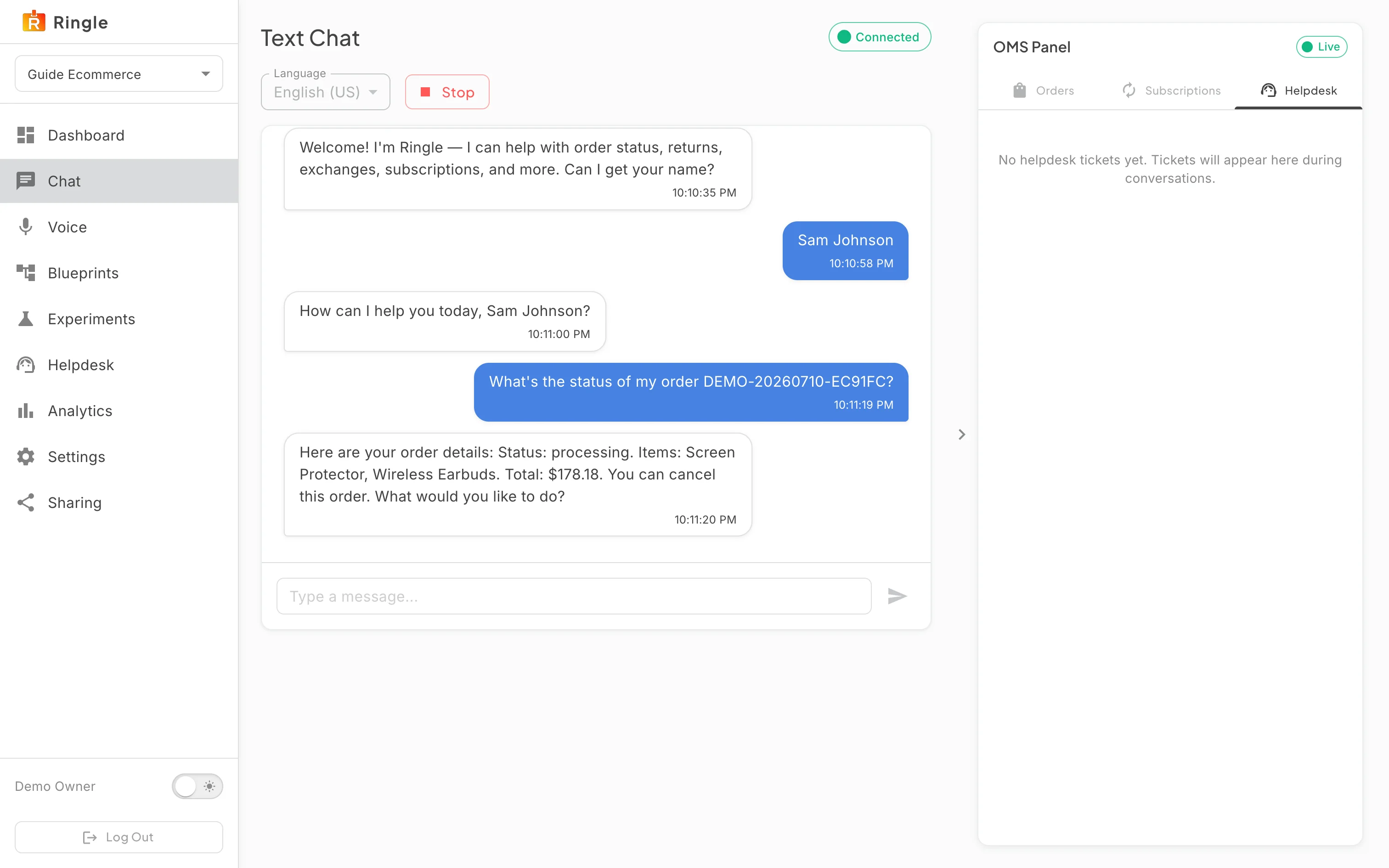
What you should see: The sample orders of the workspace are listed with their status, the same rows the Orders page shows. These are the orders the assistant looked up. Change an order’s status on the Orders page and the assistant reports the new status in the next conversation; see the “Demo orders and products” guide. The Subscriptions and Helpdesk tabs list the sample subscriptions and the tickets the assistant has raised.
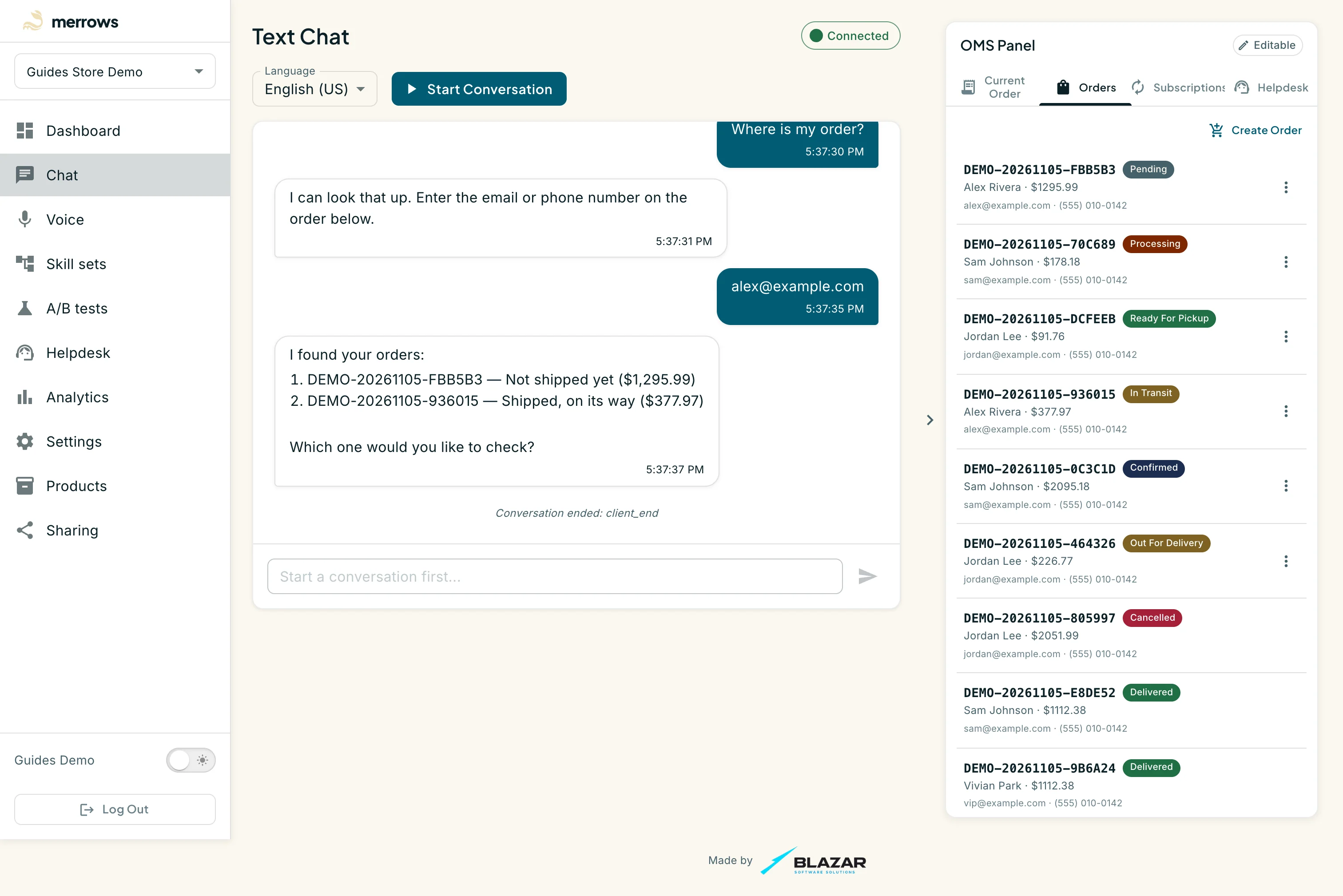
Action: Click Stop to end the session.
What you should see: The transcript stays on screen for reading, the message box is disabled again, and the panel returns to Editable. The session is recorded under Analytics with its transcript. Start Conversation begins a fresh session; nothing from the previous one is carried over.

