Build a personal demo workspace from the guided setup chat: pick the kind of business, name the workspace, choose the voice the assistant answers in, describe the brand, pick its languages, and then keep the workspace by signing up.
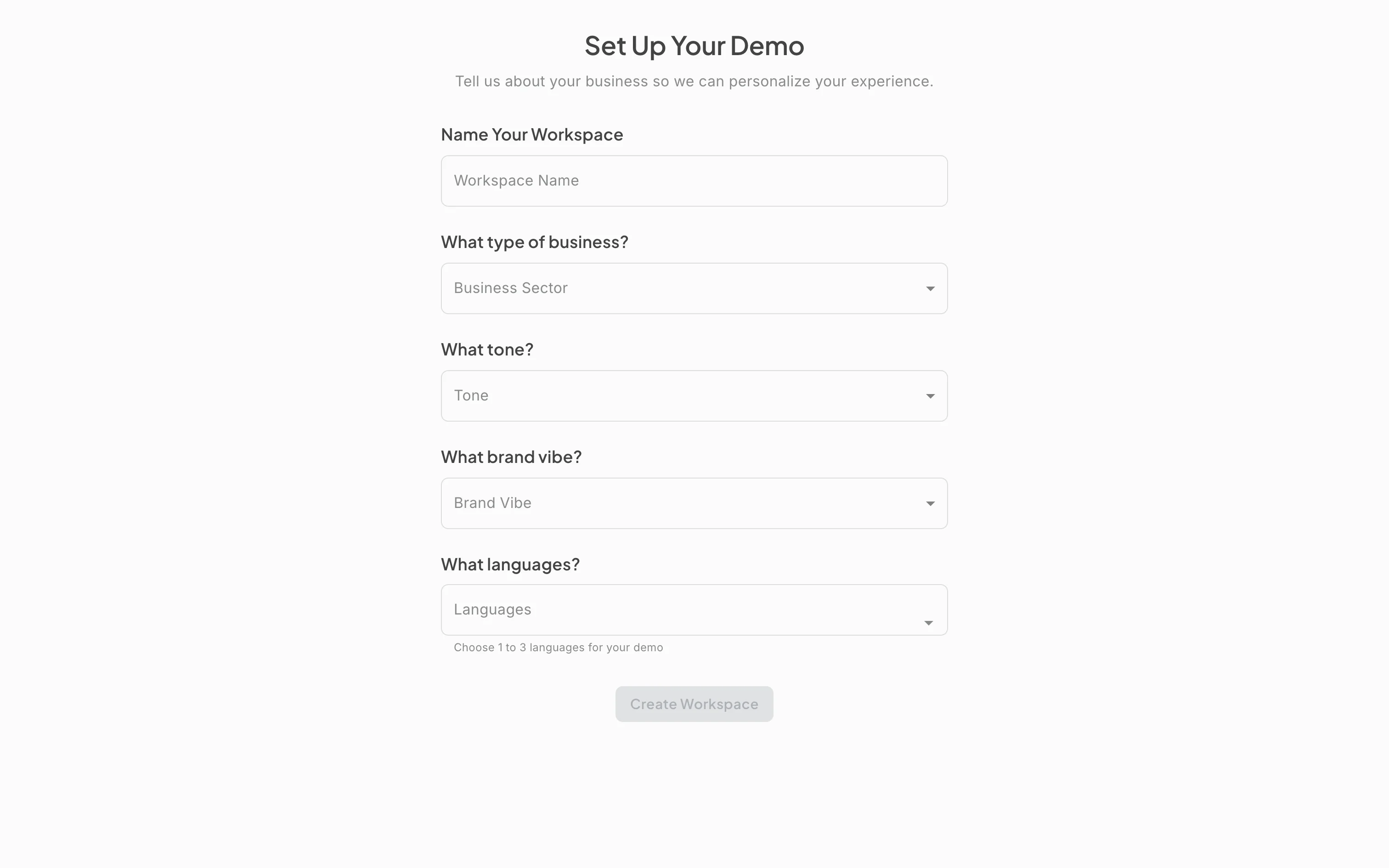
Action: Go to https://portal.merrows.ai/demos/new, or click “Try the demo” on the marketing site.
What you should see: The page “Let us set up your demo” opens as a short chat. The assistant asks what kind of business you are and offers three answers: Restaurant, Ecommerce/Retail and Auto Shop. The choice decides which sample data the workspace gets and which order panel appears beside conversations.
Action: Pick Ecommerce/Retail. The chat asks what to call the workspace and suggests a name. Replace the suggestion with your own, for example Guides Store Demo.
What you should see: Your answer appears in the chat as a line of the transcript, and the Workspace name field holds the name you typed. The “Use this name” button accepts it. “Change my last answer” steps back one question, and “Skip the remaining questions” jumps to the end with the suggested answers filled in.
Action: Click “Use this name”. The chat shows the same customer question answered in four different voices and asks which one sounds like you.
What you should see: Above the samples sits the customer question the answers reply to, for a shop “My order still has not arrived.”. Each sample carries its tone label (Warm, Professional, Friendly, Confident). “Hear more voices” adds four more. Pick the sample that reads like your business.
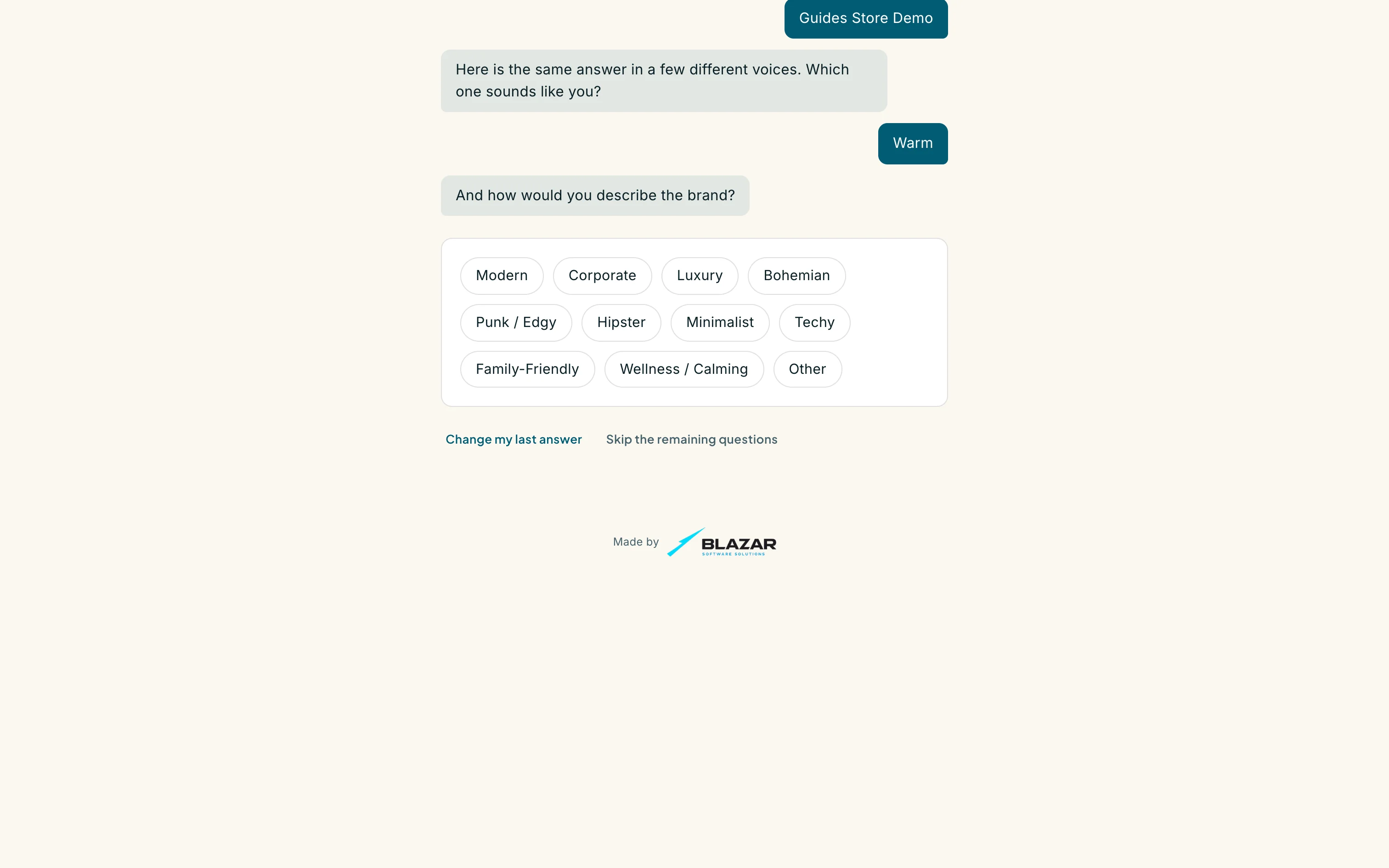
Action: Pick Warm. The chat asks how you would describe the brand.
What you should see: The brand vibe options are Modern, Corporate, Luxury, Bohemian, Punk / Edgy, Hipster, Minimalist, Techy, Family-Friendly, Wellness / Calming and Other. Tone and vibe together shape how the assistant phrases every reply in this workspace.
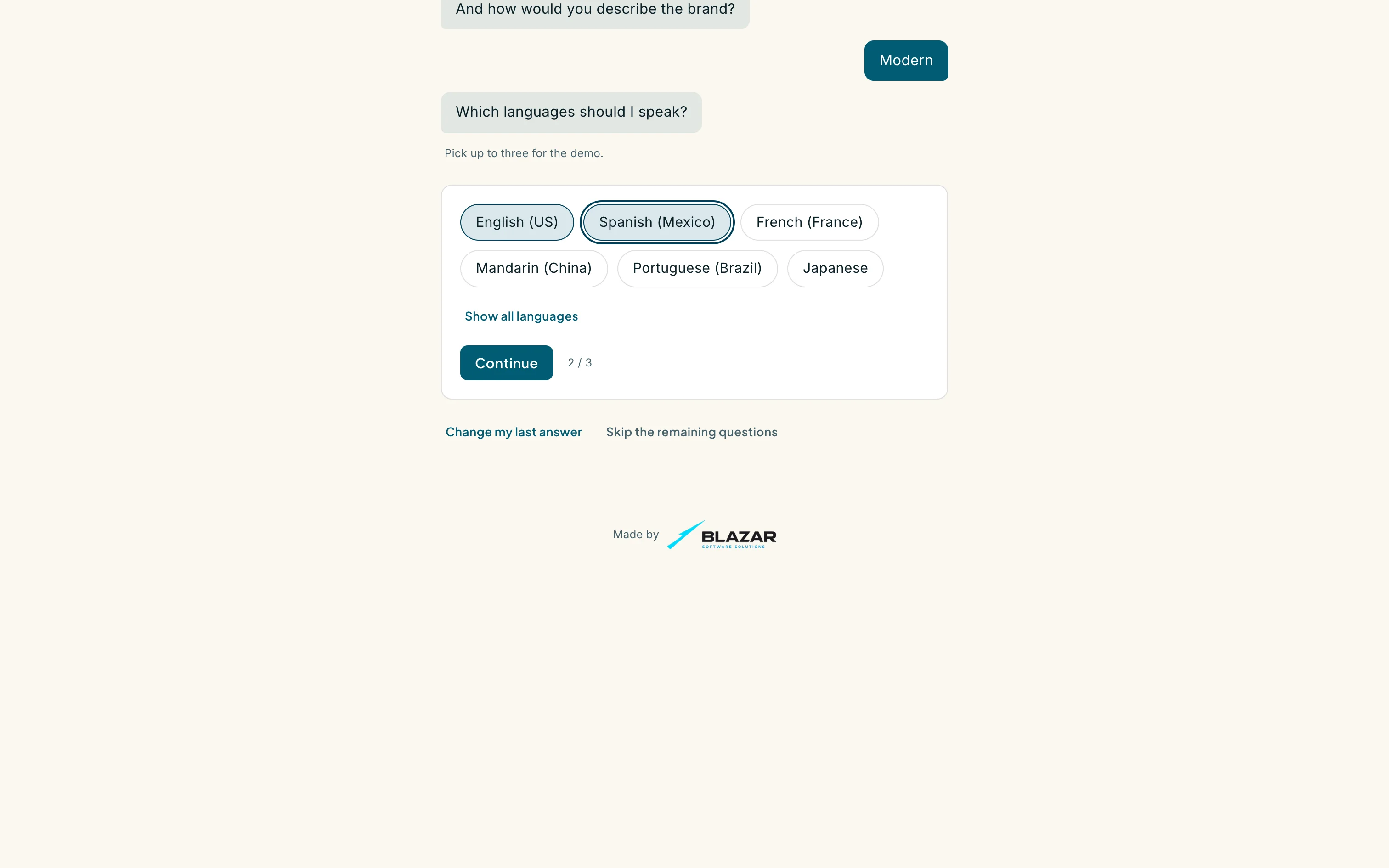
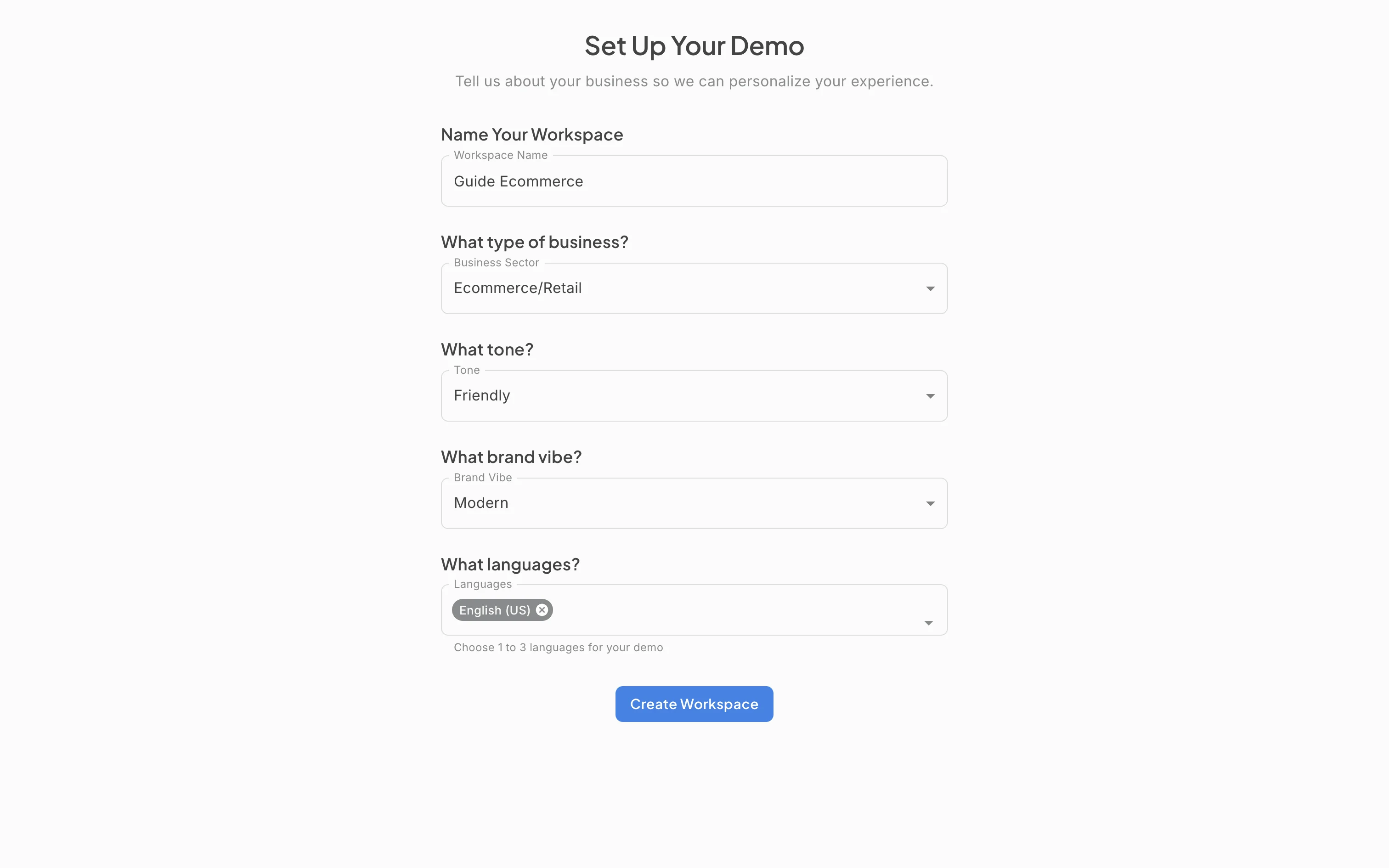
Action: Pick Modern. Tick the languages the assistant should speak, up to three, for example English (US) and Spanish (Mexico).
What you should see: The first six languages show as checkboxes and “Show all languages” reveals the rest. A counter under the list reads how many of three you have picked, and Continue wakes up once at least one language is ticked. With three ticked, the remaining boxes are disabled.
Action: Click Continue.
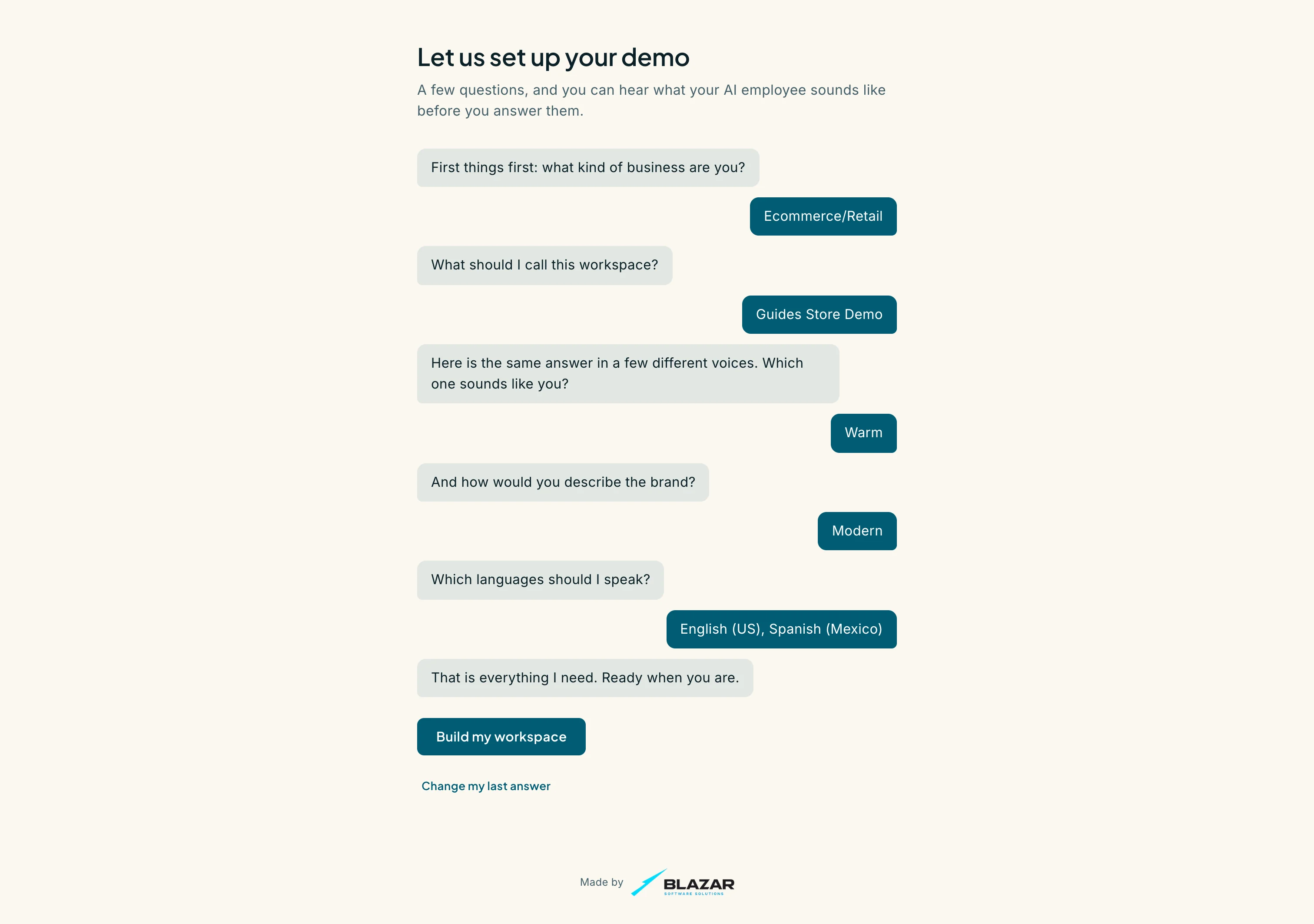
What you should see: The chat ends with “That is everything I need. Ready when you are.” above the full transcript of your answers. “Build my workspace” creates the workspace; “Change my last answer” lets you revisit the languages first.
Action: Click “Build my workspace”.
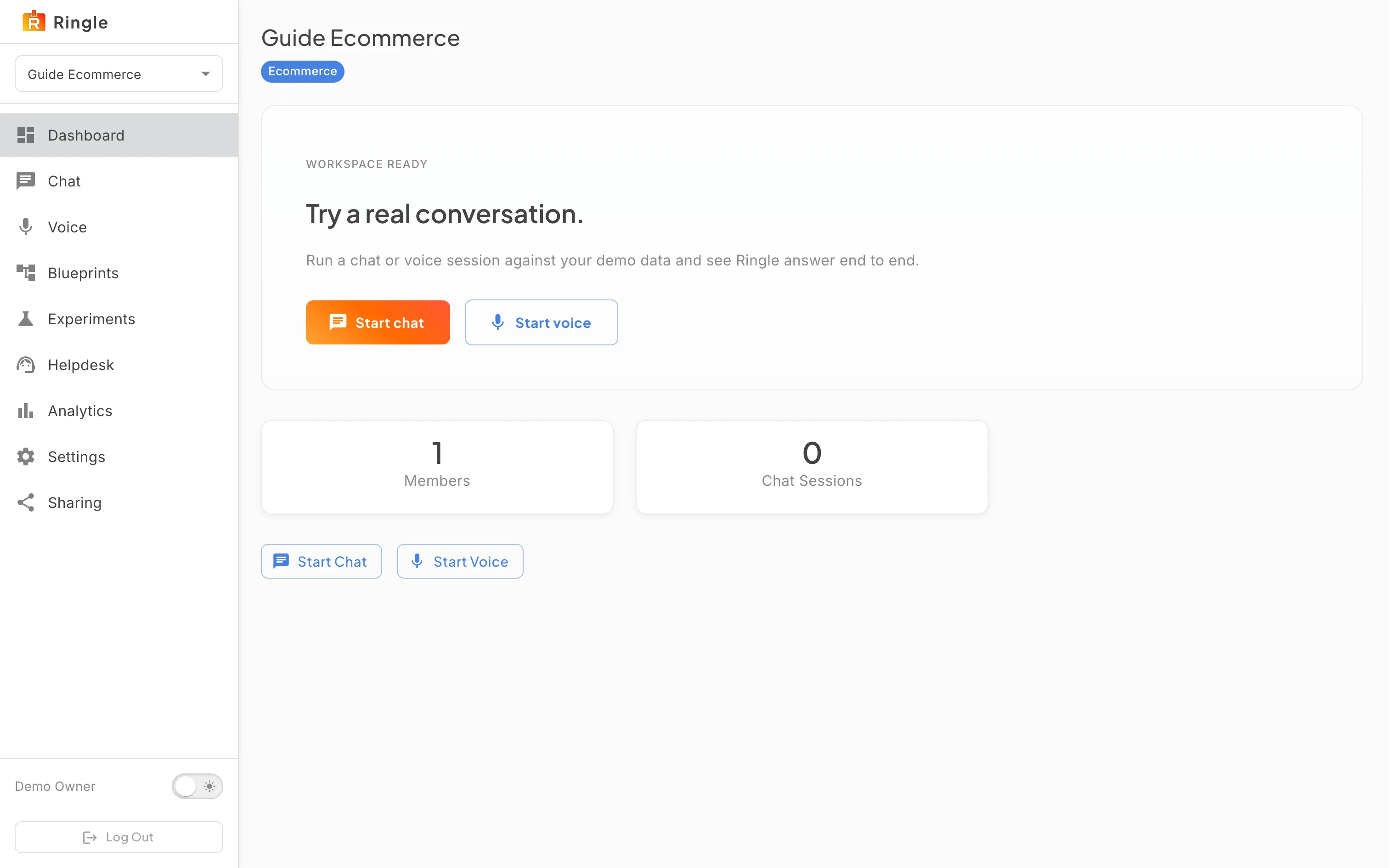
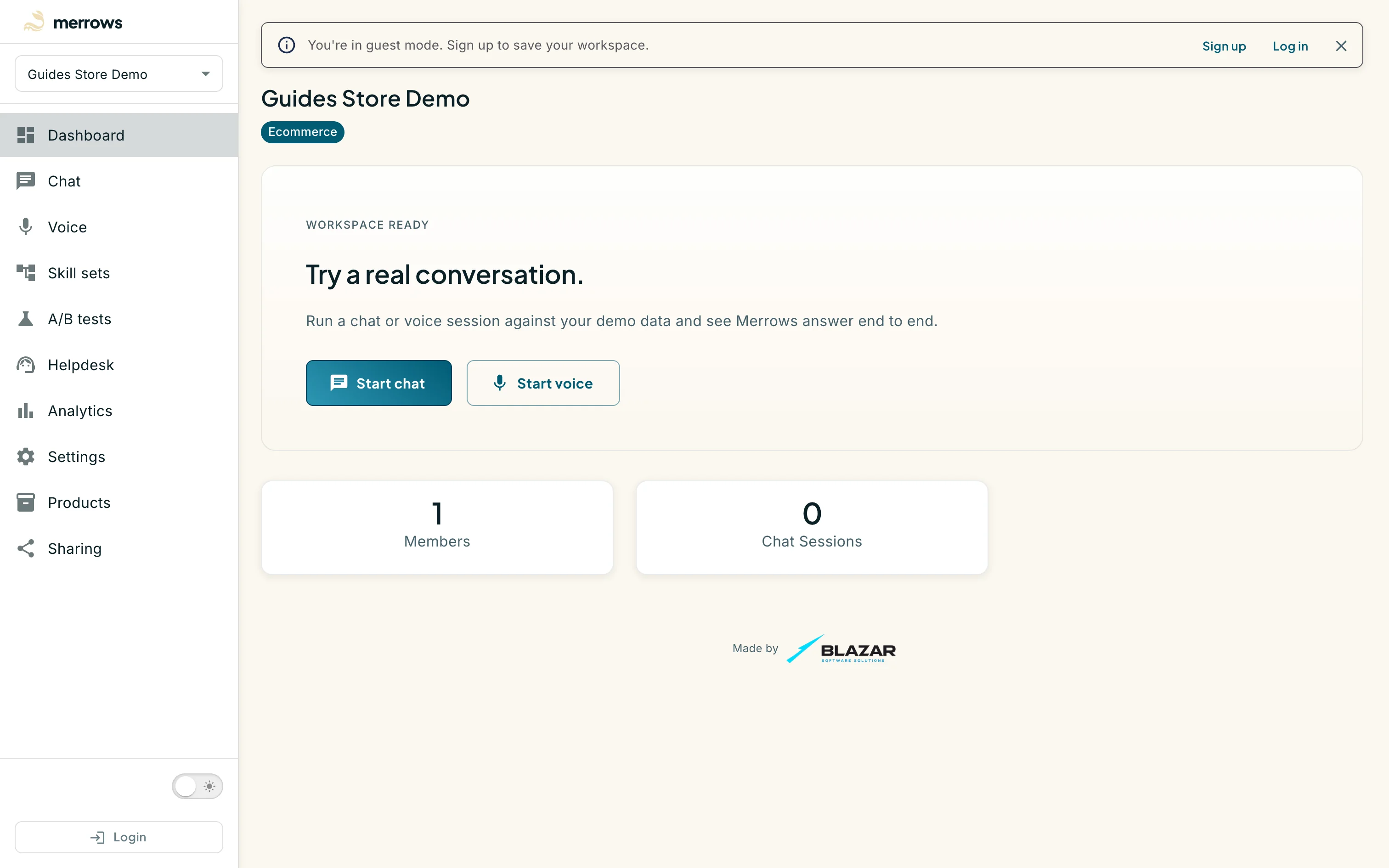
What you should see: After a short build, you land
on the new workspace at /demos/<workspace id>. The
sidebar lists Dashboard, Chat, Voice, Skill sets, A/B tests, Helpdesk,
Analytics, Settings, Products and Sharing. The dashboard shows the
workspace name, an Ecommerce chip, “Workspace ready” and a card that
invites you to start a chat or voice session. A banner at the top reads
“You’re in guest mode. Sign up to save your workspace.” with Sign up and
Log in buttons. Sample products, orders and tickets are already in
place.
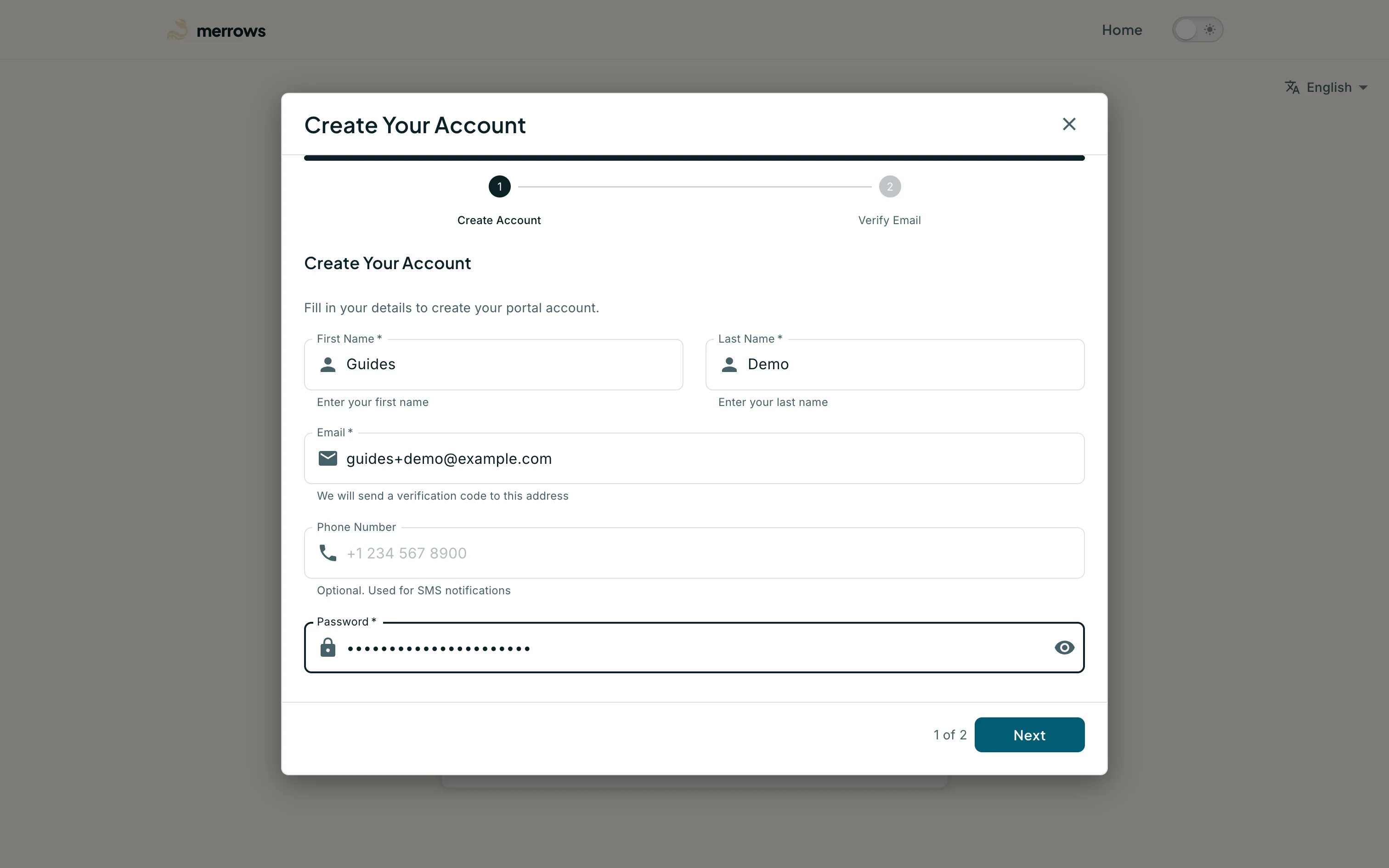
Action: Click “Sign up” in the banner. Click “Get Started” on the sign-up page, then fill in your first name, last name, email address and a password.
What you should see: The sign-up dialog shows your details with the password masked. Signing up from the workspace keeps it: the guest session is upgraded into your new account and the workspace becomes yours. Logging in to an account that already exists does not claim the workspace; see Troubleshooting.
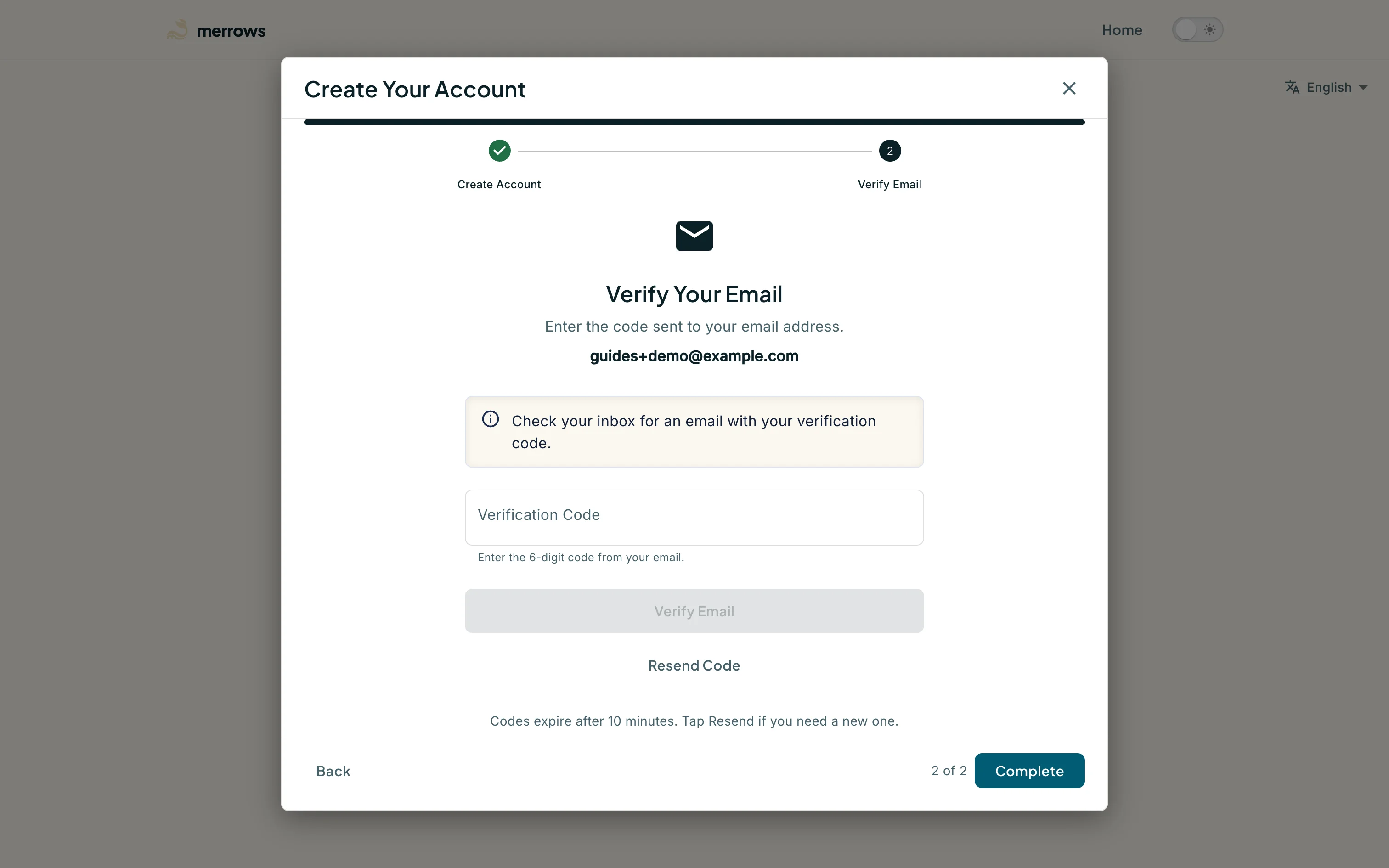
Action: Click Next.
What you should see: The dialog moves to “Verify Your Email” and sends a six-digit code to the address you gave. Type the code and click Verify Email, then Complete.
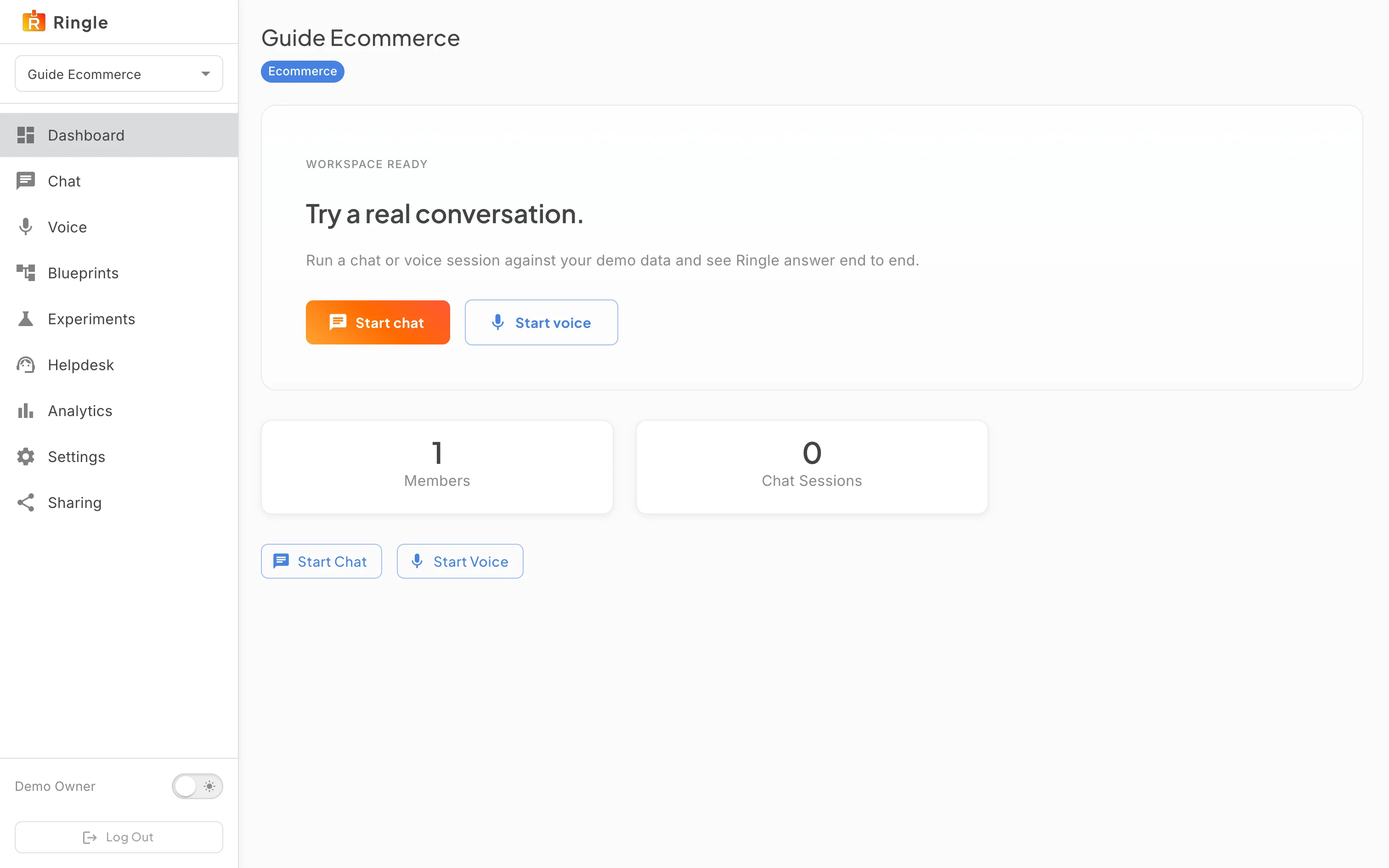
Action: Open the workspace again from the address in step 7, or through Dashboard in the sidebar.
What you should see: The guest-mode banner is gone. The sidebar now ends with your name and a Log Out button instead of Login. The workspace keeps the name, sector, tone, vibe and languages you chose, and it stays available after you sign out and back in. The “Demo workspace dashboard and navigation” guide picks up from here.

