Test your workspace’s assistant by voice from the browser, and choose the voice it speaks with on the workspace Settings page.
The Voice page is a producer’s test tool. Owners, Managers and Builders see it; a Tester, which is what a share link makes a prospect, does not, and the share link itself opens a chat. Browser voice sounds worse than a phone call, so a prospect never gets it: for a voice demo, attach a phone number to the demo and give the prospect the number. See “Demo settings and phone number”.
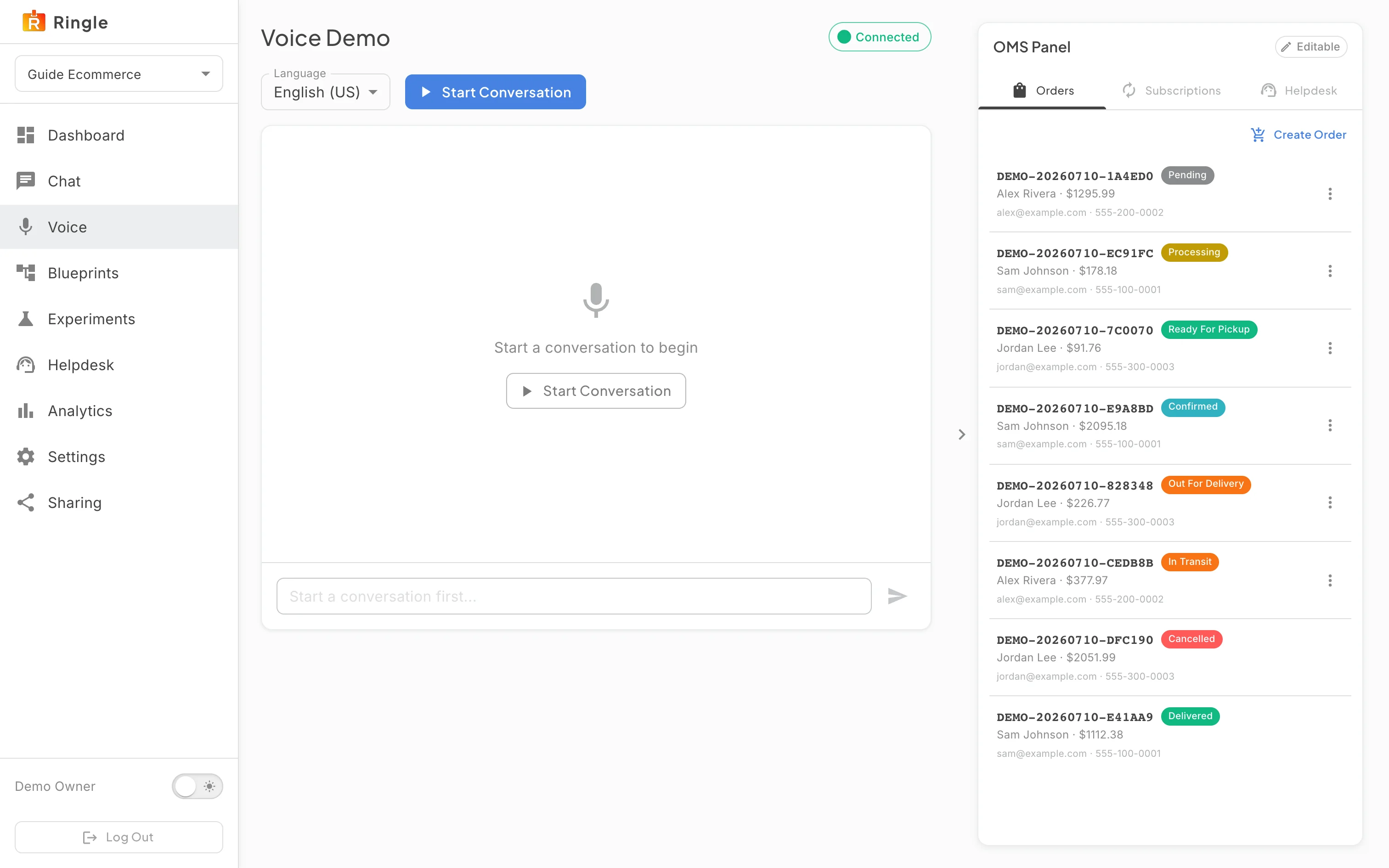
Action: Click Voice in the workspace sidebar, or “Start voice” on the dashboard.
What you should see: The Voice Demo page looks like the chat page: a Connected chip, a Language selector, a Start Conversation button and, on the right, the same order panel the chat uses. The message box under the transcript stays disabled until a session starts.
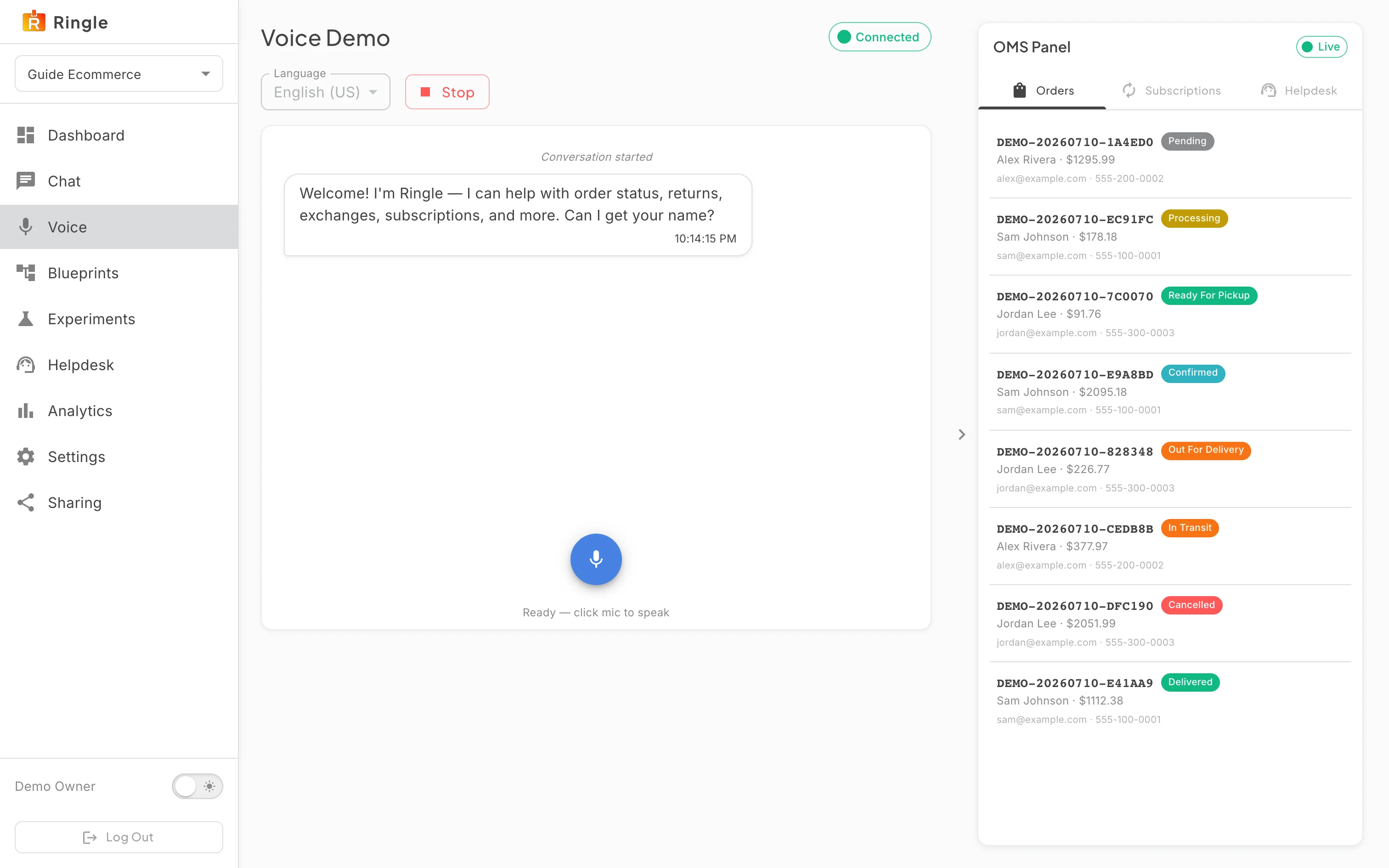
Action: Click Start Conversation. Allow the microphone if the browser asks.
What you should see: The assistant greets you aloud in the voice chosen for the workspace, and its words appear in the transcript. The panel’s chip turns to Live. The greeting asks for a name for the order, the same opening the text chat uses.
Screenshot not available (the pictures for this guide were taken without a microphone, so no customer speech was recorded)
Action: Speak as a customer: give a name, then ask where your order is or how to send something back. Pause when you have finished a sentence.
What you should see: What you said appears in the transcript as the customer’s line, the assistant answers aloud and in text, and ordered items land in the panel’s Current Order tab exactly as they do in text chat. Type into the message box instead of speaking at any point; the assistant still replies aloud.
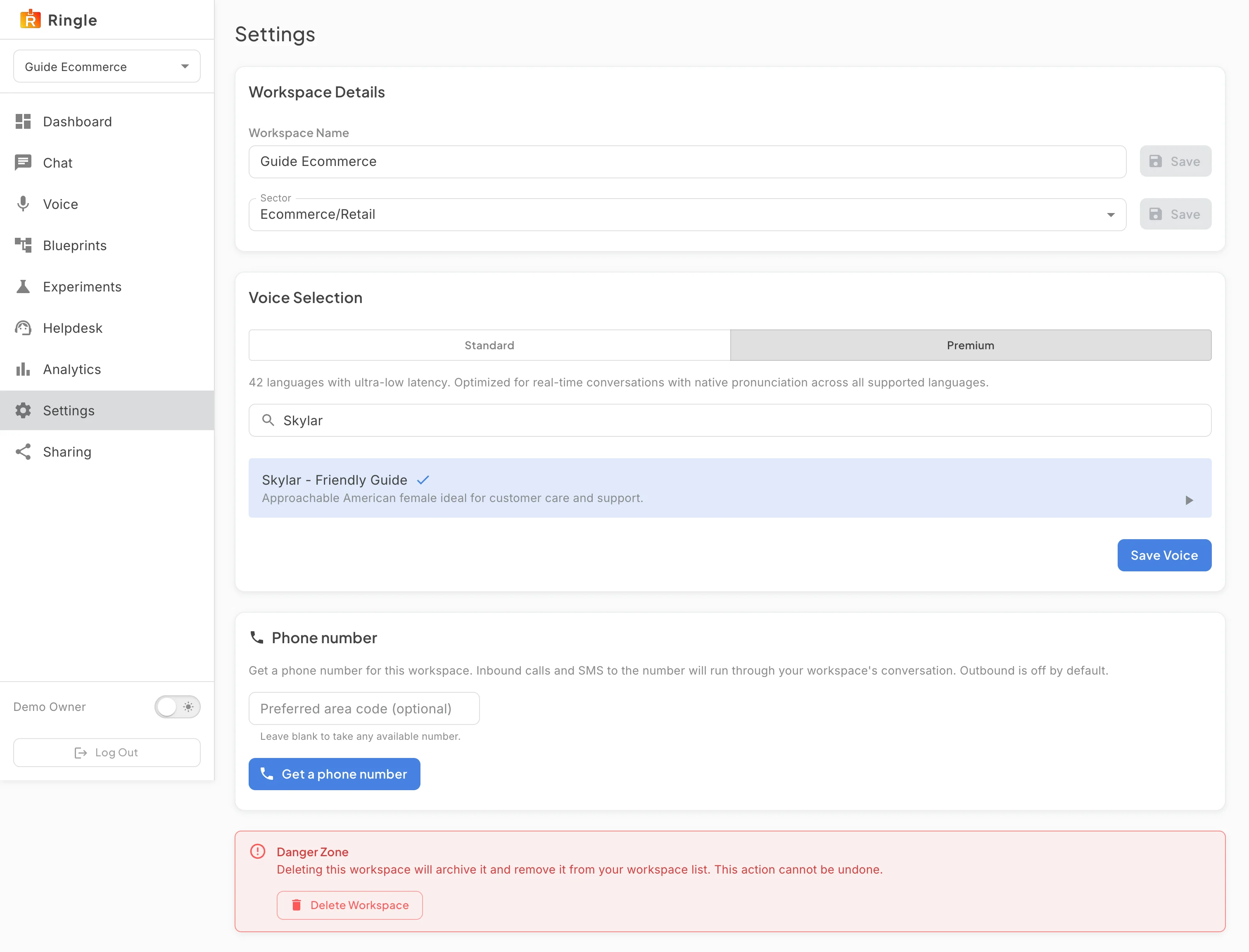
Action: Click Stop to end the session.
What you should see: The transcript stays on screen, the panel returns to Editable and the session is listed under Analytics, where browser voice sessions appear under the Chat channel. Start Conversation begins a fresh session.
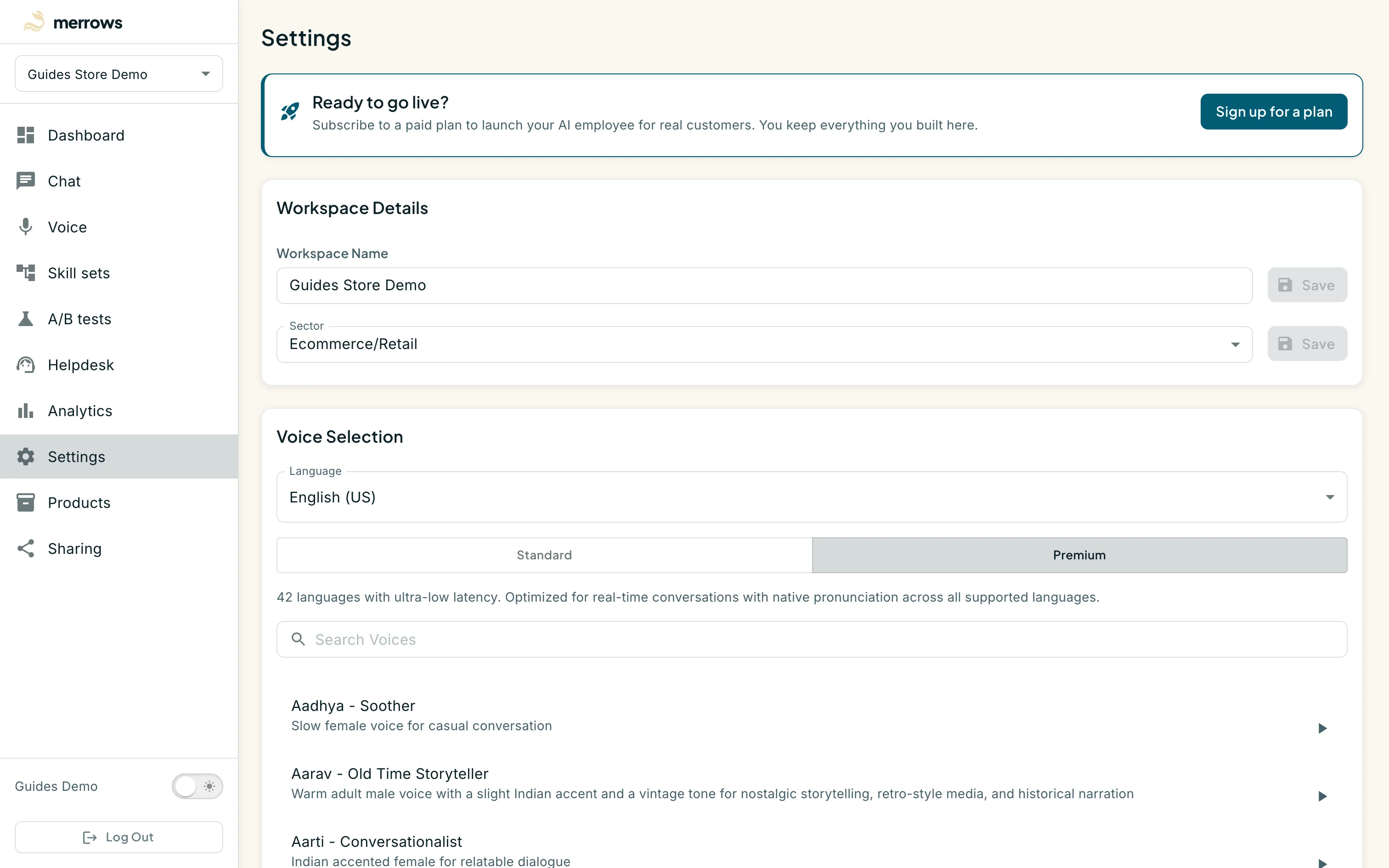
Action: To change the assistant’s voice, click Settings in the sidebar and find the Voice Selection card.
What you should see: The card has a Language selector, a Standard or Premium toggle and a searchable list of voices. Each row names the voice, describes its character and has a play button for a sample. Premium voices cover forty-two languages with the lowest latency; Standard voices are the lighter catalogue. The voice marked as selected is the one the workspace speaks with.
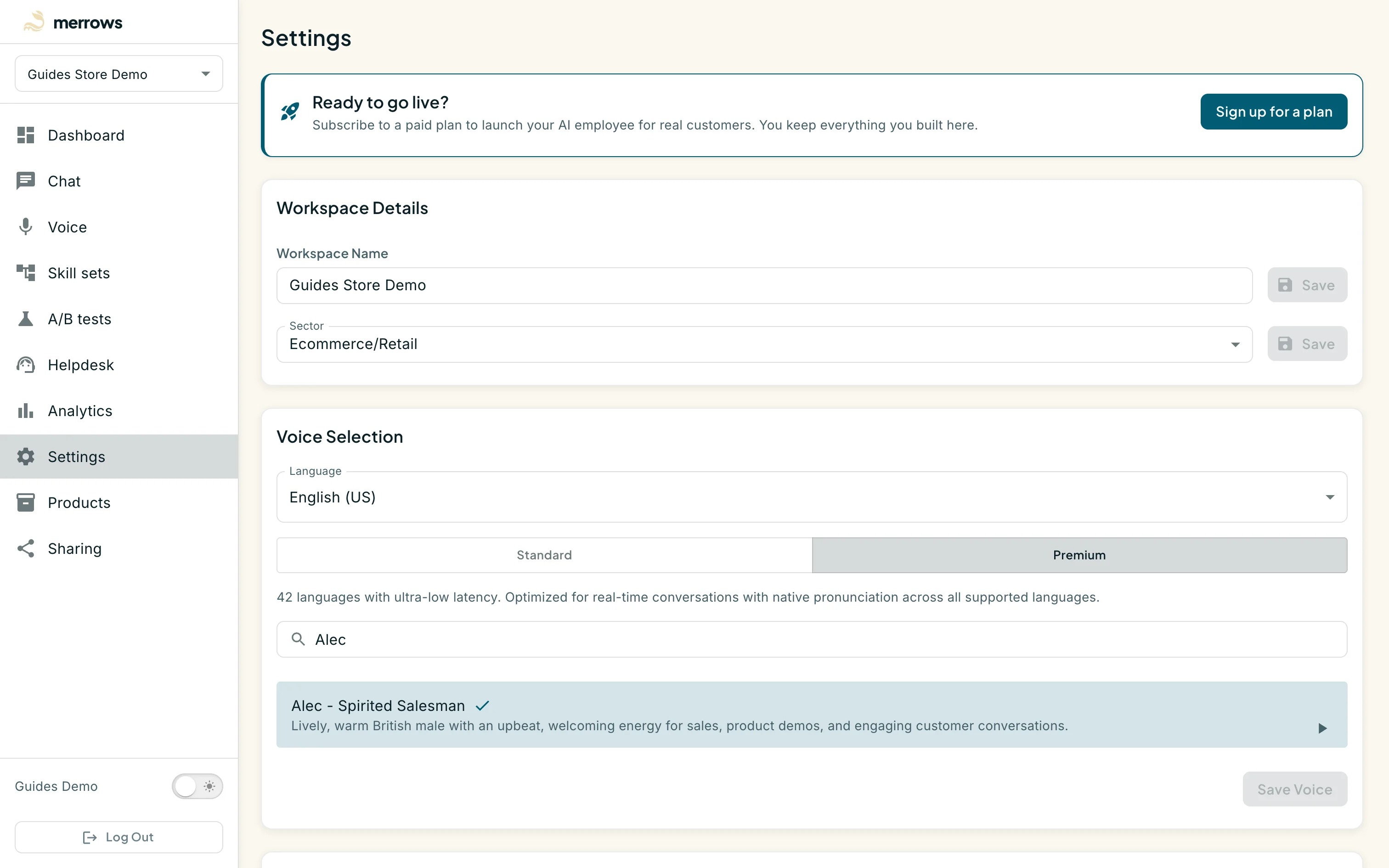
Action: Type part of a name in Search Voices to filter the list, click a row to select that voice, then click Save Voice.
What you should see: The row is marked as selected and Save Voice confirms the change. The next voice session uses the new voice. The text chat is unaffected.

