Browse and manage the sample orders and the product catalogue your workspace’s assistant sells from. Open an order to move it through its statuses, and add or edit the products the assistant can offer.
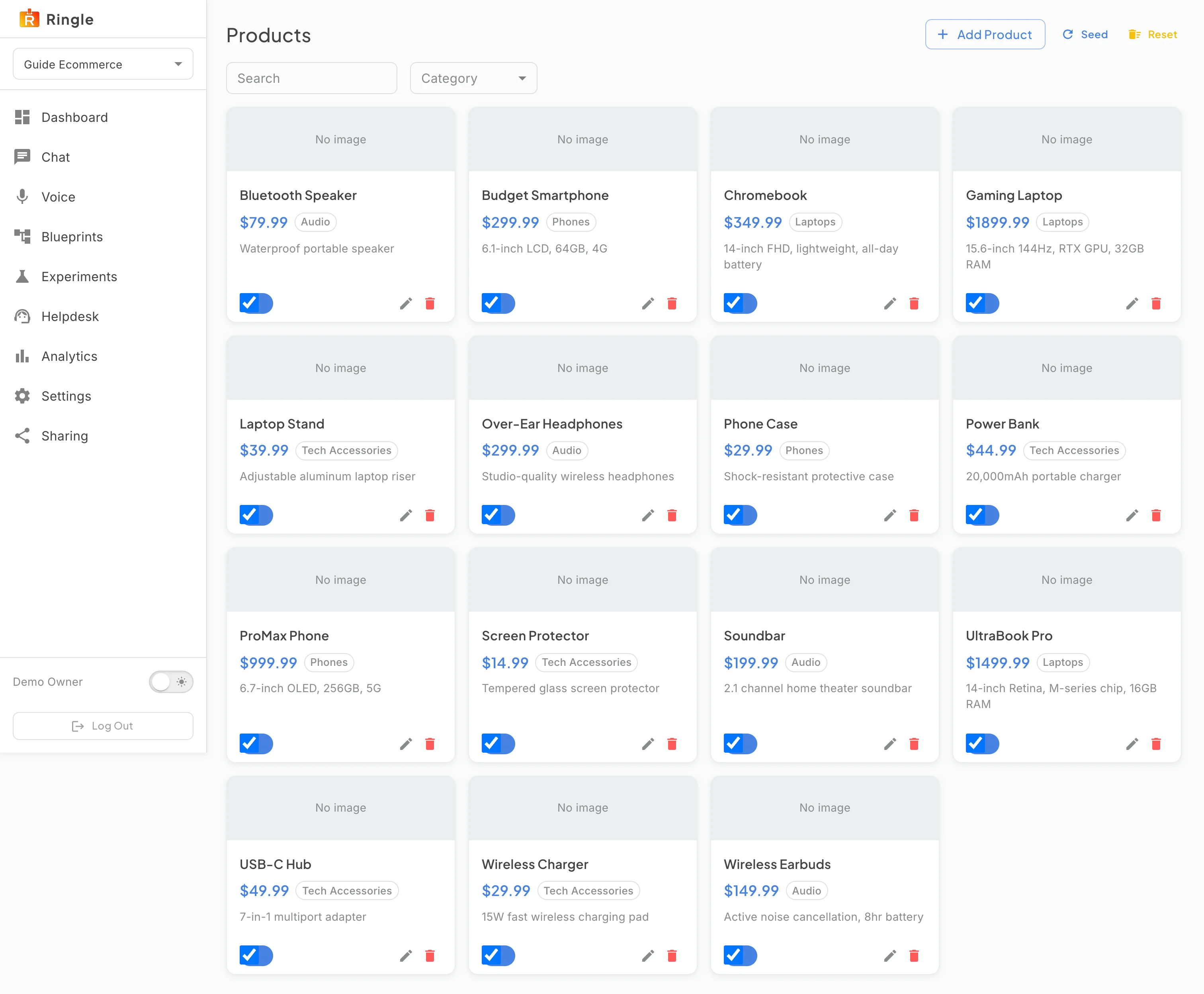
Action: Click Products in the workspace sidebar.
What you should see: The catalogue shows one card per product with its name, price, category, description, an availability switch and Edit and Delete buttons. Above the grid sit Add Product, Import CSV or JSON, Seed and Reset, plus a Search box and a Category filter. An ecommerce workspace starts with sample products in Audio, Phones, Laptops and Tech Accessories.
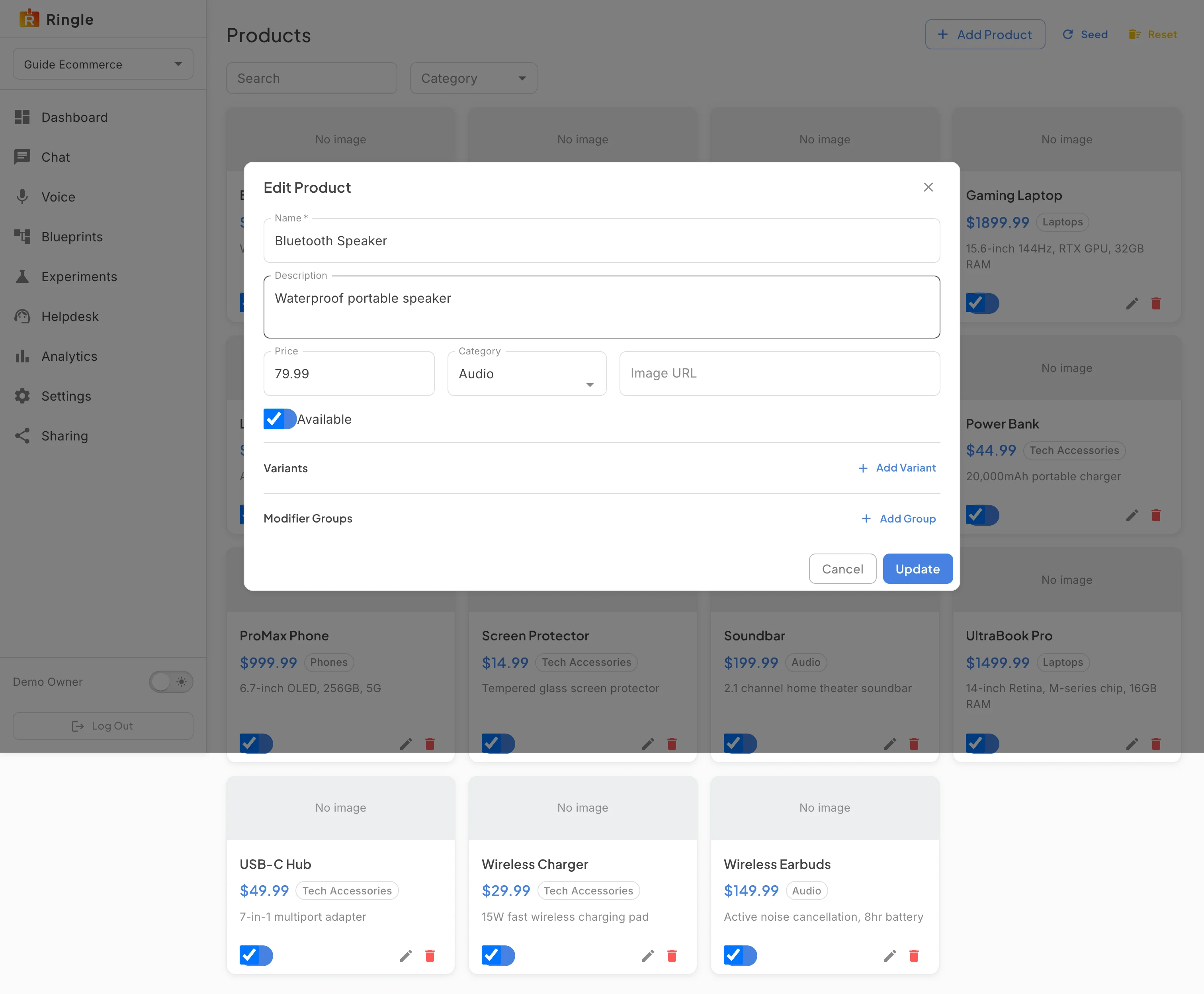
Action: Click Edit on a product card.
What you should see: The Edit Product dialog shows the Name, Description, Price, Image URL and Available fields, and a Variants list with Add Variant. Variants are the sizes or options a customer picks between, such as a color or a size. Update saves, Cancel closes without saving.
Action: Click Cancel, then click Add Product.
What you should see: The New Product dialog has the same fields, empty. A product created here is available to the assistant in the next conversation, so a customer can ask for it by name. Cancel closes the dialog; this guide adds nothing.
Action: Click Cancel. Open the Orders page by adding
/orders to the workspace address, or through the Orders tab
of the panel on the Chat page.
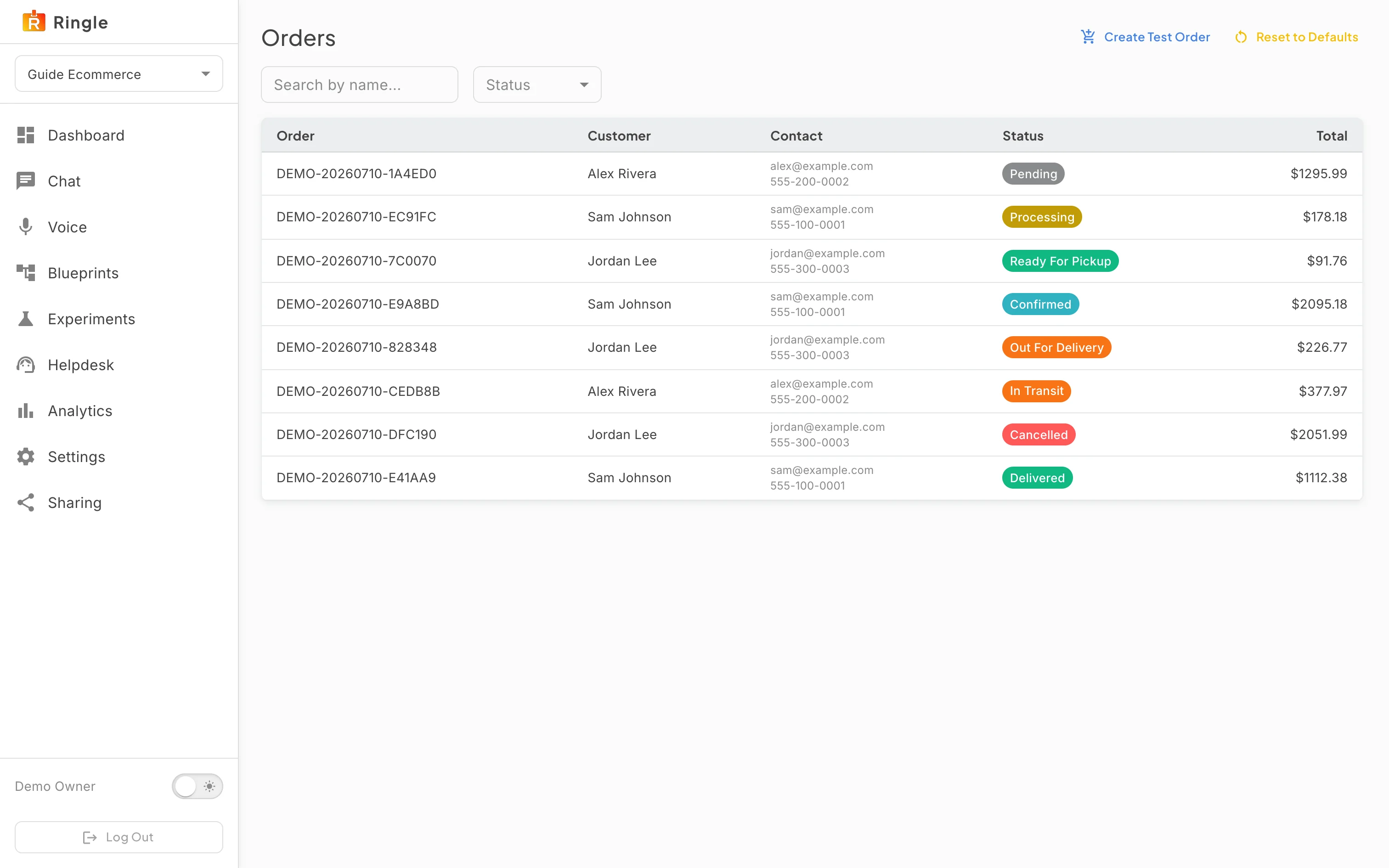
What you should see: A table lists the sample orders with their number, customer, contact details, status and total. Create Test Order adds one more, Reset to Defaults restores the sample set, and the Search box and Status filter narrow the list. The customers are fictional and their contact details are not real.
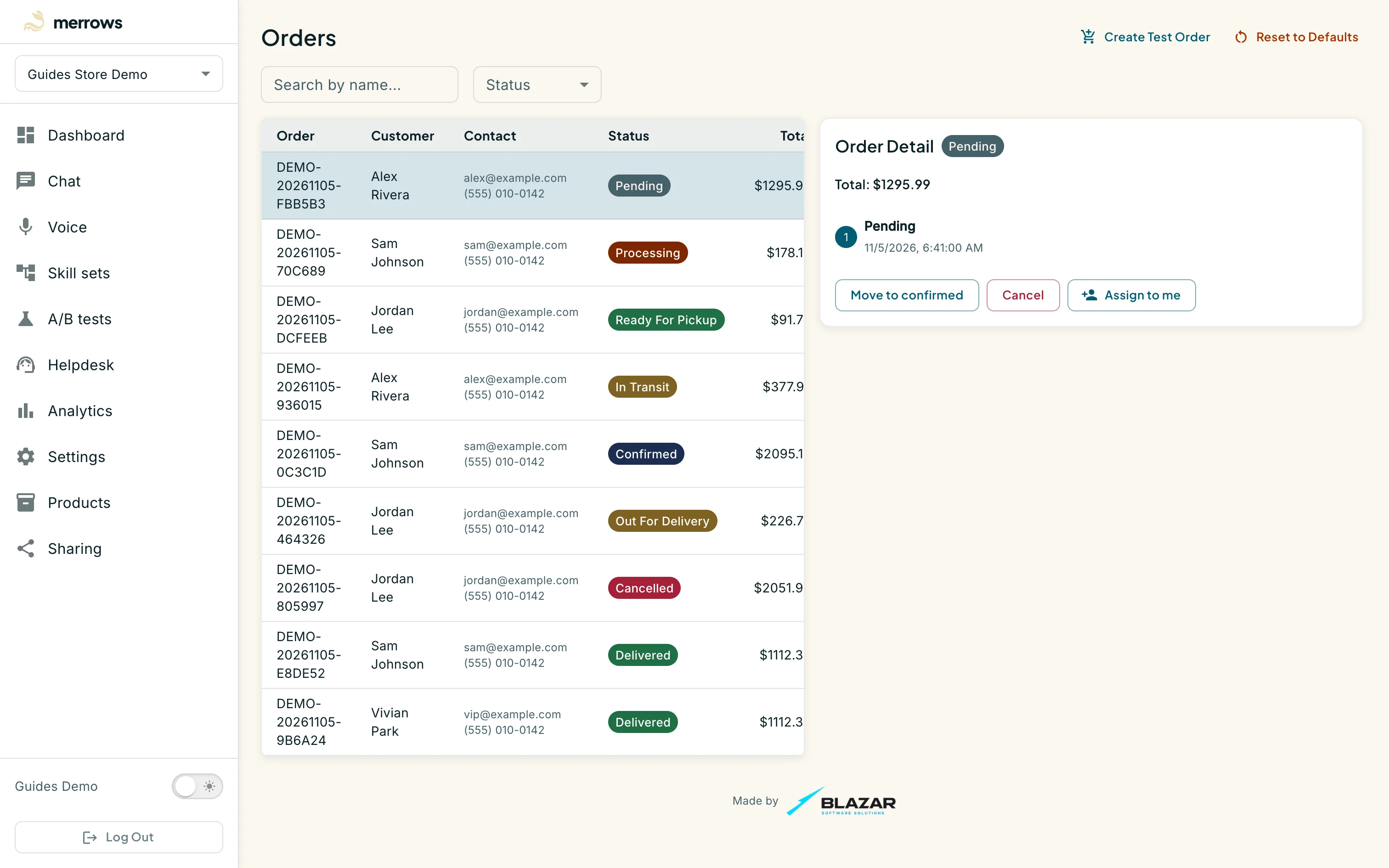
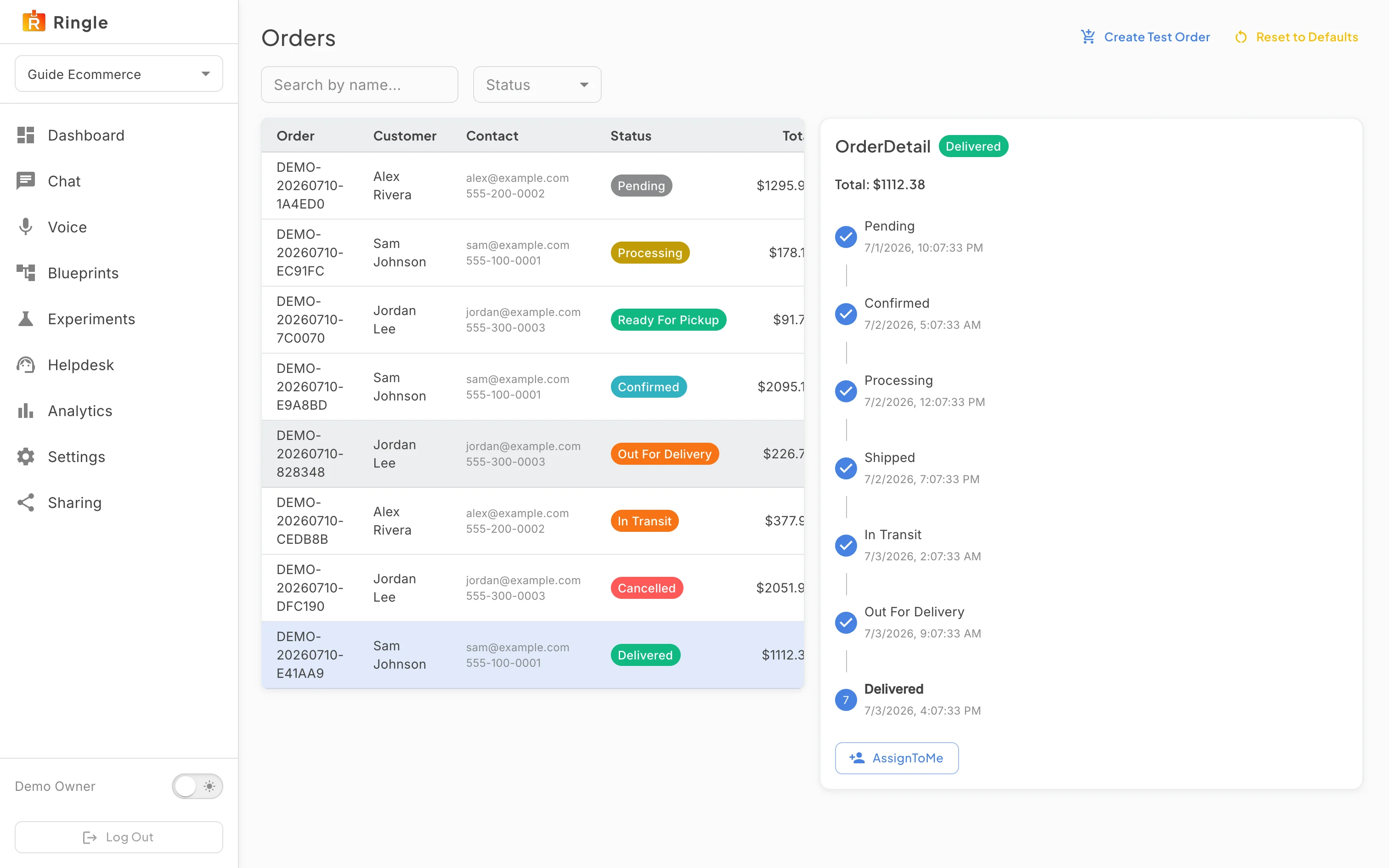
Action: Click an order row.
What you should see: An Order Detail panel opens beside the table with the status, the total, the time the order was placed and the actions the status allows: for a pending order, “Move to confirmed”, Cancel and “Assign to me”. Moving an order changes what the assistant tells a customer who asks about it, so you can rehearse a “where is my order” conversation from Chat afterwards.

