Try the support side of a demo workspace: the simulated inboxes and agents, a test escalation that proves the handoff works, and the tickets the assistant raises when a customer asks for a person.
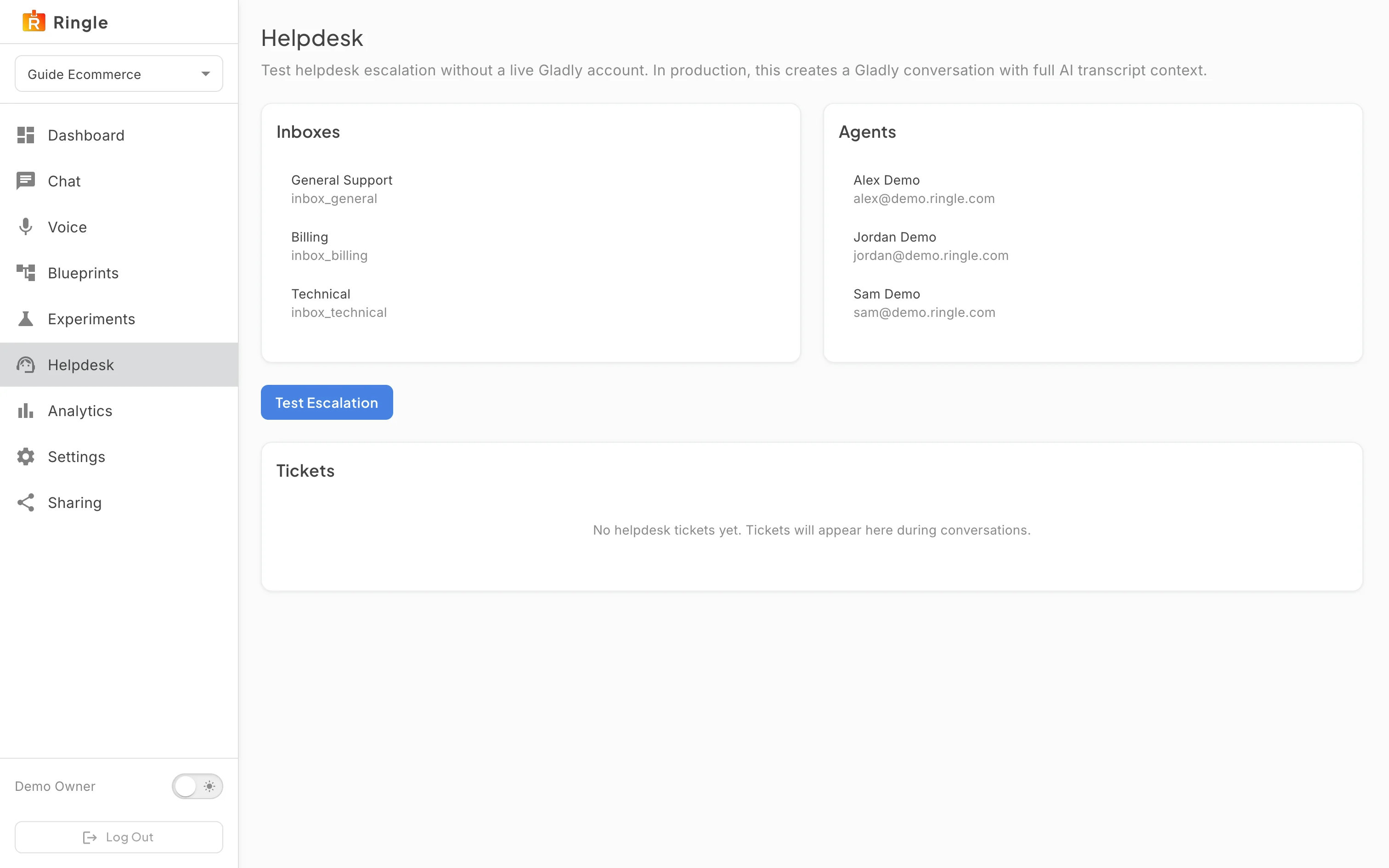
Action: Click Helpdesk in the workspace sidebar.
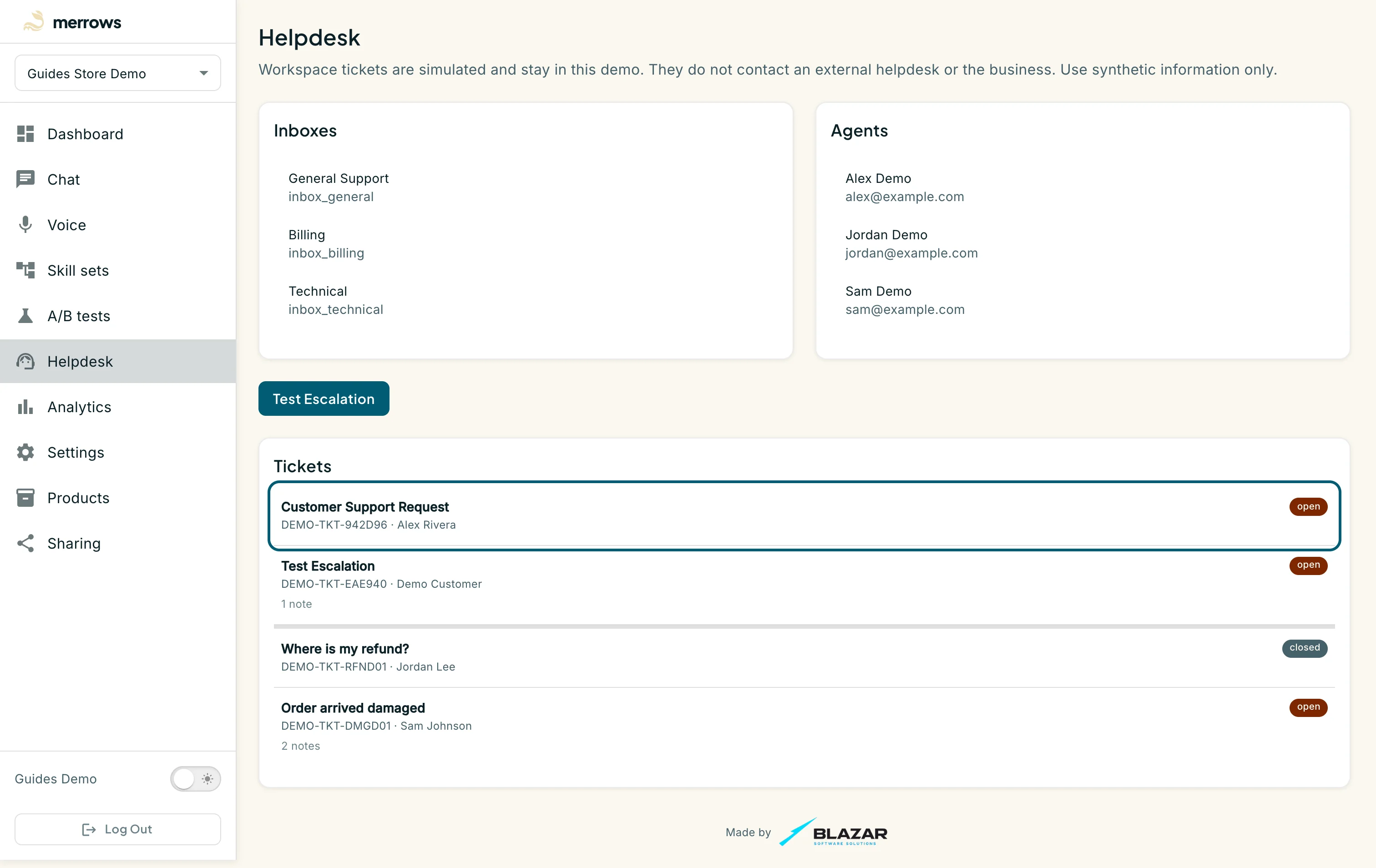
What you should see: A notice explains that workspace tickets are simulated and stay in the demo. Below it, the Inboxes card lists General Support, Billing and Technical, the Agents card lists three fictional agents, a Test Escalation button sits between them, and the Tickets card lists the sample tickets with a subject, a status chip, a ticket number and the customer’s name.
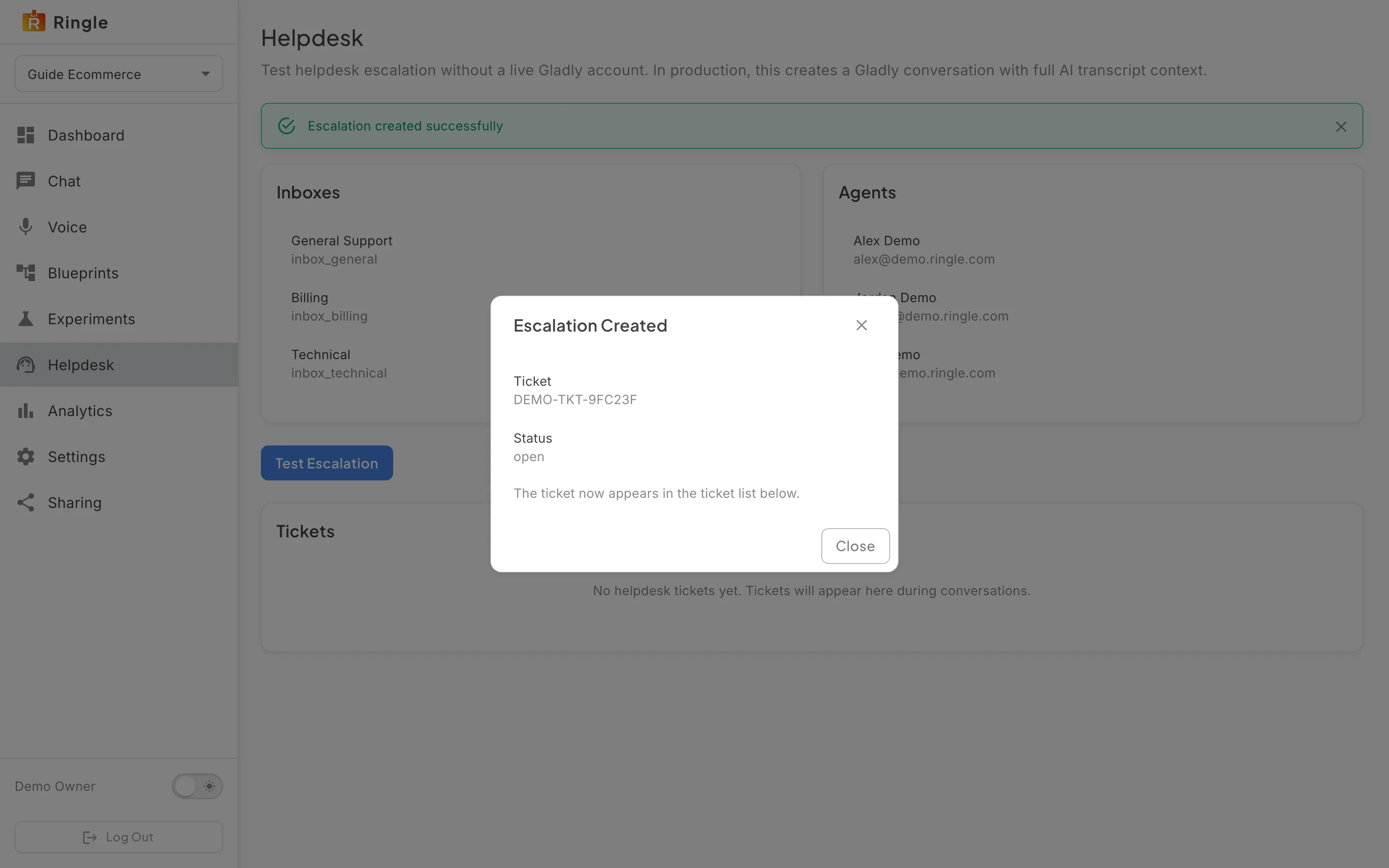
Action: Click Test Escalation.
What you should see: An “Escalation Created” dialog reports the new ticket’s number and its status, open, and says the ticket now appears in the list. It files the same kind of ticket the assistant files when a customer asks for a person in a conversation (Step 5), without a conversation behind it. Click Close.
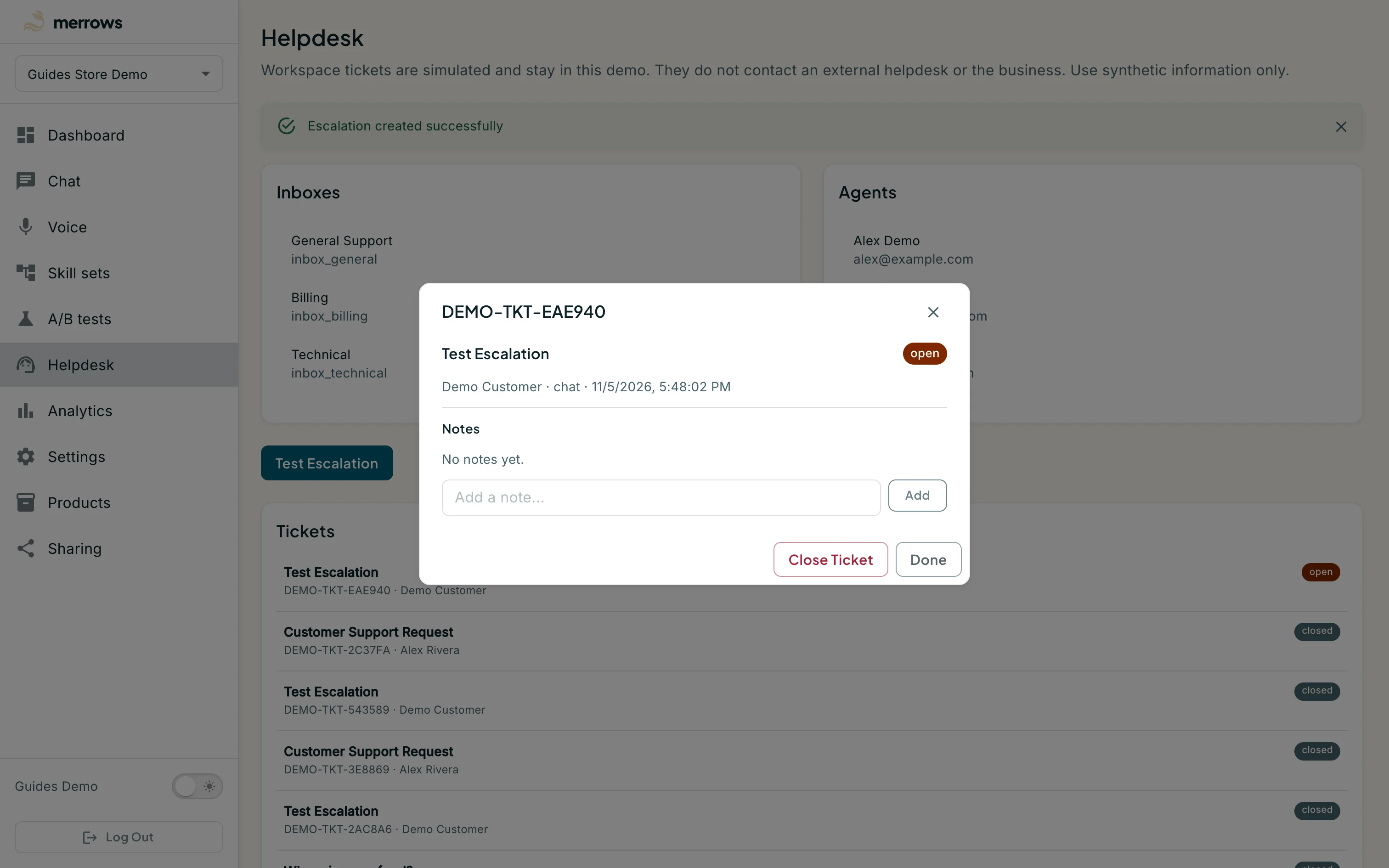
Action: Click a ticket in the Tickets card, for example the one the test escalation created.
What you should see: The ticket dialog shows the subject, the customer, the channel it came from and the time, the customer’s message, and a Notes section with an Add button for internal notes. Close Ticket marks it closed; Done closes the dialog and leaves the ticket as it is.
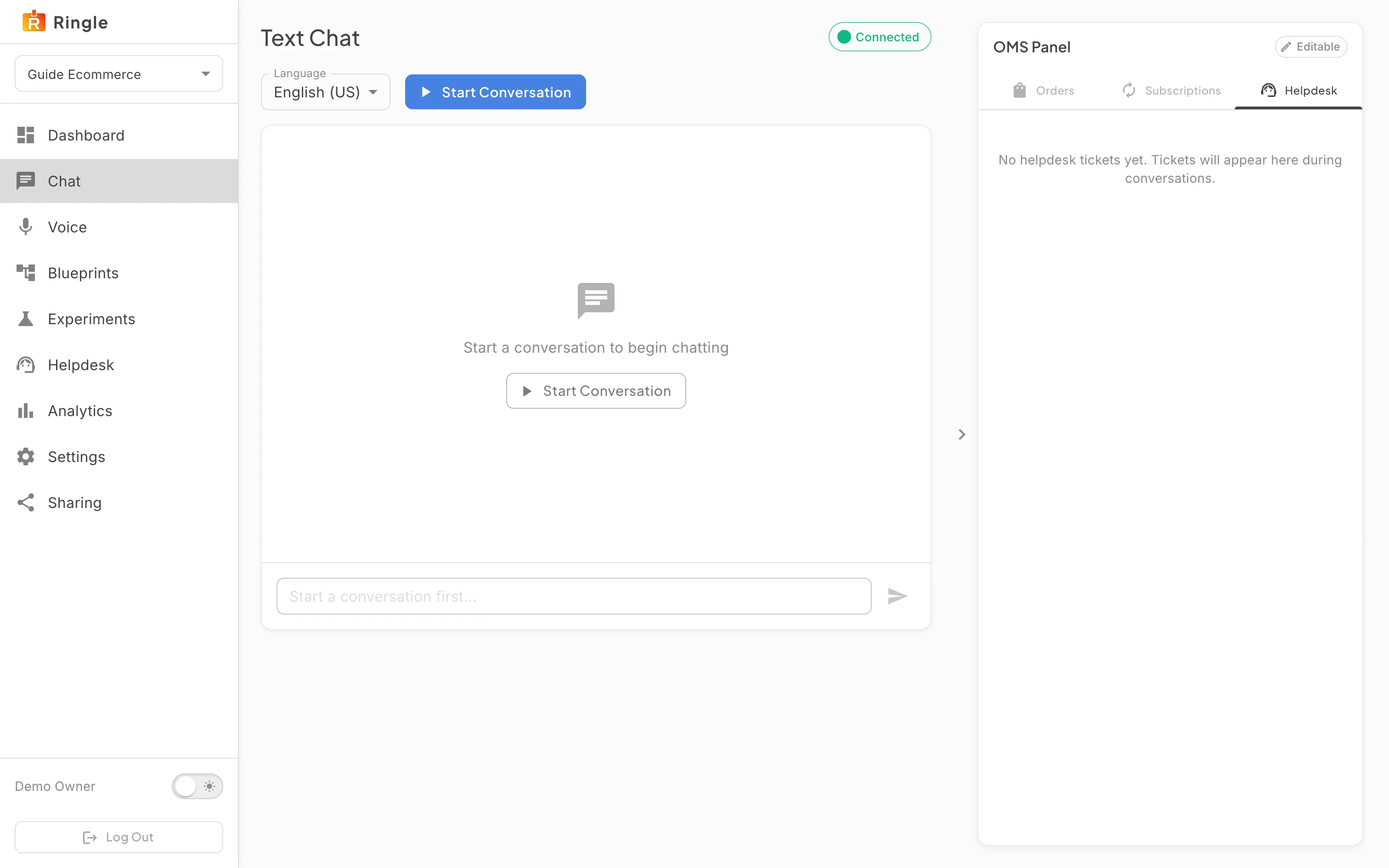
Action: Type a note in the “Add a note” field, for example “Customer called back, replacement sent”, and click Add.
What you should see: The note appears under Notes with who added it and when, and the ticket’s row in the list shows its note count. Notes are internal: the customer never sees them, and they travel with the ticket when it is closed and reopened. Click Done to leave the ticket as it is, or Close Ticket to mark it closed.
Action: Click Chat in the workspace sidebar, click Start Conversation and ask for a person, for example “Can I speak to a real person please?”. Give the email on one of the sample orders, for example alex@example.com, say what went wrong, and type yes when the assistant offers to file it with the team. Then click Helpdesk.
What you should see: In Chat the assistant confirms “Support ticket created” with a DEMO-TKT reference. Back on Helpdesk, a new open ticket, “Customer Support Request”, sits at the top of the Tickets card with that number and the name of the customer the email belongs to. Open the ticket to read the conversation that raised it, and close it with Close Ticket once you have seen it.

