See how your workspace’s conversation is assembled from a skill set, open a skill in the editor, read it as a Playbook and as an Expert Map, try a change in the sandbox preview, and learn what publishing does.
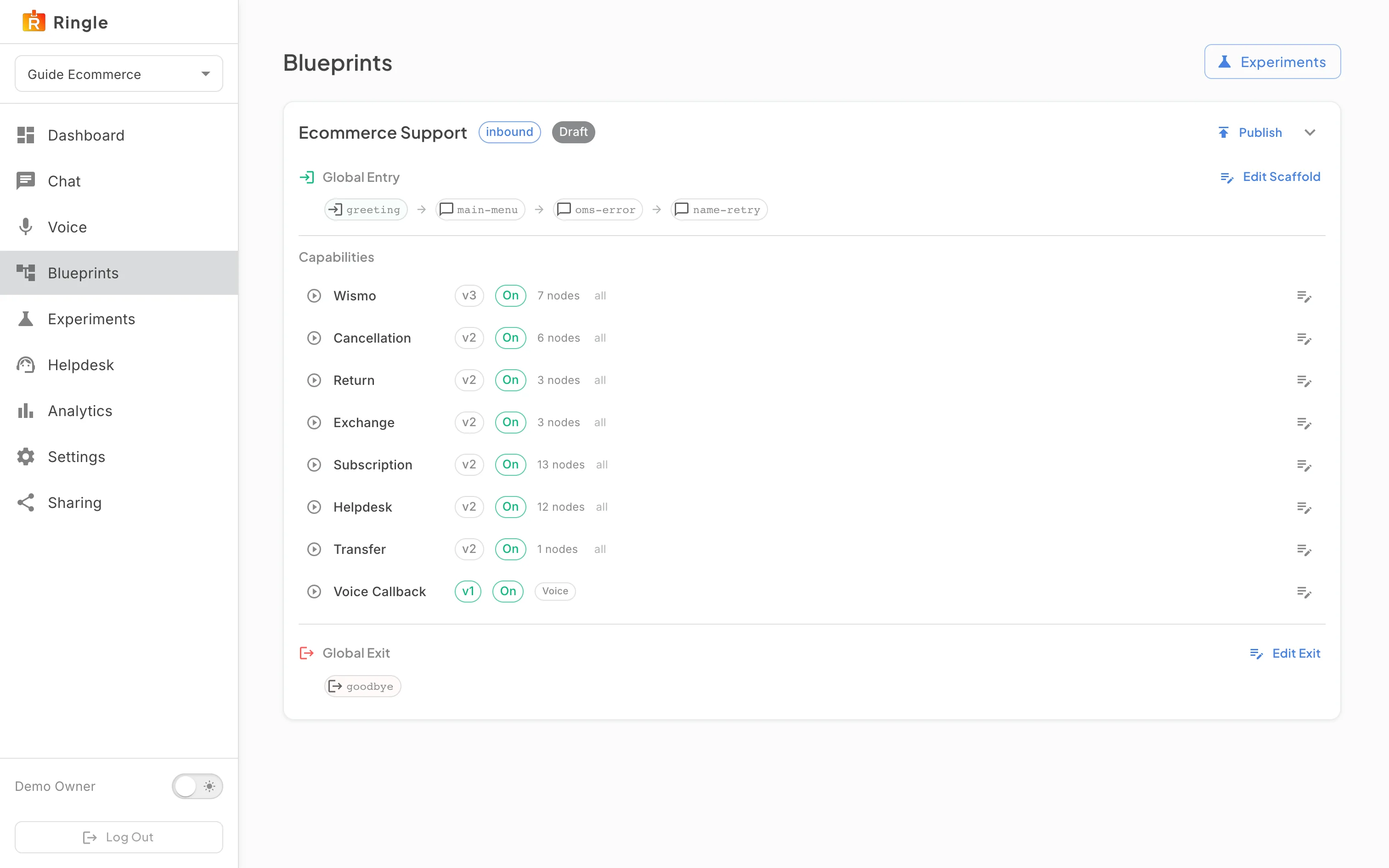
Action: Click “Skill sets” in the workspace sidebar.
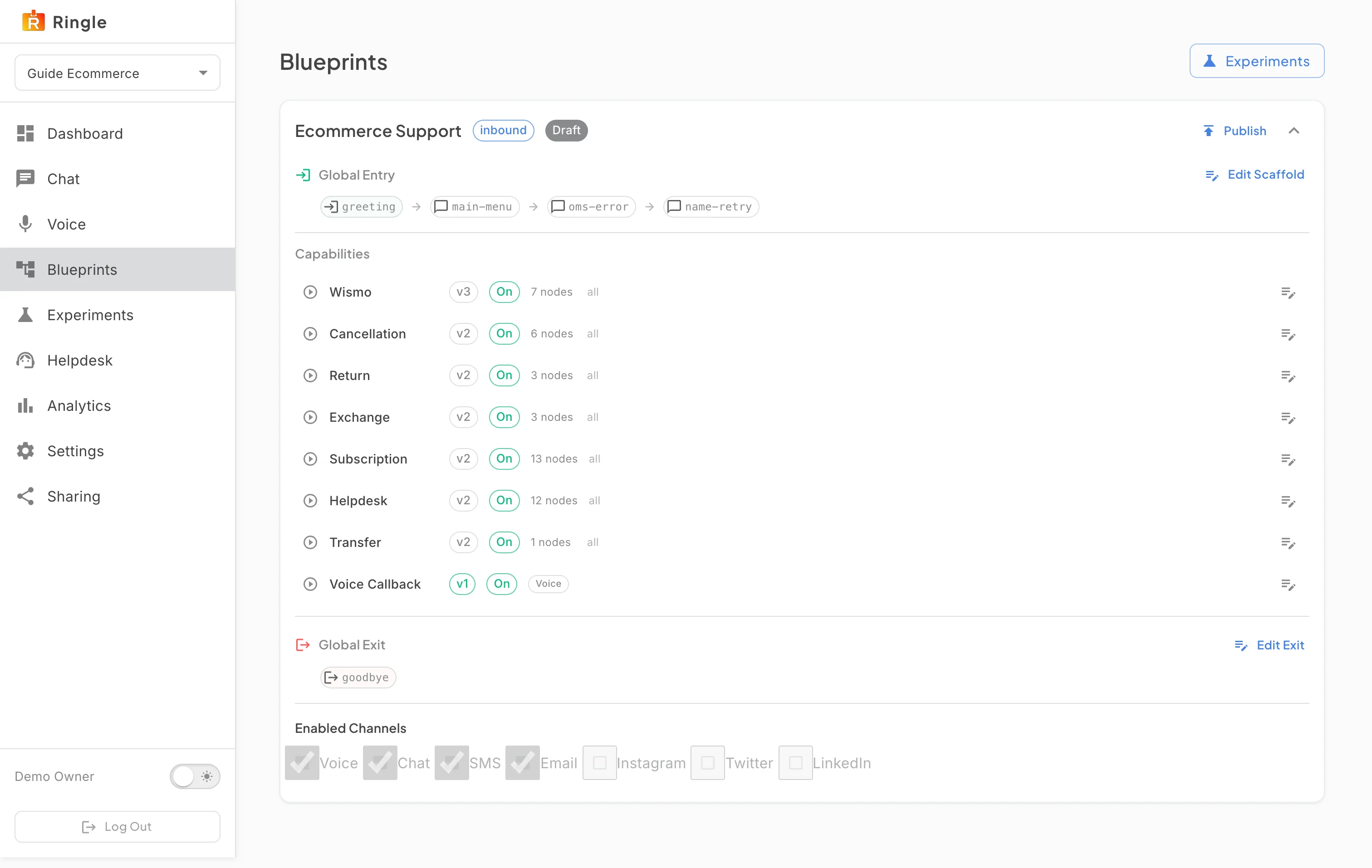
What you should see: The page shows the workspace’s skill set, for an online store “Ecommerce Support”, with its channel and version chips and a Publish button. Under it, “How every conversation starts” lists the steps of Welcome & routing (Greeting, Main Menu and the steps that ask again or recover from an error) with an Edit button; Skills lists each skill (Order status, Cancellation, Return, Exchange, Subscription, Helpdesk and more) with its version, whether it is on, how many steps it has and an Edit flow button; “How every conversation ends” shows the goodbye with its own Edit Exit button.
Action: Click Edit flow on the Order status skill.
What you should see: The editor opens on the skill. The toolbar has Back, Save, Publish, a Playbook or Expert Map switch, Undo and Redo, keyboard shortcuts, Settings and Skills; the header shows the language the skill is being edited for and a Preview button. A step’s card shows another channel’s wording only where that channel says something different. The Playbook reads the skill top to bottom as numbered steps, each with its message or action and the outcome that leads on. This is the same editor a business uses; the “Conversation editor” guide describes every control.
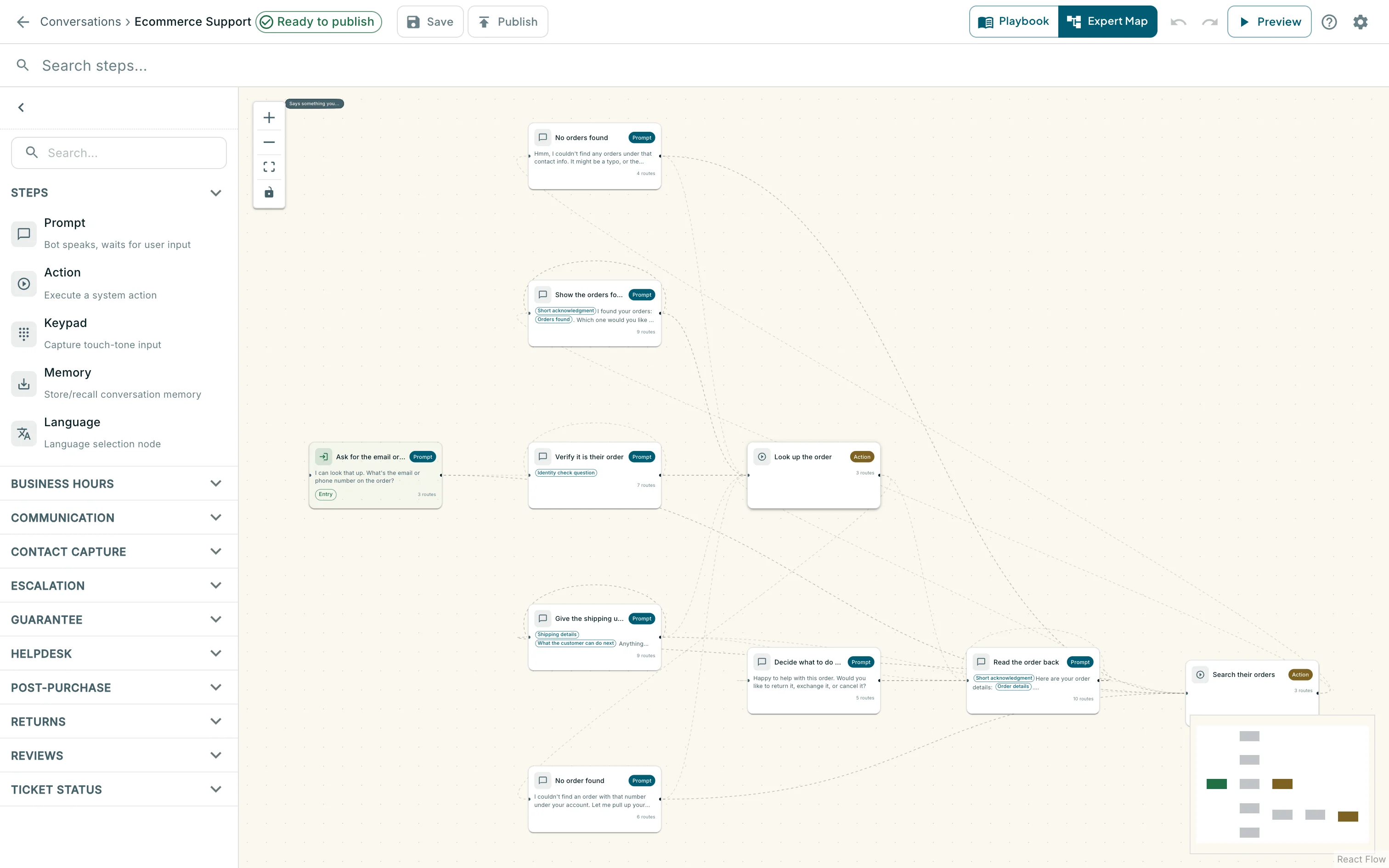
Action: Click Expert Map.
What you should see: The same skill is drawn as a map: each step is a card and each outcome a line to the step it leads to, which shows the branches a Playbook lists one after another. Drag to pan, scroll to zoom, click a card to open the same step panel the Playbook opens. Switch back to Playbook at any time; both views edit the same draft.
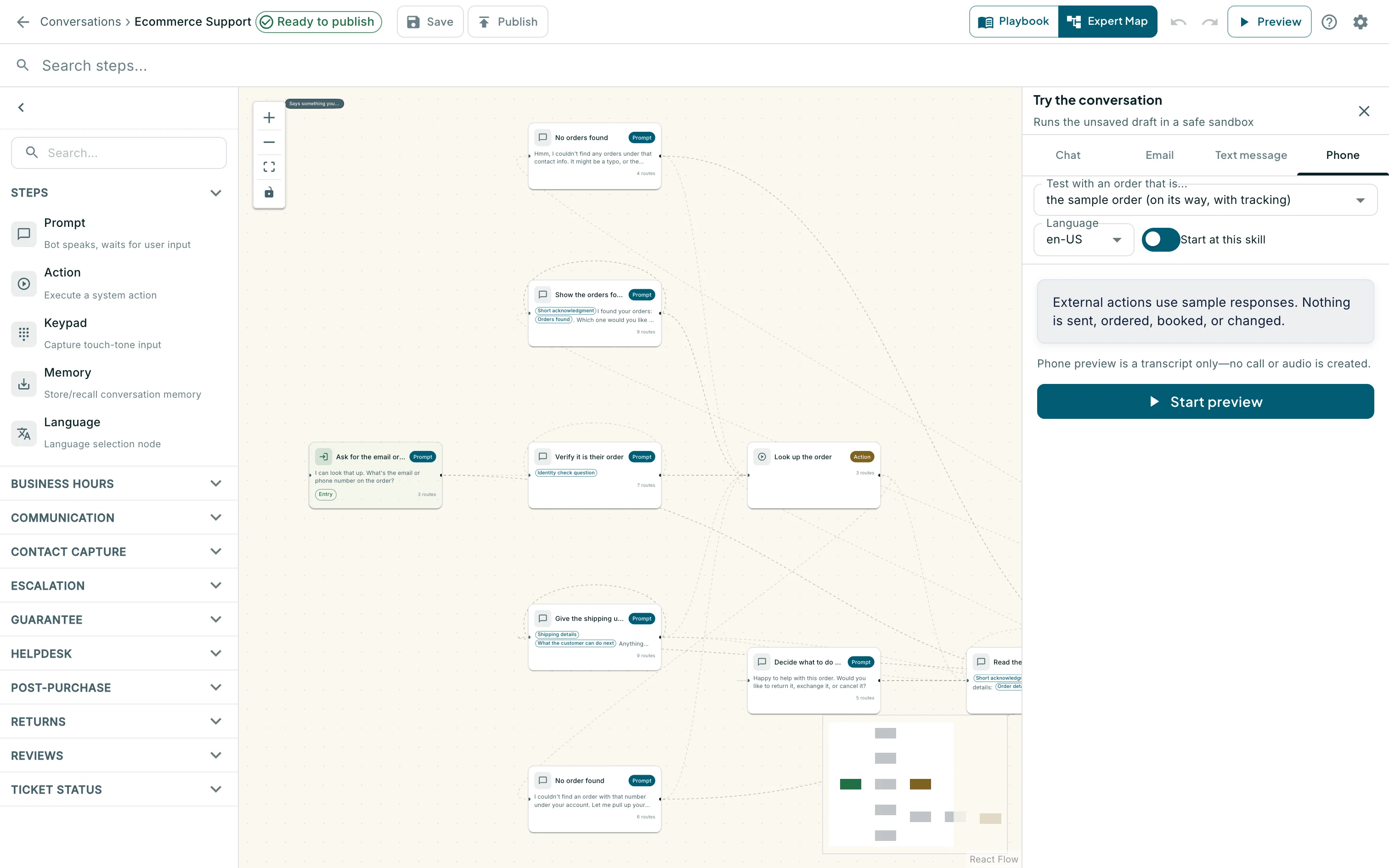
Action: Click Preview.
What you should see: A “Try the conversation” panel opens beside the editor. It runs the unsaved draft in a sandbox: pick the channel to preview (Chat, Email, Text message or Phone), the sample order the customer refers to, the language, and whether to start at this skill or from the greeting. External actions use sample responses, so nothing is sent, ordered, booked or changed, and a phone preview is a transcript only. “Start preview” opens the sandbox conversation; “Close preview” ends it. The exchange is not recorded under Analytics.
Action: Click the Chat tab in the panel, leave “Start at this skill” on, and click “Start preview”.
What you should see: The sandbox conversation opens at the skill’s first step. For Order status the sandbox runs the order search with sample results, and the assistant lists the orders it found with their status. A “Next:” line names the step the conversation is on, the sample orders are listed under it, and suggested customer replies sit above the reply box as chips. Click a chip, or type in “Reply as the customer” and press Enter, to answer as the customer; the assistant replies from the draft. The close button at the top of the panel, “Stop and close preview” while a session runs, ends it.
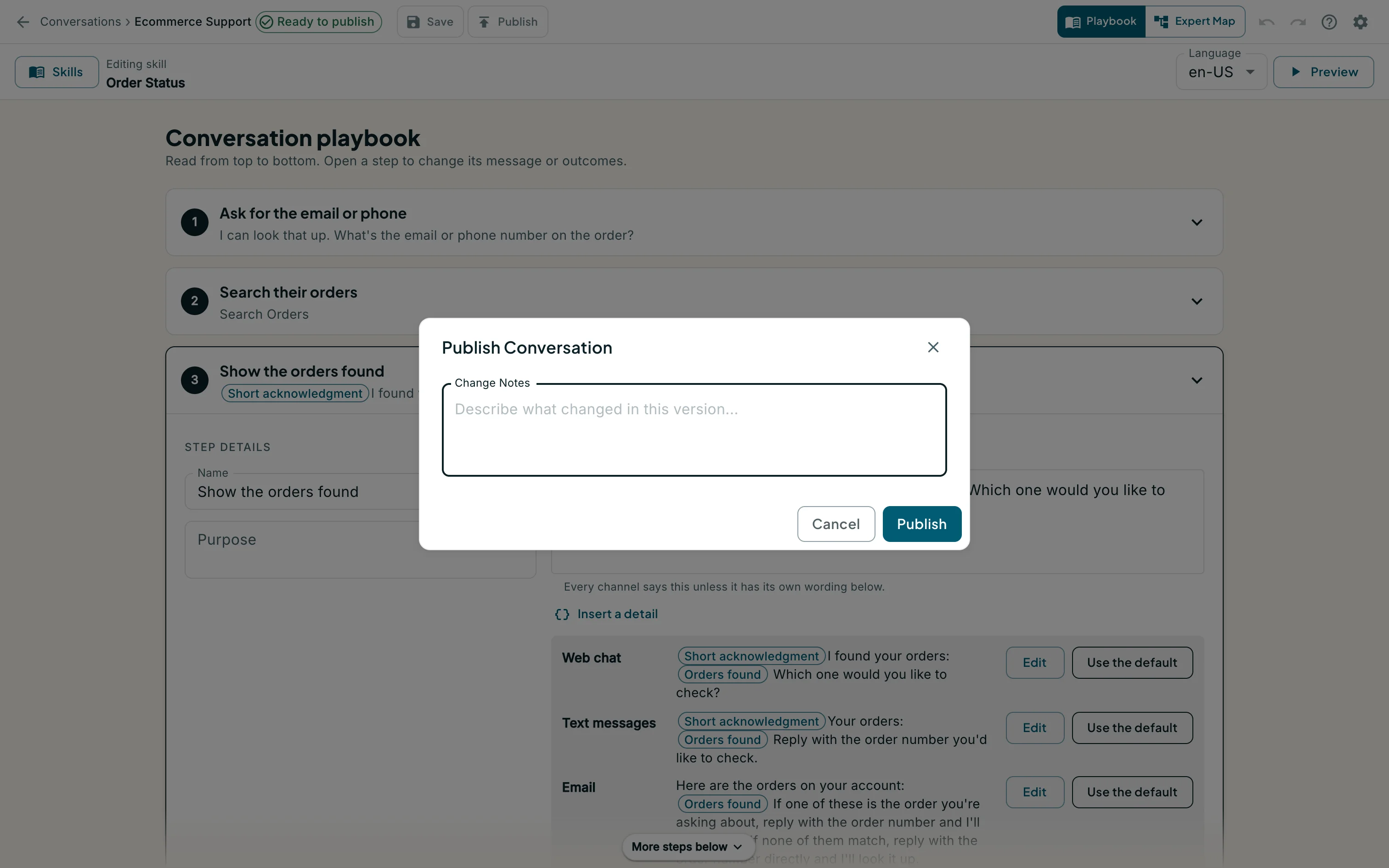
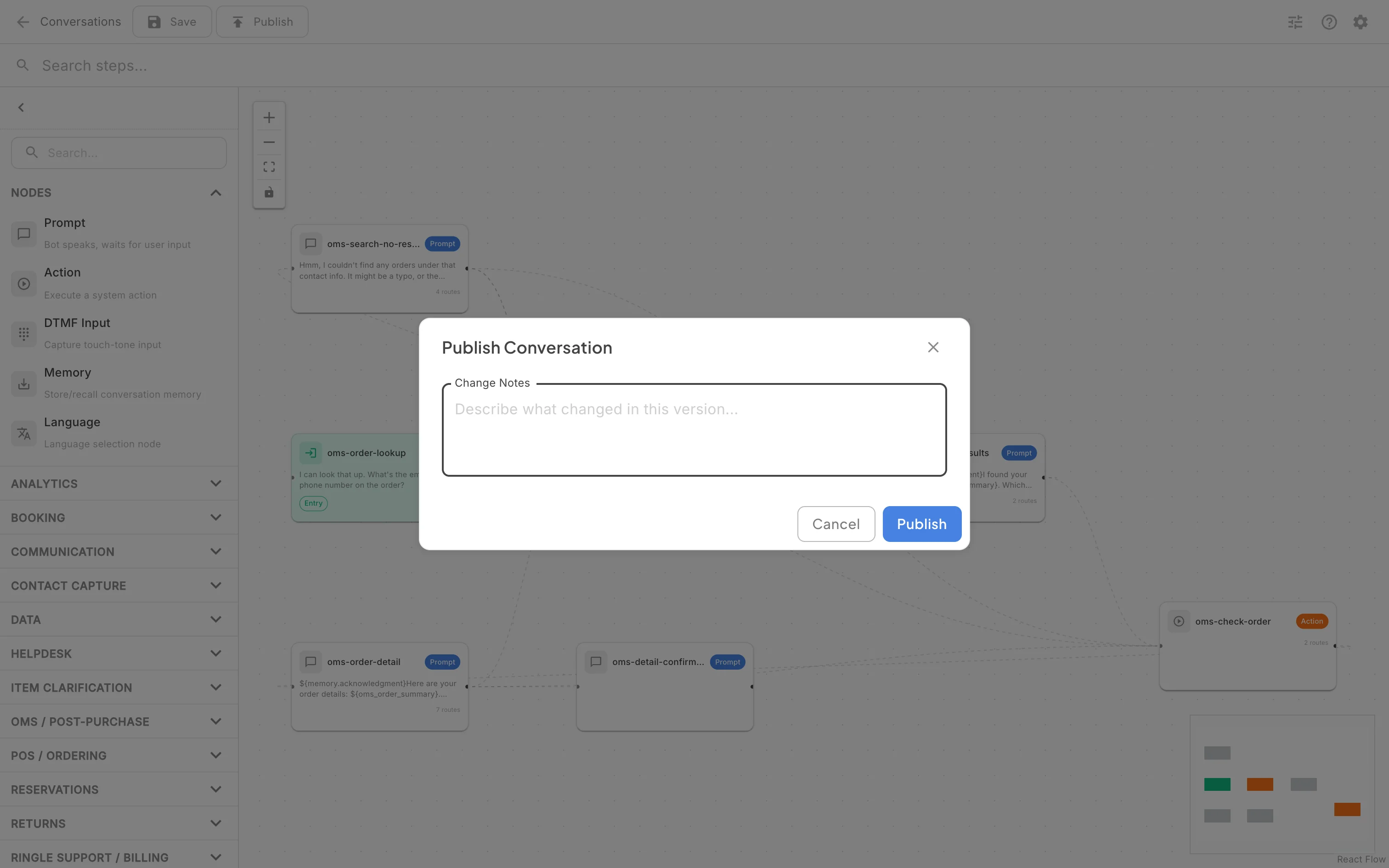
Action: Click Publish in the toolbar.
What you should see: A “Publish Conversation” dialog asks for change notes describing what changed in this version. Publish makes the draft the version Chat, Voice, share links and any attached phone number use; until then they keep the published version. Click Cancel to keep the draft unpublished.

