Change what your AI employee says and does, step by step in the Playbook or as a map, preview the result, and keep or discard your copy of a standard skill.
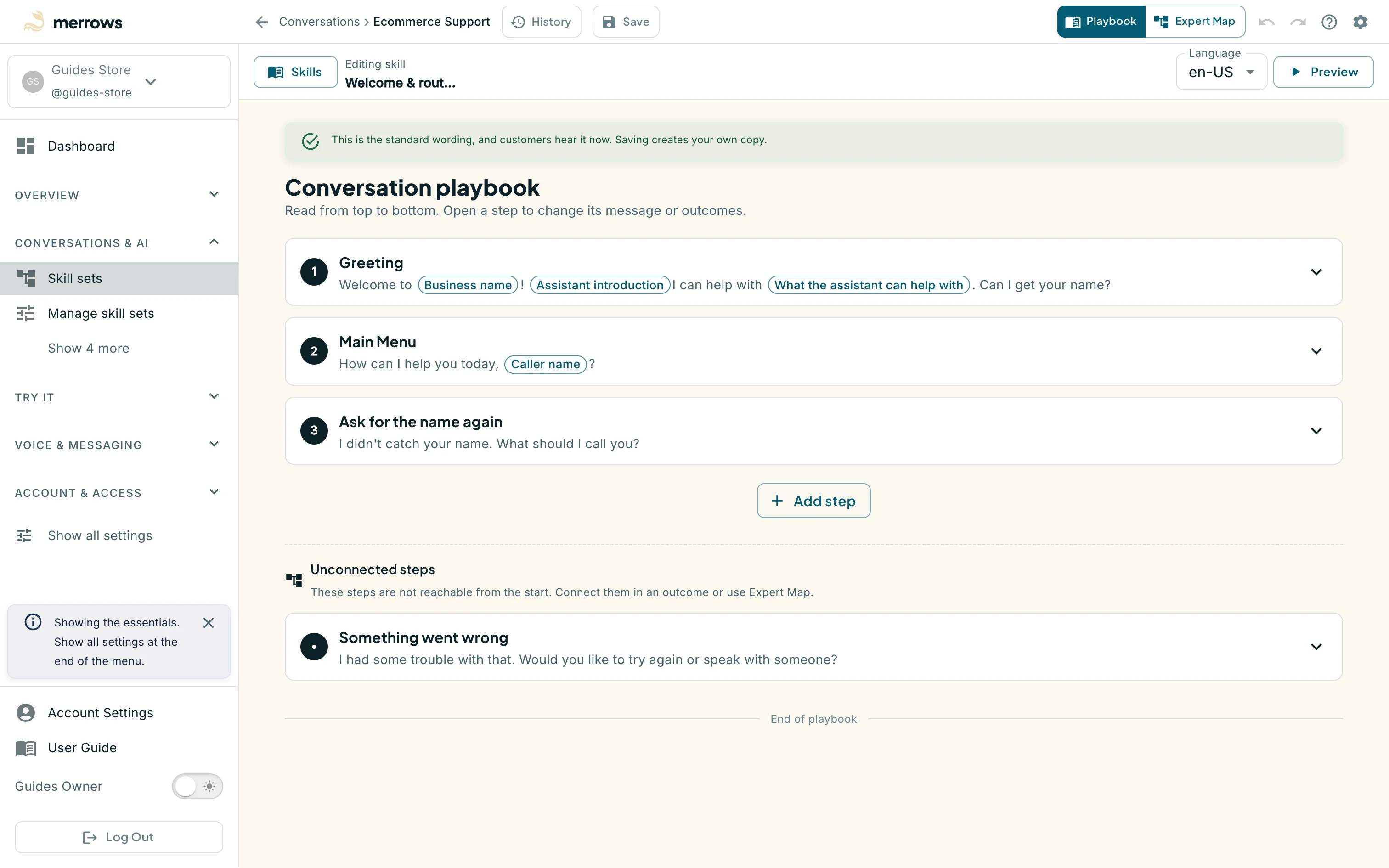
Action: Click Skill sets under Conversations & AI, or the pencil on a skill’s row on the Manage skill sets page (its label reads “Edit” and the skill’s name).
What you should see: The editor opens in Playbook view on the skill set’s welcome and routing skill. The toolbar has Back with the skill set’s name (Conversations > Ecommerce Support), History, Save, the Playbook and Expert Map switch, Undo and Redo, Keyboard Shortcuts and Settings. Under it are the Skills button, the name of the skill you are editing, the Language selector and Preview. A notice says whether this is the standard wording customers hear now. The playbook lists the steps from top to bottom: Greeting, Main Menu, Ask for the name again, and any unconnected steps such as Something went wrong at the end.
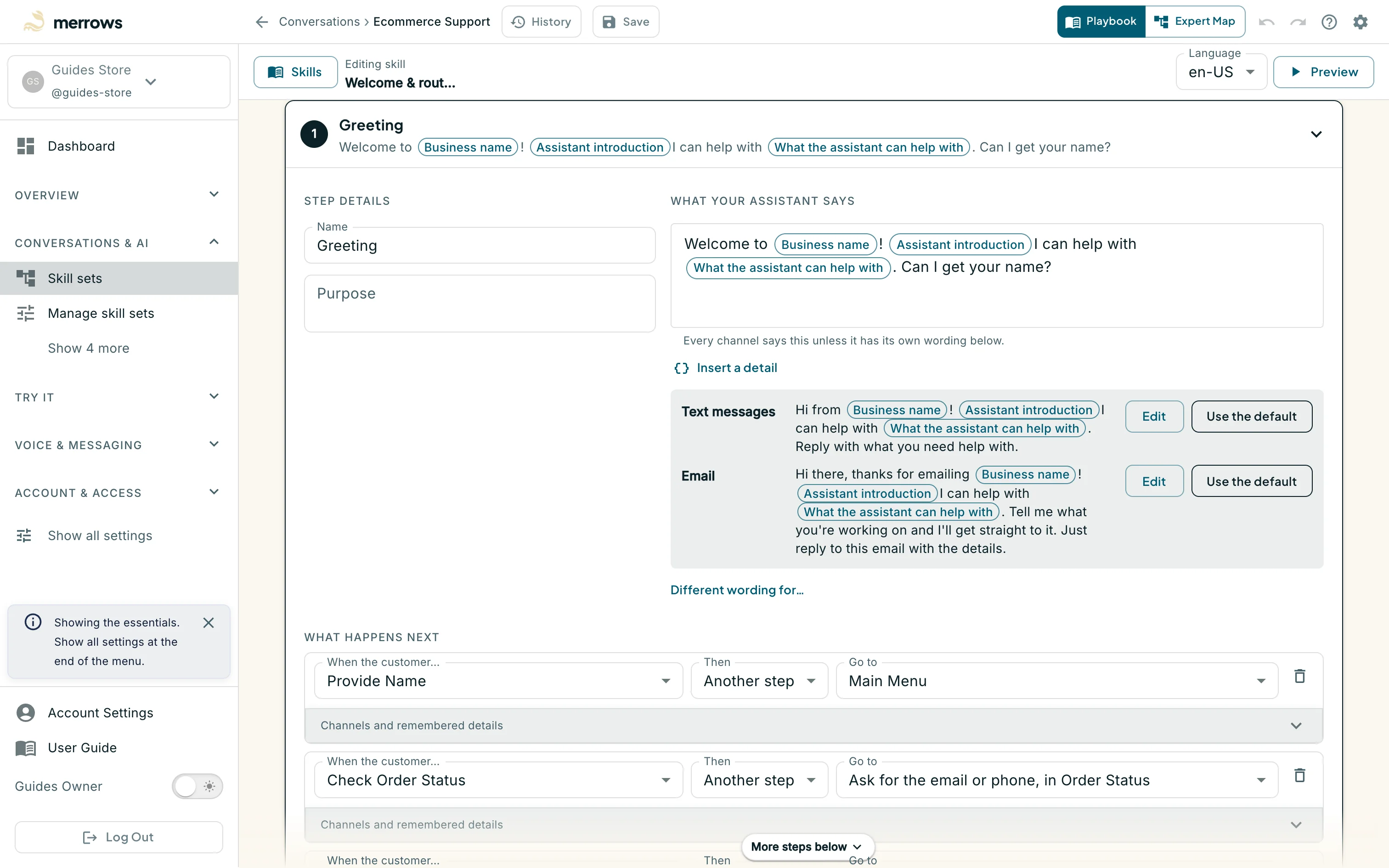
Action: Open a step, for example the Greeting.
What you should see: The step expands into Step details, with the step’s name and purpose, and “What your assistant says”. Every channel says that wording unless it has its own: Text messages and Email often do, each with Edit and Use the default, and “Different wording for…” adds wording for another channel. Insert a detail adds a named detail such as Business name. Under “What happens next” each row says what the customer does or asks for and which step follows: Provide Name goes on to Main Menu, and Check Order Status goes to “Ask for the email or phone, in Order Status”. Edit the text in place; saving creates your own copy.
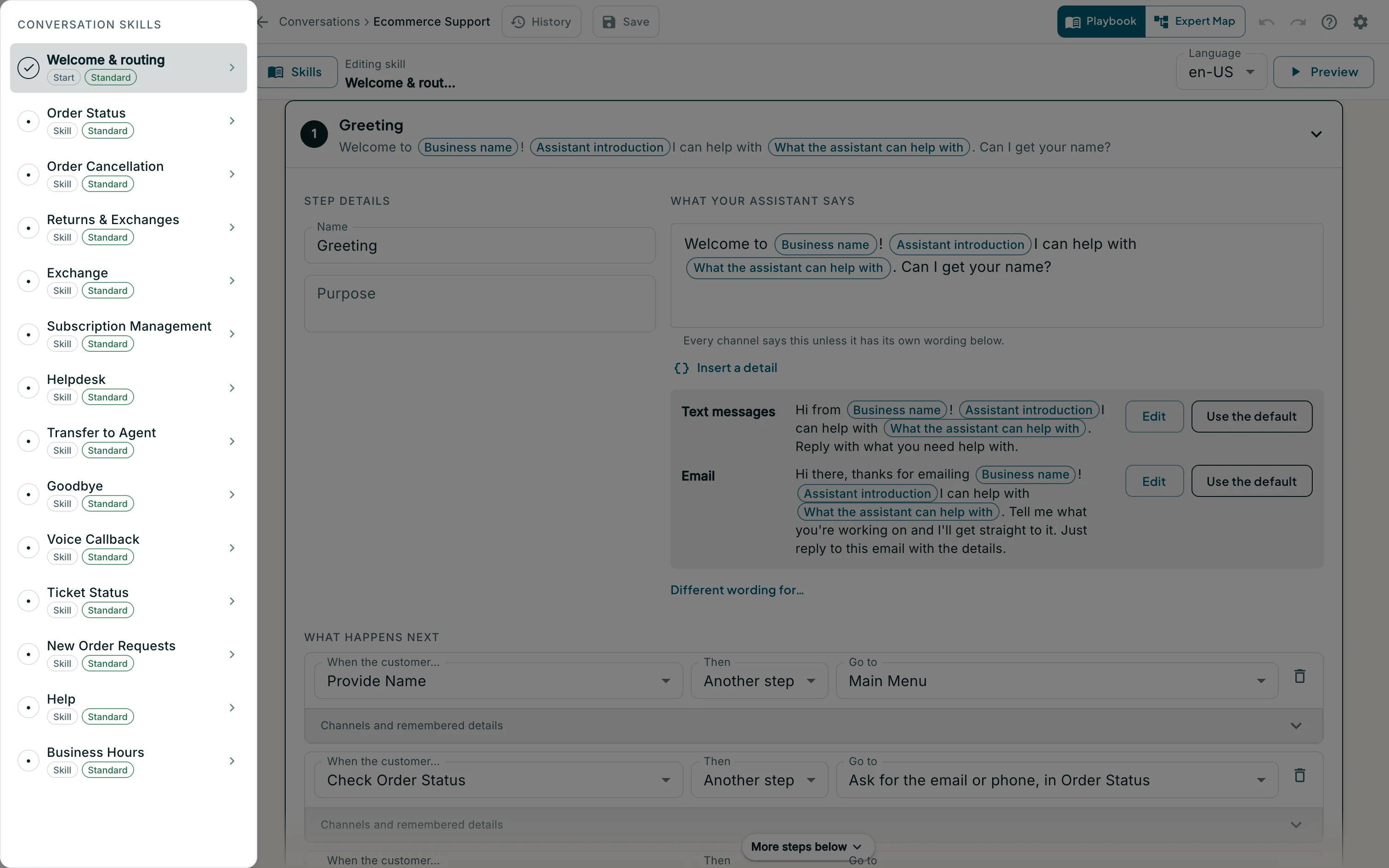
Action: Click Skills to pick another skill of the set.
What you should see: The Conversation skills panel lists every skill of the set, starting with Welcome & routing, then Order Status, Order Cancellation, Returns & Exchanges, Exchange, Subscription Management and the rest, each marked Standard or Customized. Picking one loads its playbook. A customised skill offers “Update from standard”, which merges the latest Merrows version into your copy, and “Reset to standard”, which discards your copy.
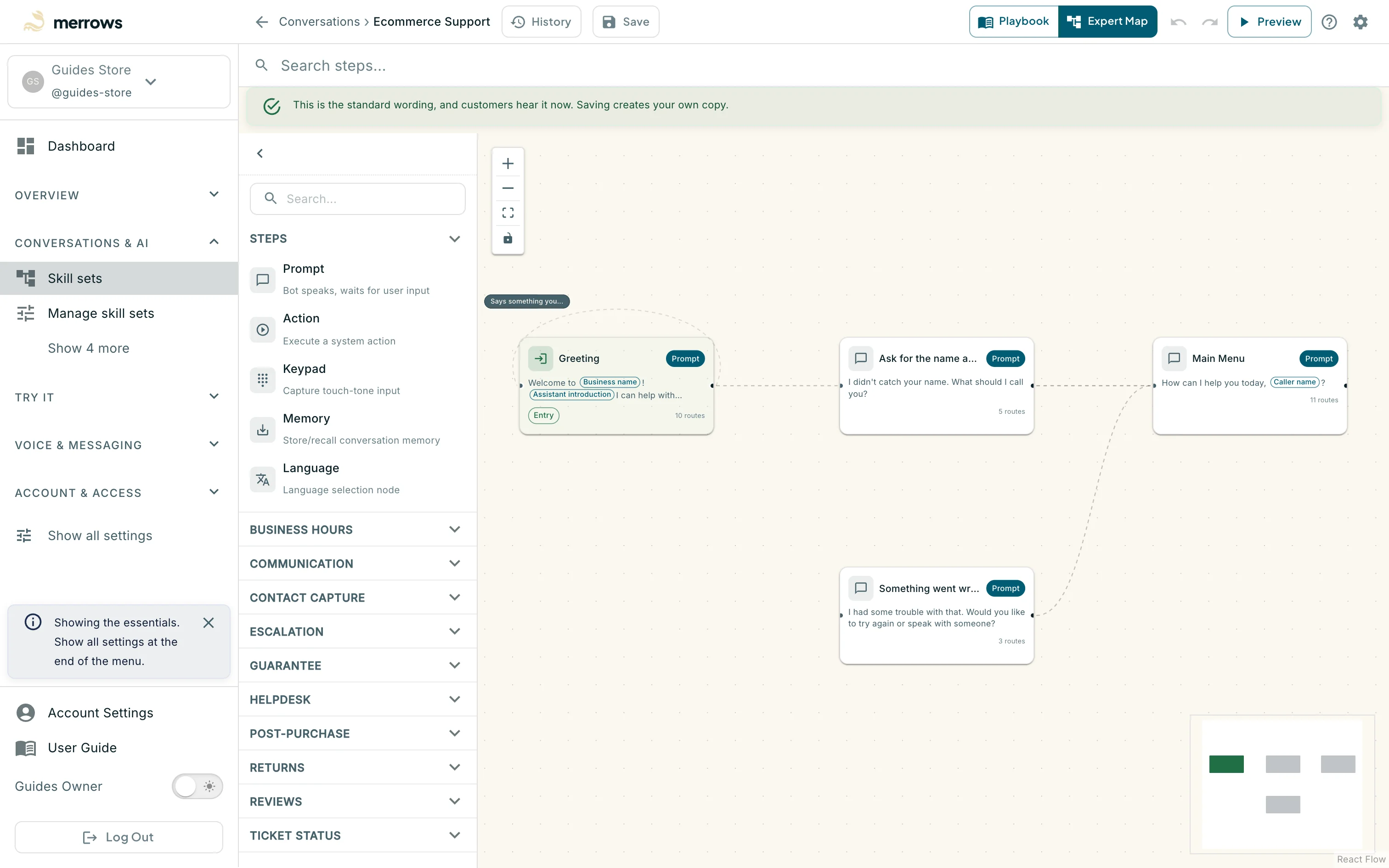
Action: Switch to Expert Map.
What you should see: The same skill as a graph: steps as nodes, outcomes as the lines between them. Drag to arrange, click a node to edit it, and draw a line from an outcome to connect a step. Unconnected steps sit apart until you wire them in. The column on the left lists the step types you can drag onto the map (Prompt, Action, Keypad, Memory and Language), and below them the actions for your kind of business in groups such as Post-purchase, Returns and Helpdesk. A step that can loop back to itself, like the Greeting when it asks again, shows that line as an arc above its card. Click a node to open it on the right with Message and Routing tabs, and its wording per channel.
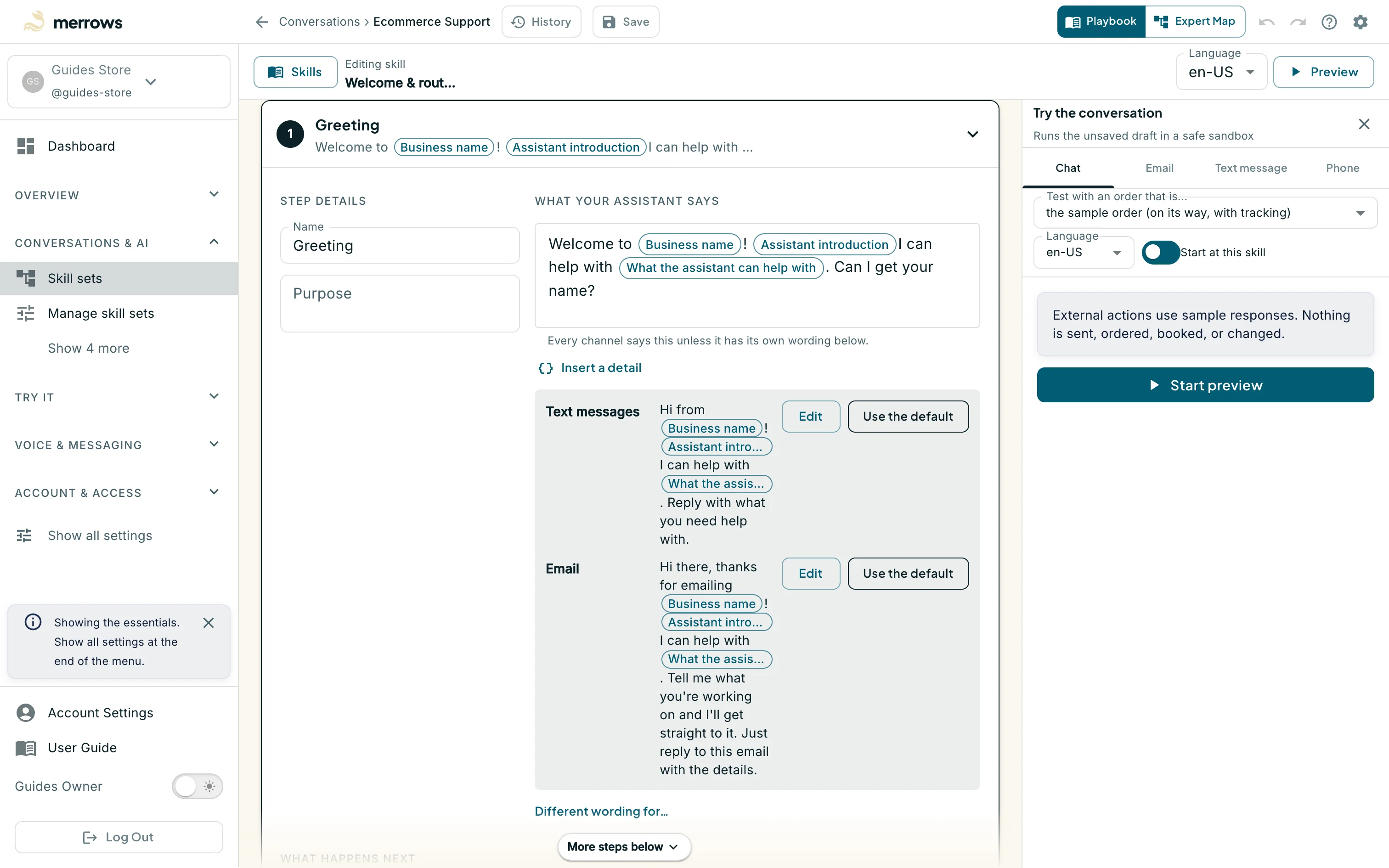
Action: Click Preview.
What you should see: The “Try the conversation” drawer opens on the right with the Chat, Email, Text message and Phone tabs, an order to test with (“the sample order (on its way, with tracking)”), the language, a “Start at this skill” switch and a Start preview button. External actions use sample responses, so nothing is sent, ordered, booked or changed, and the Phone tab is a transcript only. Starting it runs the skill as it is on screen, unsaved edits included, in a sandbox; the current step lights up as you talk, and nothing reaches a customer or Analytics. This is the same drawer that Try it opens.
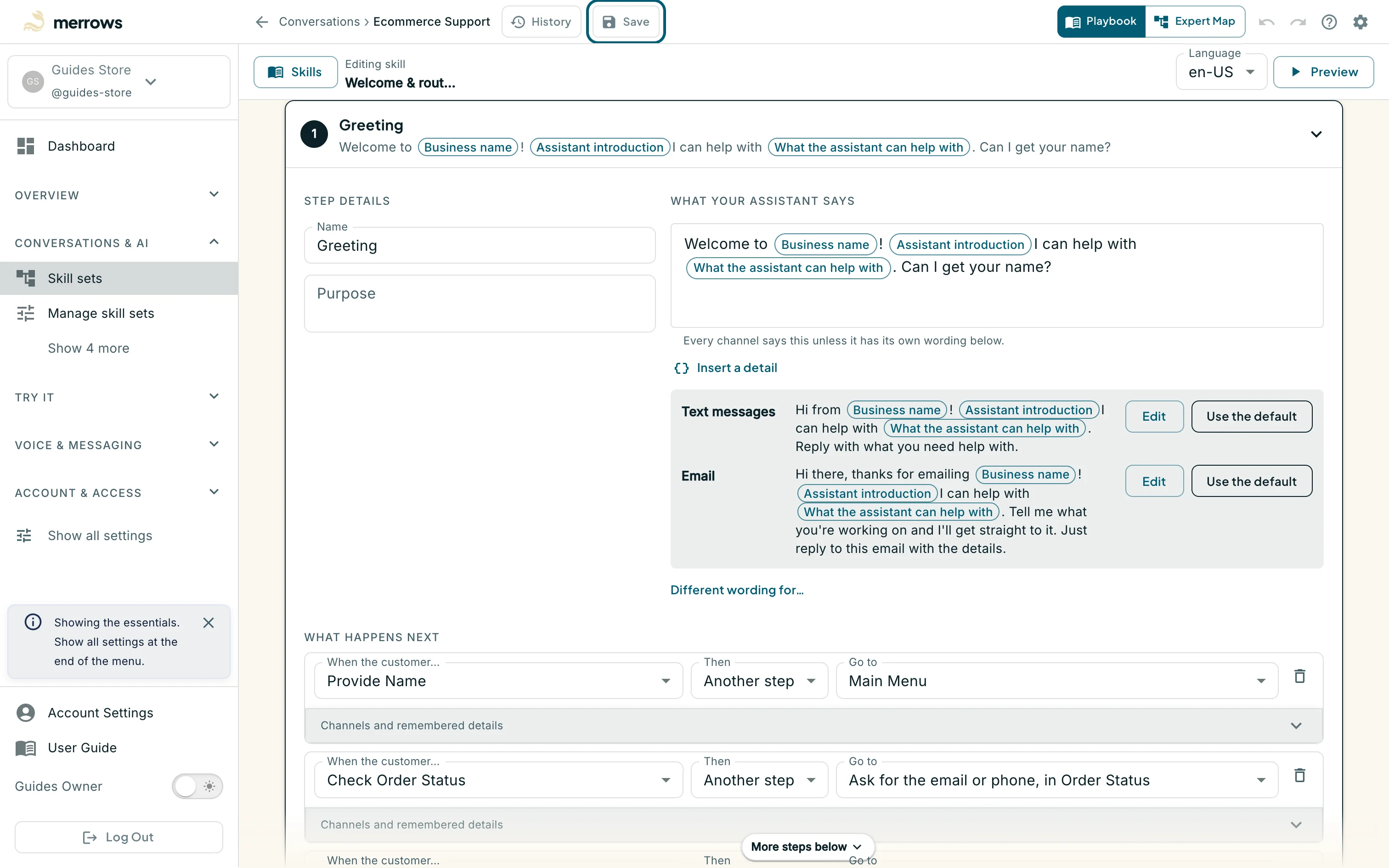
Action: Click Save.
What you should see: Your copy is stored as a new version of the skill and the notice changes from standard to customised. Customers keep hearing the published version until you publish the skill set from Manage skill sets. Undo and Redo step through your edits until you leave the page.
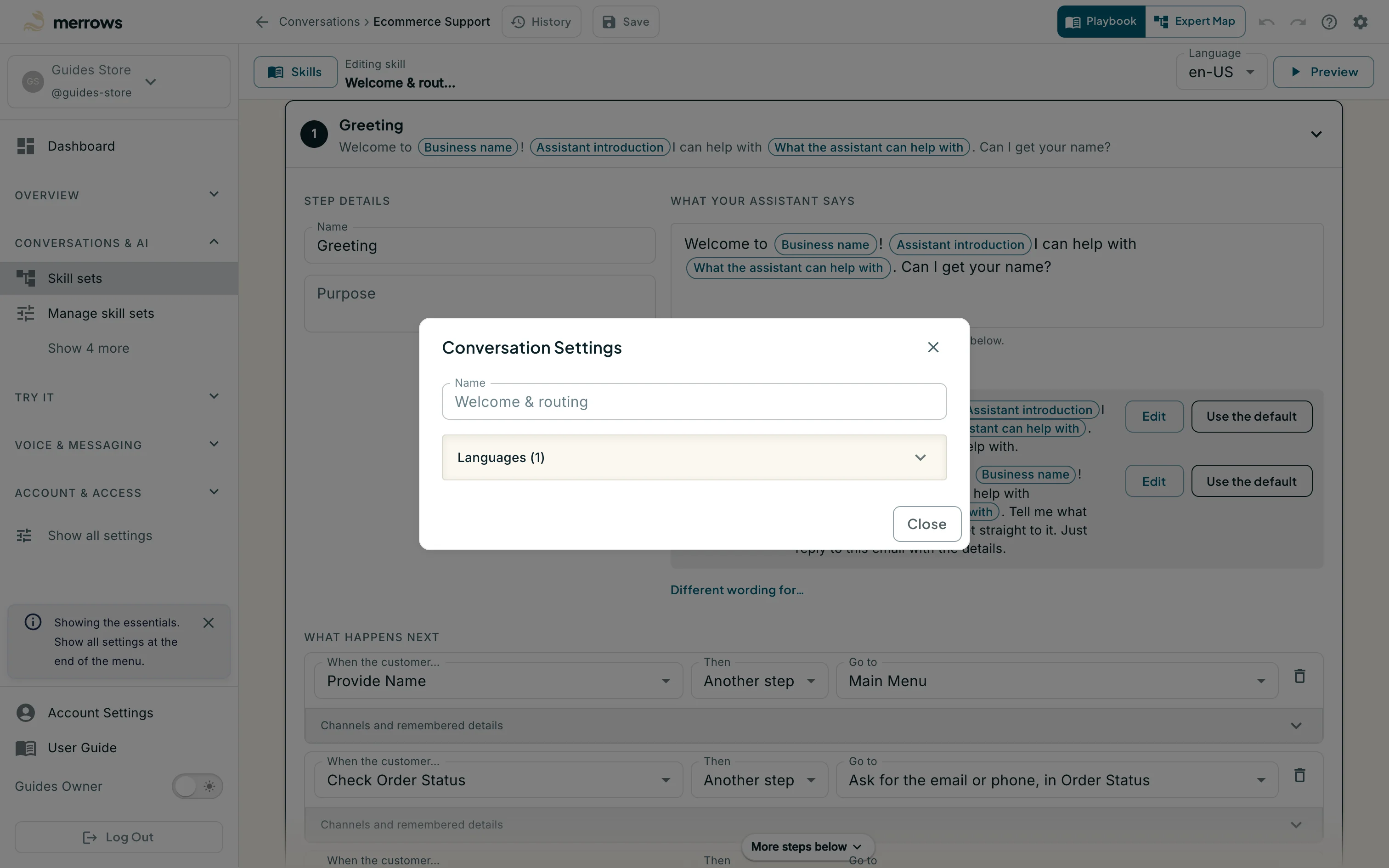
Action: Open Settings for the skill.
What you should see: The Conversation Settings dialog shows the skill’s name, Welcome & routing, and the languages it runs in. The per-skill controls, such as the display name, the channels a skill answers on, its priority and whether it is on, live on the Skills page under “Show all settings”; see the “Advanced conversation settings” guide.

