Review the details of your own account, correct your name, and set the language, theme, sidebar mode and analytics choice the portal keeps for you.
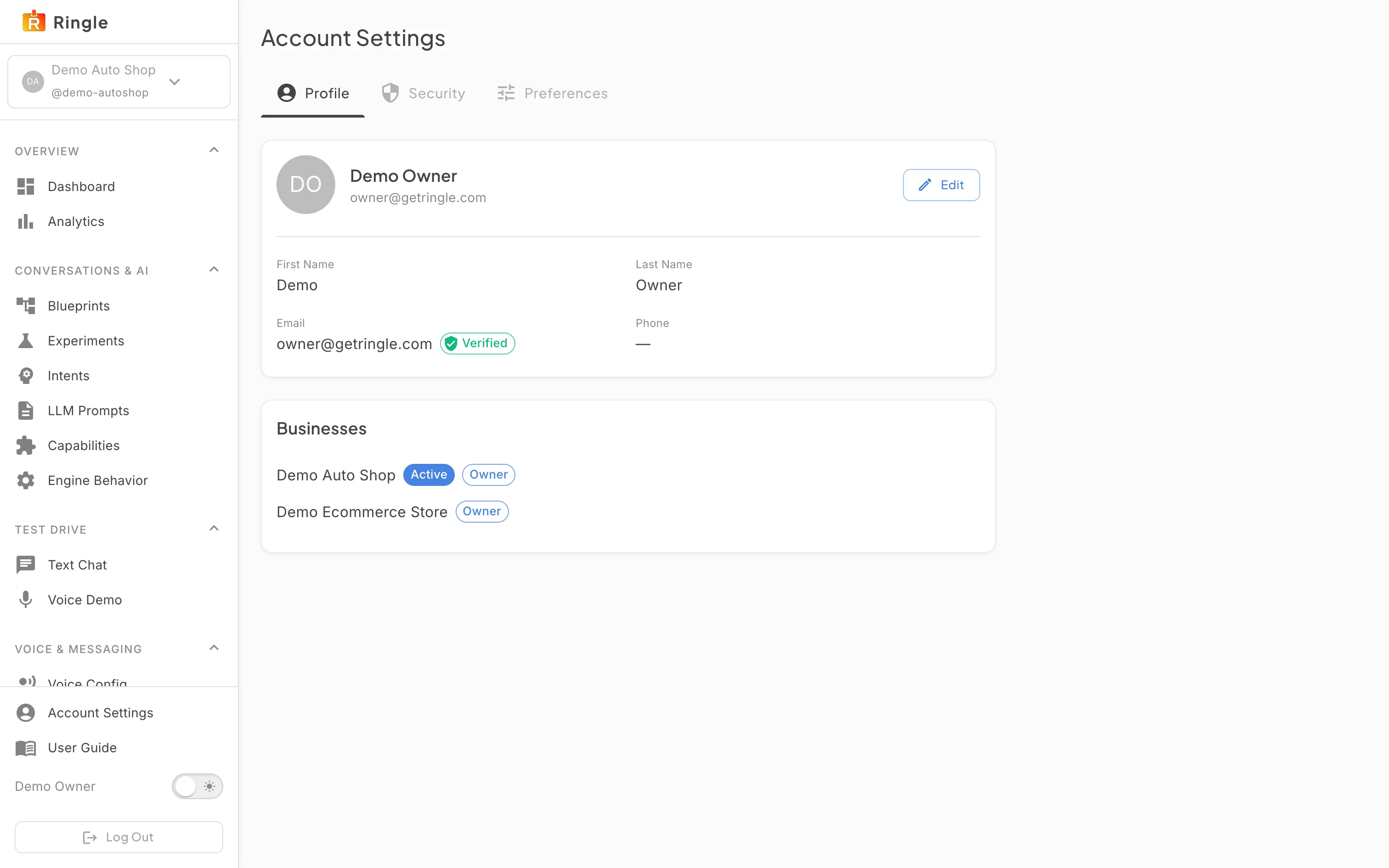
Action: Click Account Settings at the bottom of the sidebar, or go to https://portal.merrows.ai/account/profile.
What you should see: Account Settings opens on the Profile tab. The card shows your initials, your name and email address, an Edit button, and your first name, last name, email and verified phone. A Businesses list names every business you belong to and the role you hold in each, with Active marking the one the portal is showing.
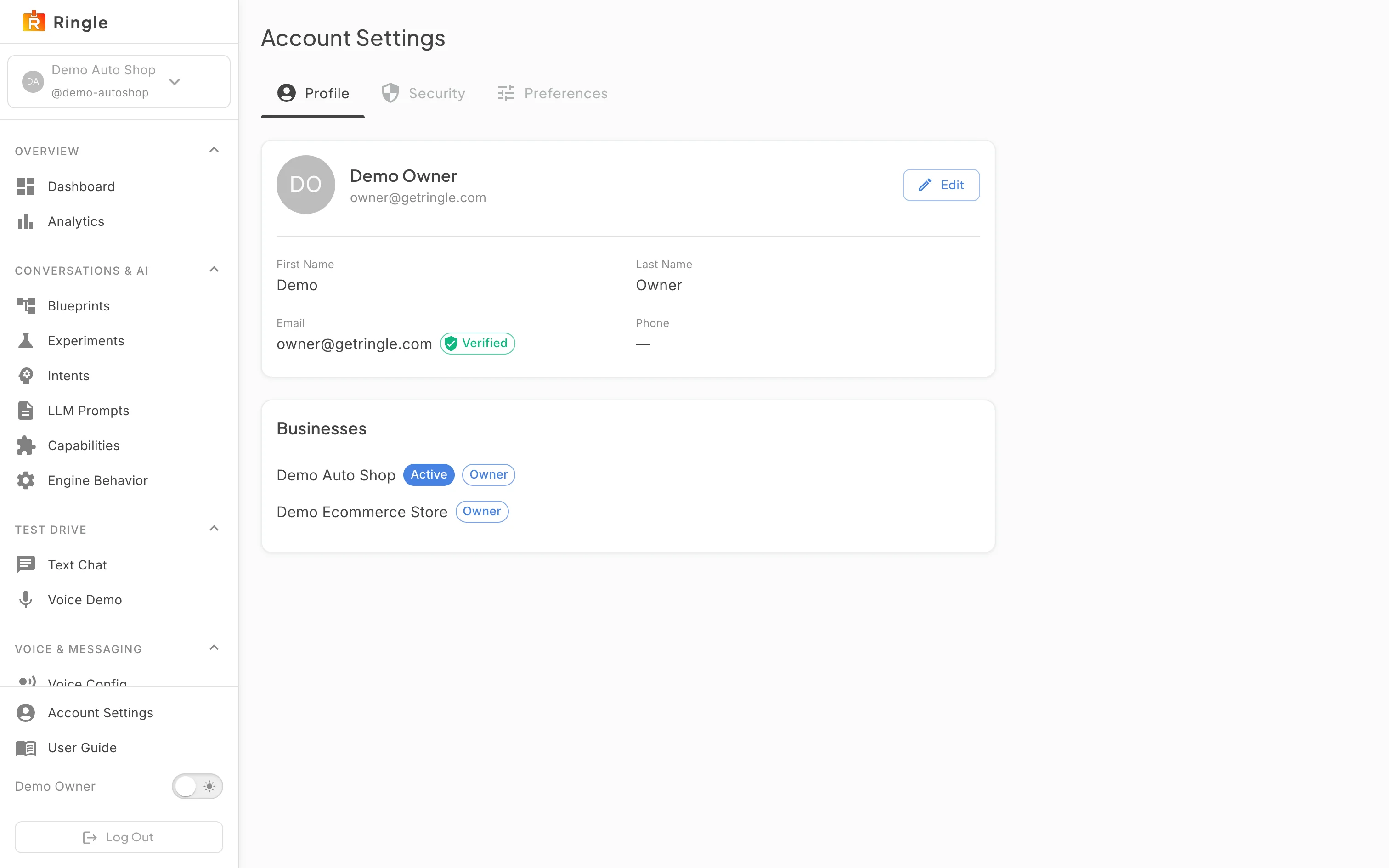
Action: Click Edit to change your first or last name.
What you should see: The name, email and phone fields become editable, with Save and Cancel buttons. A changed email address or phone number is verified again with a code before the portal uses it for sign-in or notifications; until then the old value stays in force.
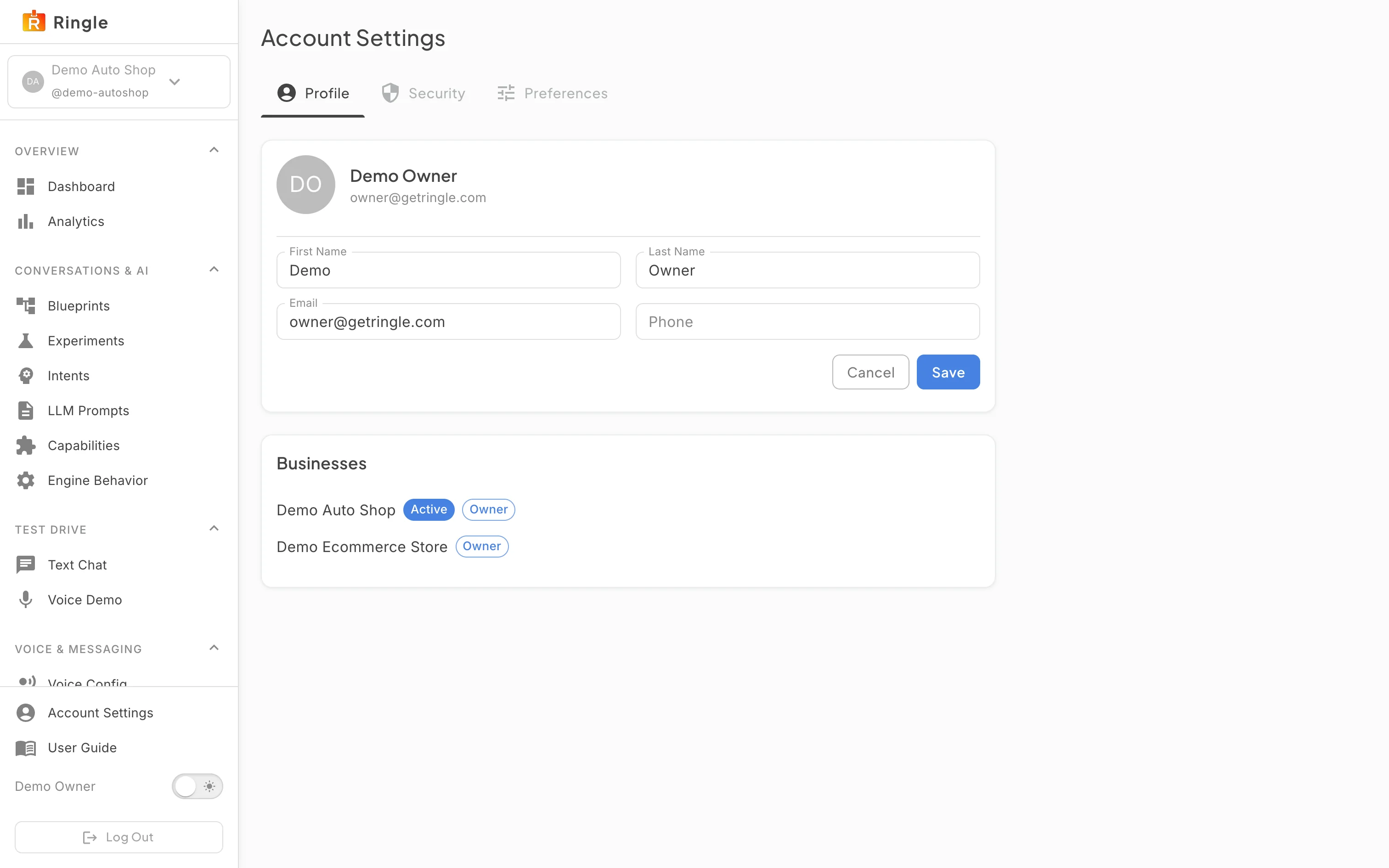
Action: Click Cancel, then open the Preferences tab.
What you should see: The Preferences tab has four cards. Language picks the portal language, with System following your browser. Theme switches between Light, Dark and the system setting. Navigation has an Advanced mode checkbox: off, the sidebar shows the essentials and a “Show all settings” entry; on, every setting is listed. Analytics preferences lets you turn optional analytics on or off for every Merrows site.
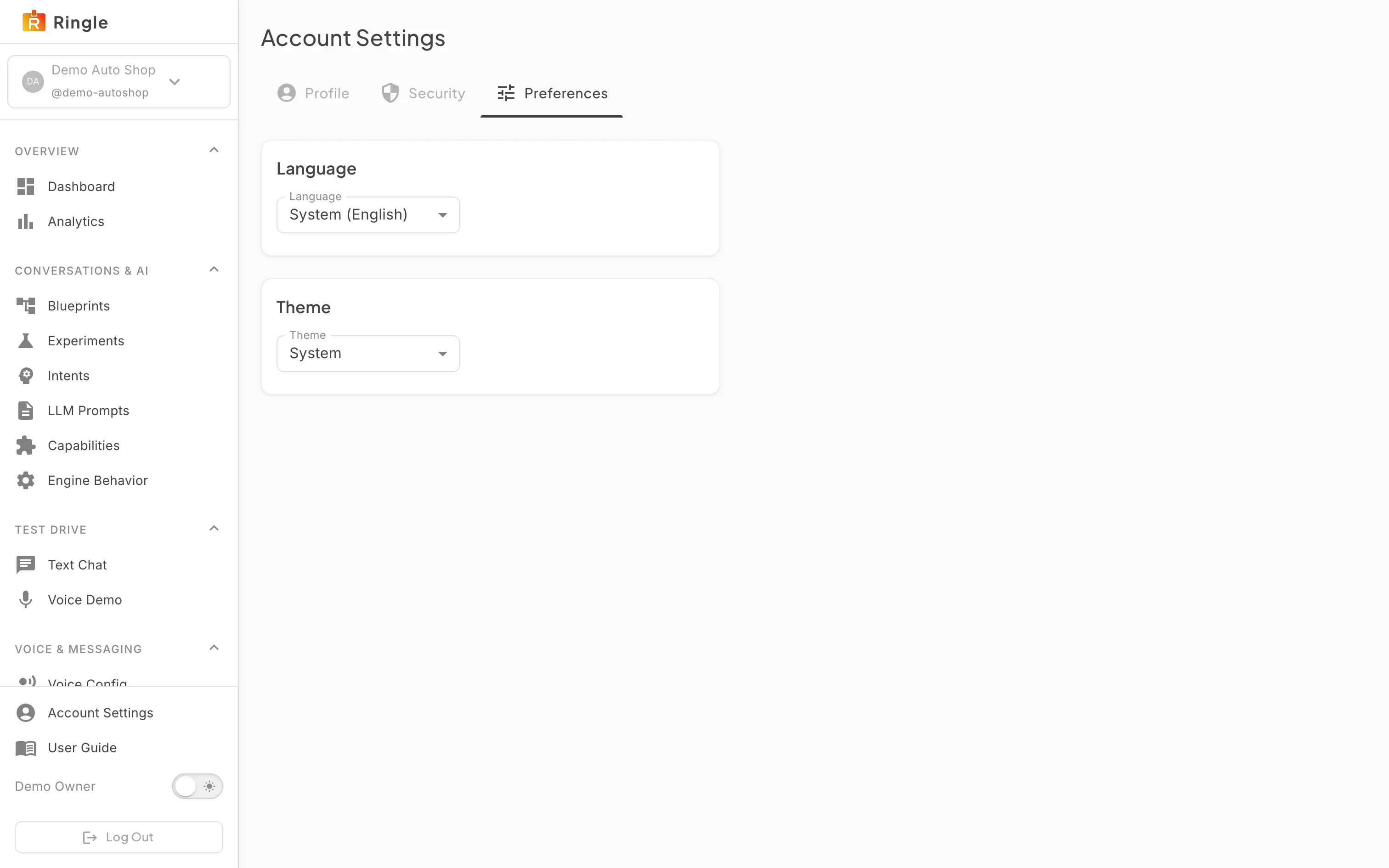
Action: Open the Theme selector and pick a theme.
What you should see: The list offers Light, Dark and System. The choice applies at once across the portal and the marketing site, and the dark mode switch at the bottom of the sidebar flips the same setting.

