Give your AI employee the answers you already publish: crawl your website for FAQs, add answers by hand or from a file, and approve what it may use.
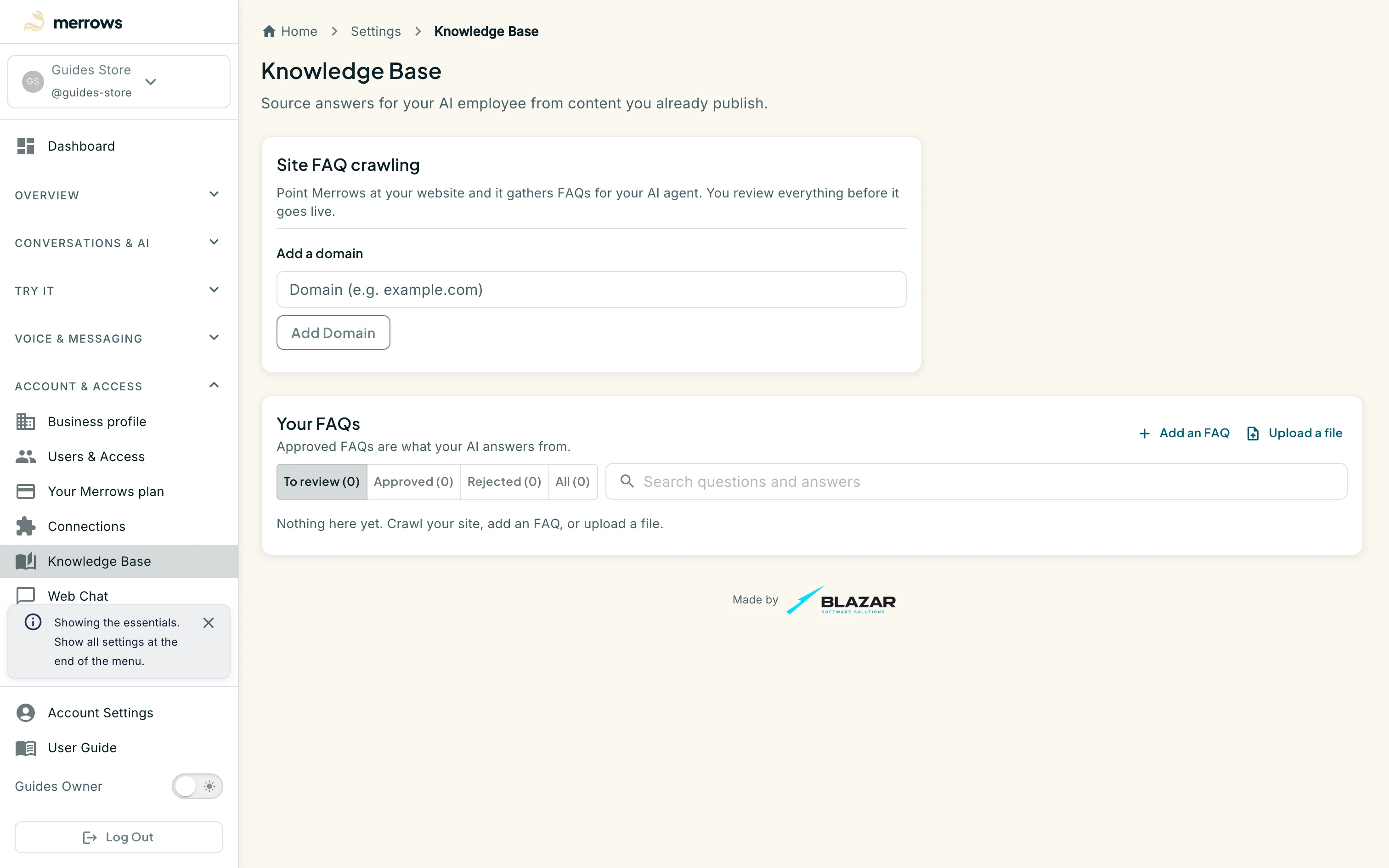
Action: Open Knowledge Base under Account & Access, or go to https://portal.merrows.ai/settings/knowledge-base.
What you should see: Two sections. Site FAQ crawling has an Add a domain field. Your FAQs has Add an FAQ and Upload a file buttons, the To review, Approved, Rejected and All filters, and a search box. Approved FAQs are what the assistant answers from.
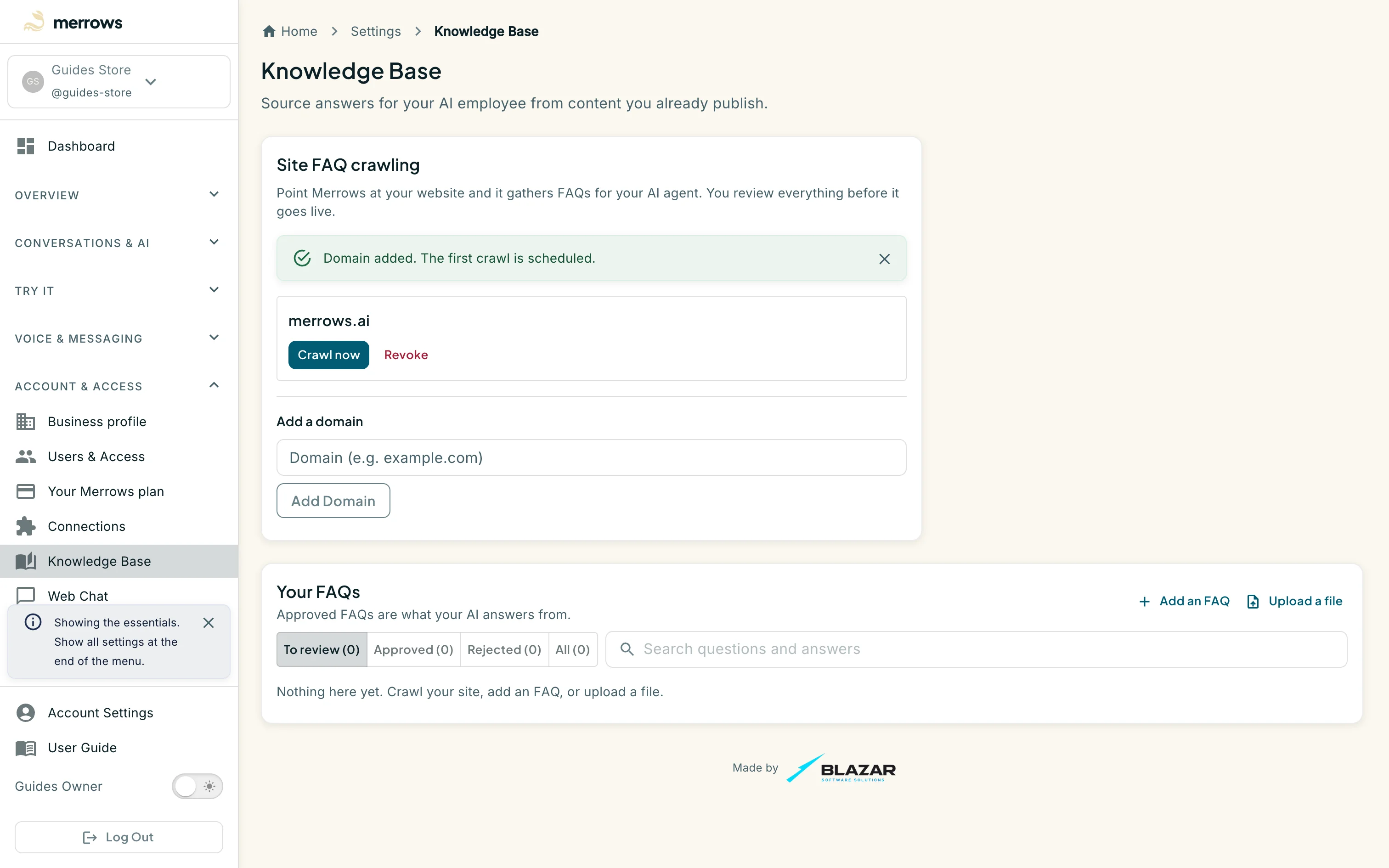
Action: Type your domain and click Add Domain.
What you should see: The domain appears with a Crawl button and a status. Starting a crawl reads the public pages, pulls out question and answer pairs, and shows progress while it runs; it stops on its own at the page limit. Registering the domain counts as your consent to crawl it.
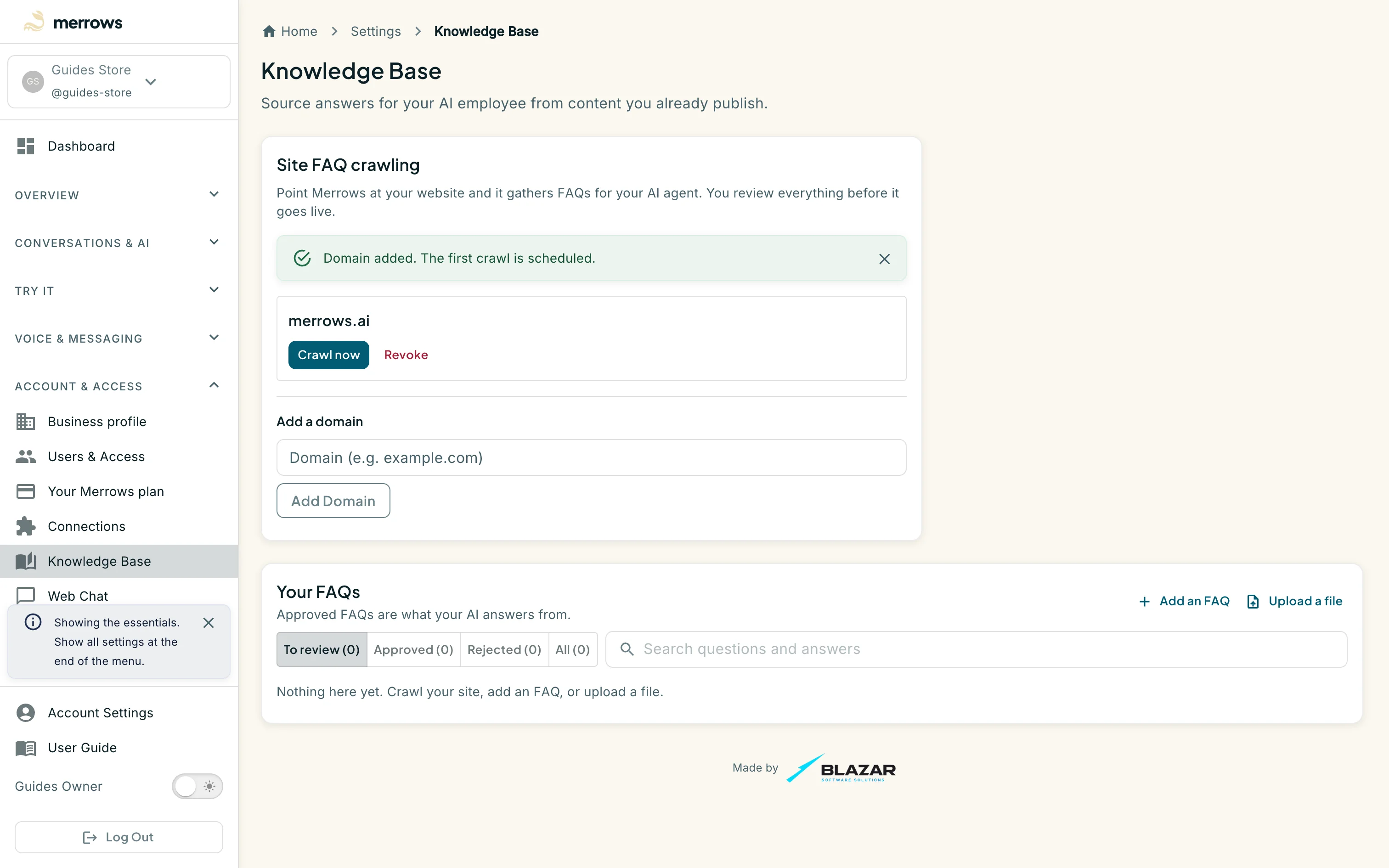
Action: Open the To review filter once the crawl has found entries.
What you should see: Each entry shows the question, the answer and the page it came from, with Approve, Edit and Reject. Nothing is used until it is approved. Select several to approve or reject them in one go.
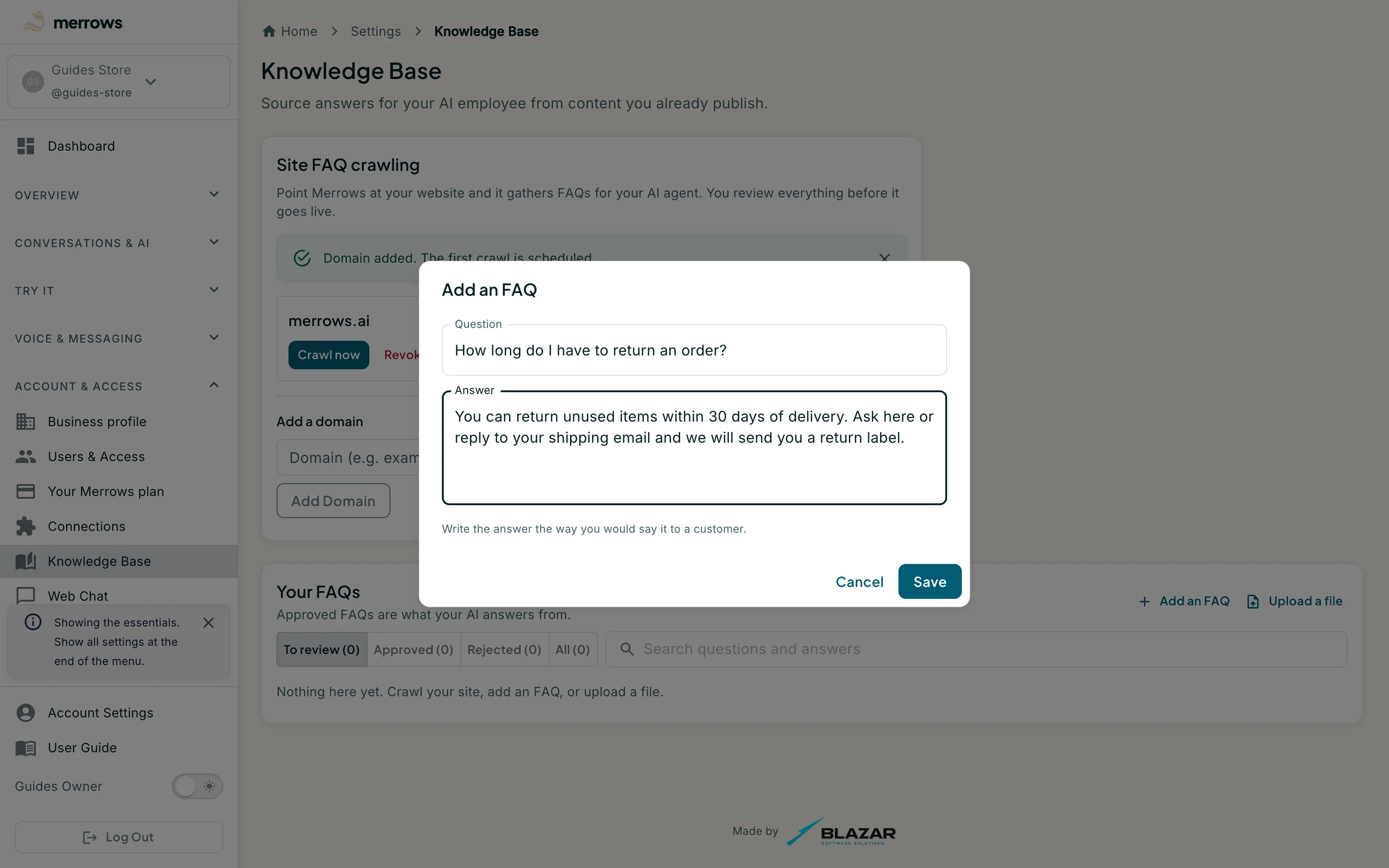
Action: Click Add an FAQ.
What you should see: A form takes a question and an answer, in any of your languages. A typed entry is approved as soon as you save it.
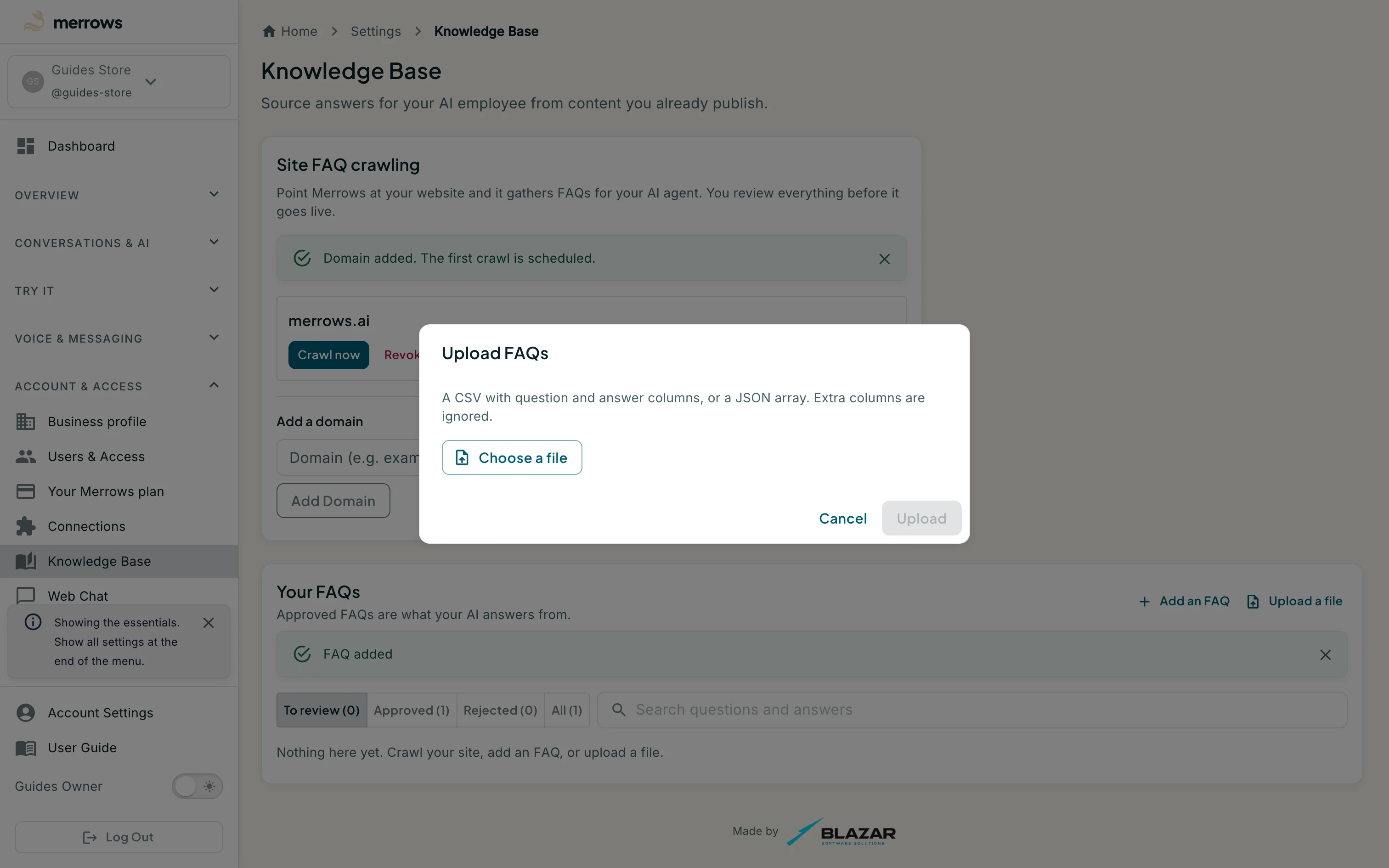
Action: Click Upload a file.
What you should see: The dialog accepts a CSV or JSON file with question and answer columns, previews the rows, and imports them into To review.
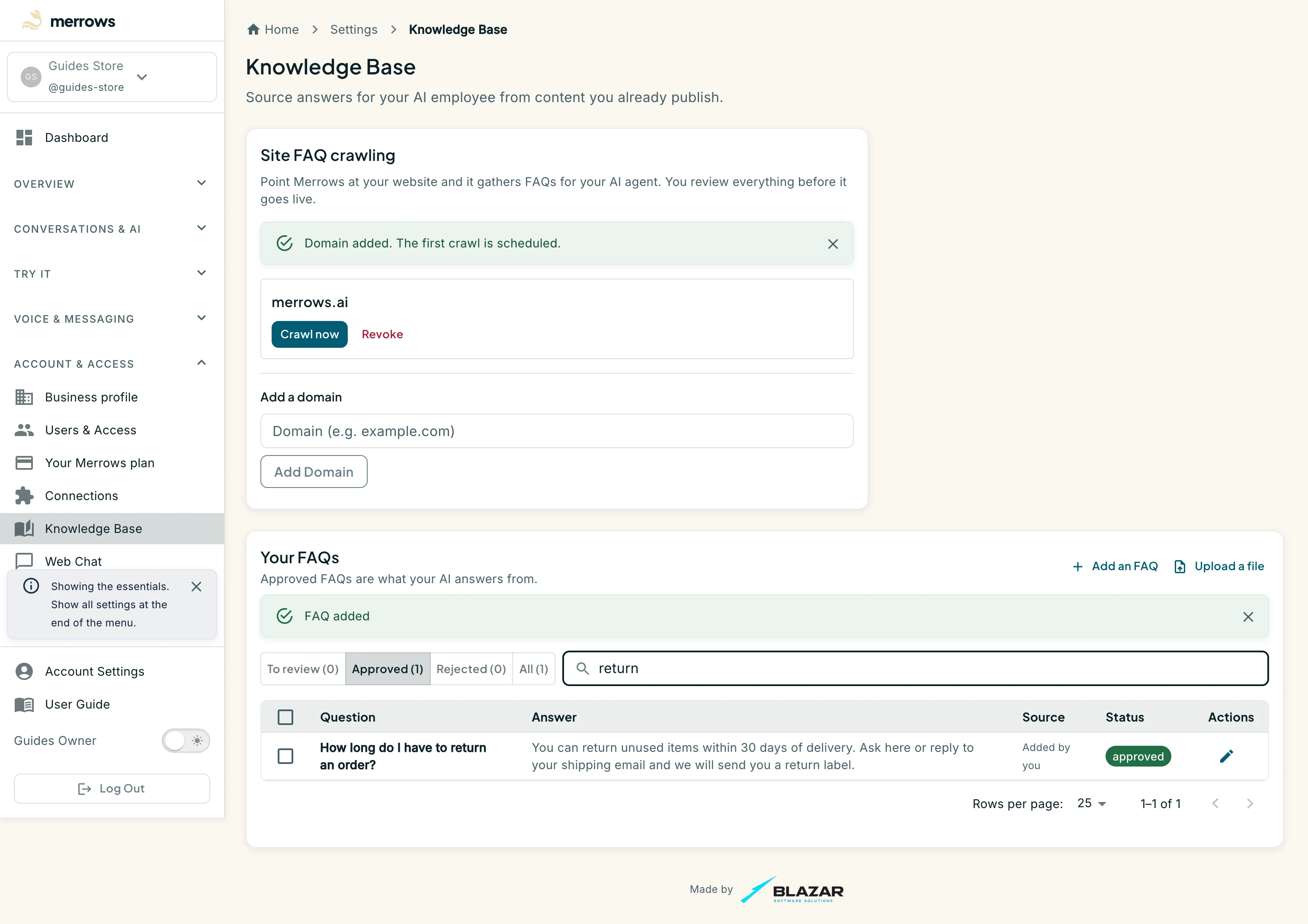
Action: Open the Approved filter and search the library.
What you should see: The search matches questions and answers. Each entry shows its question, answer, source (Added by you, or the page it was crawled from) and status, with Edit to change the wording. Tick the boxes to approve or reject several entries at once; a rejected entry stays under the Rejected filter and can be approved again later.

